
1. Вступ
This manual provides essential information for the proper installation, operation, and maintenance of your SUNMI T2s Lite 15.6-inch Android Point of Sale (POS) system. Please read this manual thoroughly before using the device to ensure optimal performance and safety. Keep this manual for future reference.
2. Інформація про безпеку
- Не піддавайте пристрій дії екстремальних температур, вологості або прямих сонячних променів.
- Уникайте падіння та сильних ударів пристрою.
- Використовуйте лише адаптер живлення, що постачається з пристроєм. Використання неправильного адаптера може призвести до пошкодження або пожежі.
- Не намагайтеся розбирати або ремонтувати пристрій самостійно. Зверніться до кваліфікованого сервісного персоналу.
- Тримайте пристрій подалі від води та інших рідин.
- Забезпечте належну вентиляцію навколо пристрою під час роботи.
3. Вміст упаковки
Перевірте наявність усіх елементів в упаковці:
- SUNMI T2s Lite POS Terminal
- Адаптер живлення
- Кабель живлення
- Короткий посібник (якщо застосовується)
- Гарантійний талон (за наявності)
Якщо будь-які товари відсутні або пошкоджені, негайно зверніться до продавця.
4. Продукт закінчивсяview
The SUNMI T2s Lite is an integrated Android-based POS system designed for retail environments. It features a 15.6-inch capacitive touchscreen display and various connectivity options.
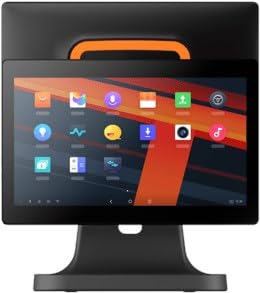
малюнок 4.1: Фронт view of the SUNMI T2s Lite POS system. This image displays the main 15.6-inch touchscreen, which is the primary interface for operating the device. The design is compact and suitable for various retail settings.
4.1 Ключові компоненти
- 15.6-дюймовий сенсорний дисплей: High-resolution (1920x1080) capacitive touch interface.
- Кнопка живлення: Located typically on the side or rear for turning the device on/off.
- Порти USB: For connecting peripherals such as barcode scanners, external printers, or cash drawers.
- Порт Ethernet: Для підключення до дротової мережі.
- Споживана потужність: Для підключення адаптера живлення.
- Фронтальна камера: For specific applications requiring image capture.
5. Налаштування
5.1 Розпакування та розміщення
- Обережно вийміть пристрій та всі аксесуари з упаковки.
- Place the POS terminal on a stable, flat surface in a well-ventilated area.
- Ensure there is sufficient space around the device for cable connections and heat dissipation.
5.2 Підключення живлення
- Підключіть кабель живлення до адаптера живлення.
- Plug the power adapter into the power input port on the back of the SUNMI T2s Lite.
- Підключіть інший кінець кабелю живлення до заземленої електричної розетки.
5.3 Initial Boot and Network Connection
- Press and hold the power button until the screen lights up. The device will boot into the Android operating system.
- Дотримуйтесь підказок на екрані для початкового налаштування, зокрема вибору мови та часового поясу.
- Wi-Fi підключення: Перейти до Налаштування > Мережа та інтернет > Wi-Fi, виберіть свою мережу та введіть пароль.
- Підключення Ethernet: Connect an Ethernet cable from your router/switch to the Ethernet port on the device. The device should automatically connect to the wired network.
5.4 Підключення периферійних пристроїв
- USB пристрої: Plug USB peripherals (e.g., barcode scanner, external printer, cash drawer) into the available USB ports. The system will typically recognize them automatically.
- Пристрої Bluetooth: Перейти до Налаштування > Підключені пристрої > Bluetooth, enable Bluetooth, and pair with your desired device.
6. Інструкція з експлуатації
6.1 Увімкнення/вимкнення
- Щоб увімкнути: Натисніть і утримуйте кнопку живлення, доки екран не засвітиться.
- Щоб вимкнути: Press and hold the power button until a power menu appears. Select "Power off" and confirm. Alternatively, a short press of the power button will put the device to sleep.
6.2 Touchscreen Usage
- Торкніться: To select an item or activate a button.
- Натисніть і утримуйте: To open context menus or drag items.
- Проведіть пальцем: To scroll through lists or navigate between screens.
- Масштабування за допомогою розведення пальців: Щоб збільшити або зменшити масштаб зображень або web сторінки.
6.3 Навігація в ОС Android
- Головний екран: The central hub for your applications and widgets.
- Ящик програм: Доступ до всіх встановлених програм.
- Панель сповіщень: Проведіть пальцем вниз від верхньої частини екрана до view сповіщення та швидкі налаштування.
- Налаштування: Configure Wi-Fi, Bluetooth, display, sound, and other system options.
6.4 Basic POS Functions
The specific POS functions will depend on the software application installed on your device. Refer to the documentation provided with your POS software for detailed instructions. Generally, you will:
- Launch your POS application from the home screen or app drawer.
- Увійдіть, використовуючи свої облікові дані користувача.
- Process transactions using the touchscreen and connected peripherals (e.g., scanning items, accepting payments).
- Print receipts if an external or integrated printer is configured.
7. Технічне обслуговування
7.1 Очищення пристрою
- Завжди вимикайте та від’єднуйте пристрій від мережі перед чищенням.
- Злегка протріть м’якою тканиною без ворсу dampened with water or a mild, non-abrasive cleaner to wipe the screen and exterior surfaces.
- Не розпилюйте рідини безпосередньо на пристрій.
- Уникайте використання агресивних хімікатів, розчинників або абразивних матеріалів.
7.2 Оновлення програмного забезпечення
Regularly check for and install system and application updates to ensure optimal performance, security, and access to new features. You can usually find system updates in Налаштування > Система > Оновлення системи.
7.3 Зберігання
When not in use for extended periods, store the device in a cool, dry place, away from direct sunlight and extreme temperatures. If storing for a long time, ensure the battery is charged to about 50% to prolong its lifespan.
8. Вирішення проблем
У цьому розділі розглядаються поширені проблеми, з якими ви можете зіткнутися. У разі складніших проблем зверніться до служби підтримки клієнтів.
- Пристрій не вмикається:
- Переконайтеся, що адаптер живлення надійно підключений до пристрою та справної розетки.
- Перевірте справність розетки.
- Try holding the power button for 10-15 seconds to force a restart.
- Touchscreen is unresponsive:
- Перезапустіть пристрій.
- Переконайтеся, що екран чистий і на ньому немає сміття або рідин.
- Network connection issues (Wi-Fi/Ethernet):
- Check if the Wi-Fi is enabled and you are connected to the correct network with the right password.
- For Ethernet, ensure the cable is properly connected and your router/switch is working.
- Перезавантажте маршрутизатор/модем.
- Peripherals (e.g., printer, scanner) not working:
- Ensure the peripheral is properly connected to the correct port.
- Check if the peripheral has its own power supply and is turned on.
- Verify that the necessary drivers or software for the peripheral are installed and configured within your POS application.
9. Технічні характеристики
The following are key technical specifications for the SUNMI T2s Lite:
| Особливість | Специфікація |
|---|---|
| Бренд | САНМІ |
| Виробник | Сунмі |
| Власна роздільна здатність дисплея | 1920x1080 пікселів |
| Технологія підключення | Bluetooth, Ethernet, USB, WLAN |
| Опис камери | Фронтальний |
| ASIN | B0B53FLFT8 |
10. Гарантія та підтримка
The SUNMI T2s Lite POS system comes with a standard manufacturer's warranty. Please refer to the warranty card included in your package for specific terms and conditions, including warranty period and coverage details.
For technical support, service, or warranty claims, please contact your authorized SUNMI dealer or the customer support channel specified in your purchase documentation. Ensure you have your product model number (T2s Lite) and ASIN (B0B53FLFT8) ready when contacting support.