
1. Вступ
Welcome to the HyperX Armada 25 Gaming Monitor user manual. This document provides essential information for setting up, operating, maintaining, and troubleshooting your new monitor. The HyperX Armada 25 is designed for competitive gaming, featuring a 24.5-inch Full HD (1920x1080) IPS panel, a 240Hz refresh rate, and a 1ms response time, ensuring smooth and responsive visuals. It also includes NVIDIA G-SYNC compatibility to eliminate screen tearing and minimize input latency. A desk mount is included for convenient setup and to maximize desk space.
Ключові характеристики:
- Пакет "все в одному": Includes an ergonomic arm and desk mount for easy setup and space-saving.
- Висока частота оновлення та час відгуку: 240Hz refresh rate and 1ms response time for ultra-smooth gaming.
- Vibrant IPS Panel: 24.5-inch Full HD (1920x1080) IPS panel delivers stunning visuals with accurate colors and wide viewкути.
- Сумісність з NVIDIA G-SYNC: Eliminates screen tearing and reduces stuttering for a fluid gaming experience.

Офіційне відео продукту:
2. Налаштування
This section guides you through the initial setup of your HyperX Armada 25 Gaming Monitor, including assembly and connection to your computer.
2.1. Assembling the Desk Mount
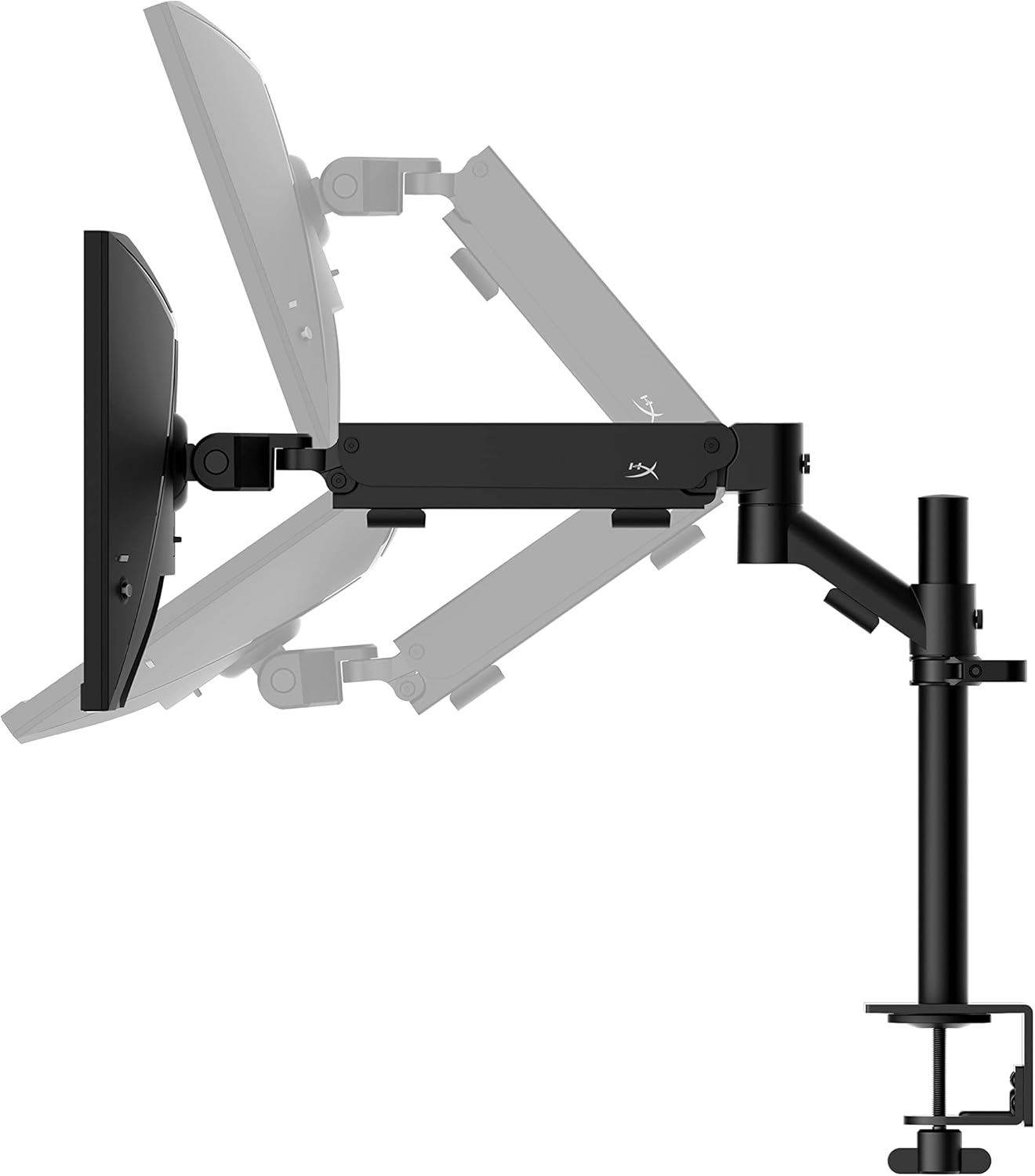
The HyperX Armada 25 comes with an integrated ergonomic desk mount. Follow the instructions provided in the separate quick start guide for detailed assembly steps. The monitor head easily snaps into the arm, allowing for quick and secure installation.

2.2. Підключення монітора
Connect the monitor to your computer using the appropriate cables. The HyperX Armada 25 supports both HDMI and DisplayPort connections.
- Підключіть один кінець кабелю HDMI або DisplayPort до відповідного порту на відеокарті вашого комп’ютера.
- Connect the other end of the cable to an available HDMI 2.0 or DisplayPort 1.4 port on the back of your monitor.
- Підключіть шнур живлення до монітора, а потім до розетки.
- Натисніть кнопку живлення на моніторі, щоб увімкнути його.

3. Експлуатація монітора
This section covers basic operation and navigation of the monitor's On-Screen Display (OSD) menu.
3.1. Навігація по екранному меню (OSD).
The OSD menu is controlled using a joystick located on the back of the monitor. This joystick allows you to power on/off the monitor and navigate through various settings.
- Натисніть джойстик: To open the OSD menu or confirm a selection.
- Переміщення джойстика вгору/вниз/вліво/вправо: To navigate through menu options and adjust settings.
- Hold the joystick: To power off the monitor.

3.2. Регулювання положення монітора
The ergonomic desk mount allows for flexible positioning of your monitor. You can adjust the height, tilt, swivel, and pivot to find your optimal viewкут.

4. Технічне обслуговування
Proper maintenance ensures the longevity and optimal performance of your HyperX Armada 25 Gaming Monitor.
- Очищення екрану: Злегка протріть м’якою тканиною без ворсу dampened with water or a specialized screen cleaner. Avoid using harsh chemicals, abrasive materials, or direct spraying onto the screen.
- Очищення Casing: Протріть монітор casing м’якою сухою тканиною.
- Вентиляція: Переконайтеся, що вентиляційні отвори монітора не заблоковані, щоб запобігти перегріву.
- Вимкнути, коли не використовується: Вимикайте монітор, коли він не використовується протягом тривалого часу, щоб заощадити енергію та продовжити термін його служби.
5. Вирішення проблем
If you encounter issues with your monitor, refer to the following common troubleshooting steps.
- Немає живлення:
- Перевірте, чи кабель живлення надійно під’єднано до монітора та розетки.
- Переконайтеся, що розетка працює належним чином.
- Натисніть кнопку живлення на моніторі.
- Немає сигналу:
- Verify that the HDMI or DisplayPort cable is securely connected to both the monitor and your computer.
- Переконайтеся, що ваш комп’ютер увімкнено та не перебуває в режимі сну.
- Виберіть правильне джерело вхідного сигналу за допомогою екранного меню.
- Flickering Screen or Image Issues:
- Check the display cable for damage or loose connections.
- Переконайтеся, що драйвери вашої відеокарти оновлені.
- Налаштуйте частоту оновлення в налаштуваннях дисплея вашого комп'ютера.
- If G-SYNC is enabled, try disabling it temporarily to see if the issue persists.
- Buttons Not Responding (OSD Joystick):
- Переконайтеся, що монітор увімкнено.
- Try restarting the monitor by unplugging and replugging the power cable.
- Clean around the joystick to ensure no debris is obstructing its movement.
6. Технічні характеристики
Detailed technical specifications for the HyperX Armada 25 Gaming Monitor.
| Особливість | Деталь |
|---|---|
| Розміри продукту | 21.94 x 25.79 x 31.12 дюйма; 16.98 фунтів |
| Номер моделі товару | HyperX Armada 25 |
| Дата першої доступності | 24 серпня 2022 р |
| Виробник | HP Inc. |
| ASIN | B0B2C1G356 |
| Розмір дисплея | Діагональ 24.5 дюймів |
| роздільна здатність | Full HD (1920x1080) |
| Частота оновлення | 240 Гц |
| Тип панелі | Панель IPS |
| Час відгуку | 1 мс |
| Технологія синхронізації | Сумісний з NVIDIA® G-SYNC® |
| Included Mount | Desk Mount Included |
| Підключення | HDMI and Display Port |
7. Гарантія та підтримка
For warranty information, technical support, or to access additional resources, please visit the official HyperX webсайту або зв’яжіться з їхньою службою обслуговування клієнтів.
- Official HyperX Webсайт: www.hyperx.com
- Сторінка підтримки продукту: Refer to the support section on the HyperX webсайт для вашої конкретної моделі.