
1. Вступ
This manual provides detailed instructions for the safe and efficient operation of your BYINTEK K25 Mini Portable LCD LED Projector. Please read this manual thoroughly before using the projector and retain it for future reference. The BYINTEK K25 projector features native 1920x1080 resolution, 300 ANSI lumens brightness, and supports a projection screen size of up to 300 inches, offering a versatile viewing experience for home entertainment.

Image 1.1: The BYINTEK K25 Mini Portable LCD LED Projector, showcasinйого компактний дизайн.
2. Налаштування
2.1 Розпакування та компоненти
Обережно вийміть усі компоненти з упаковки. Переконайтеся, що є такі предмети:
- BYINTEK K25 Projector
- Пульт дистанційного керування
- Кабель живлення
- Посібник користувача
2.2 Розміщення
Position the projector on a stable, flat surface such as a tabletop. Ensure adequate ventilation around the unit. The projector can display images from 46 inches to 300 inches diagonally, with projection distances varying from 5.15 feet to 30.18 feet. Adjust the distance to achieve your desired screen size.

Image 2.1: Diagram illustrating recommended throw distances for various screen sizes.
2.3 Підключення живлення
Підключіть кабель живлення, що постачається в комплекті, до вхідного порту живлення проектора, а потім до відповідної електричної розетки.
2.4 Початкове ввімкнення
Натисніть кнопку живлення на проекторі або пульті дистанційного керування, щоб увімкнути пристрій. Проектор розпочне послідовність запуску.
2.5 Налаштування фокусу
The BYINTEK K25 features electronic focus. Use the remote control to adjust the focus until the projected image is clear and sharp.
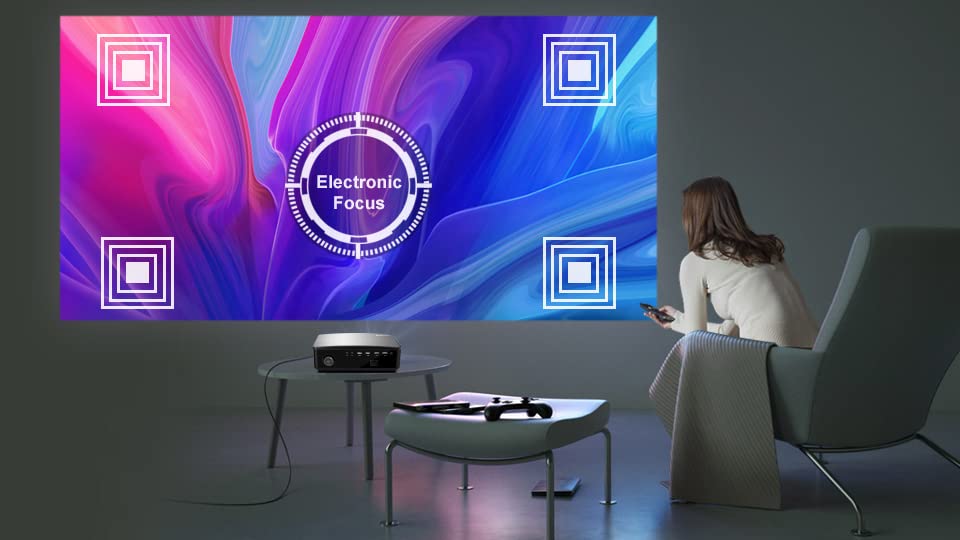
Image 2.2: Visual representation of the electronic focus adjustment feature.
2.6 Корекція трапецеїдальних спотворень
Якщо проектоване зображення має трапецієподібну форму, скористайтеся electronic keystone correction feature. The projector supports ±50° vertical and corner keystone correction. Access this setting via the projector's menu or dedicated buttons on the remote control to square the image.
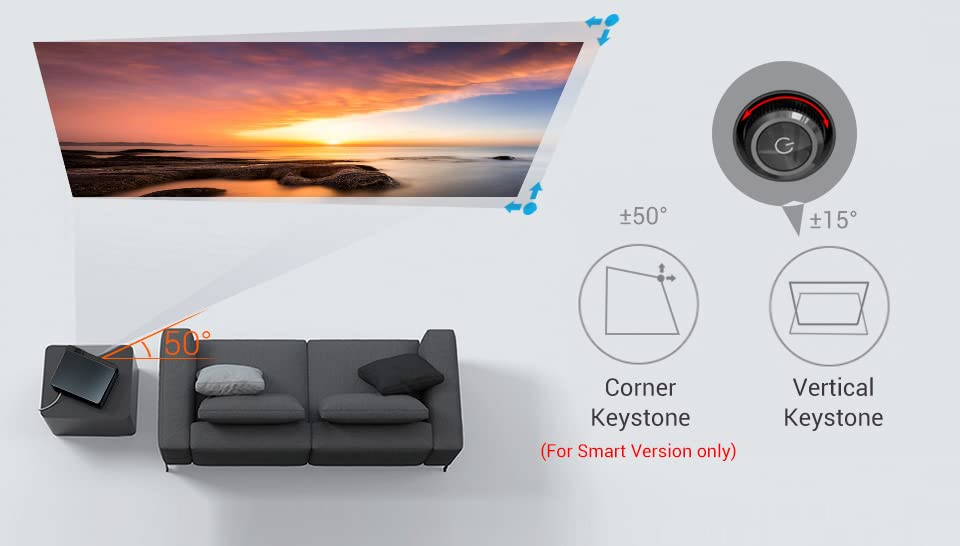
Image 2.3: Diagram illustrating vertical and corner keystone correction capabilities.
3. Інструкція з експлуатації
3.1 Підключення пристроїв
The BYINTEK K25 projector offers multiple connectivity options:
- HDMI: Connect laptops, gaming consoles (X-BOX, PS4), media players, or TV sticks using HDMI cables.
- USB: Insert USB sticks for direct media playback.
- AV: Використовуйте AV-порт для старіших пристроїв.
- Аудіо вихід: Connect external speakers or headphones via the 3.5mm audio-out port.

Зображення 3.1: Ззаду view of the projector showing various input and output ports.
3.2 Вибір джерела вхідного сигналу
After connecting a device, press the 'Input Source' button on the remote control or the projector to select the corresponding input (e.g., HDMI1, USB, AV).
3.3 Wireless Connectivity (Smart Version Only)
The Smart Version of the K25 supports Дисплей Wi-Fi, allowing multi-screen mirroring, Miracast, and Airplay for smartphones and tablets. Navigate to the 'Wi-Fi Display' or 'Screen Mirroring' option in the projector's menu and follow the on-screen instructions to connect your mobile device.
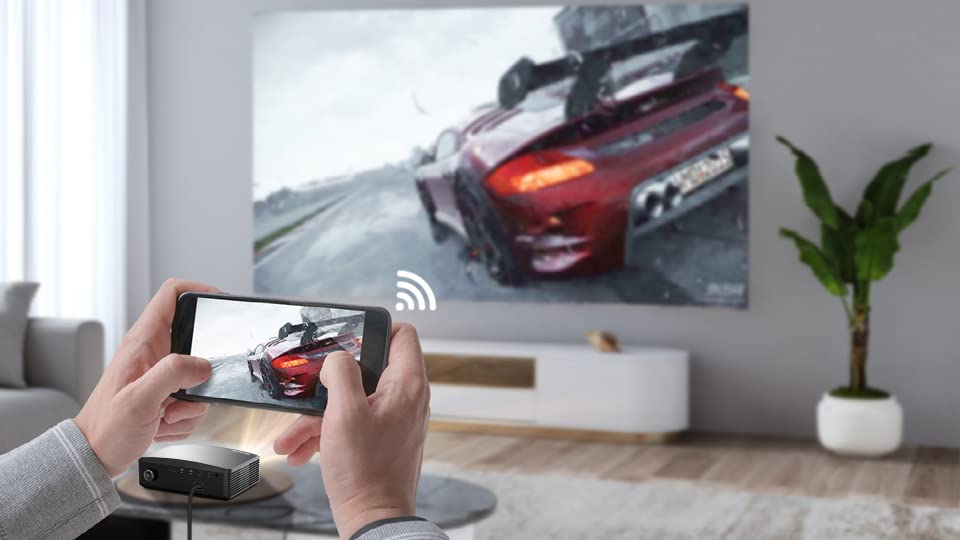
Image 3.2: A smartphone wirelessly mirroring its screen content to the projector.
3.4 Electronic Zoom
Adjust the image size without moving the projector using the electronic zoom function. This feature allows you to zoom the image from 50% to 100% using the remote control.

Image 3.3: Illustration of the electronic zoom function, adjusting image size from 50% to 100%.
3.5 Навігація по меню
Use the arrow keys and 'OK' button on the remote control to navigate through the projector's on-screen menu. Adjust settings such as picture mode, sound, and system preferences as needed.
3.6 Basic vs. Smart Version Interface
The BYINTEK K25 is available in two versions: Basic and Smart. The Basic version features a multimedia system for direct playback, while the Smart version runs on Android OS, offering access to an App Store and pre-installed applications like Netflix, Prime Video, and YouTube.
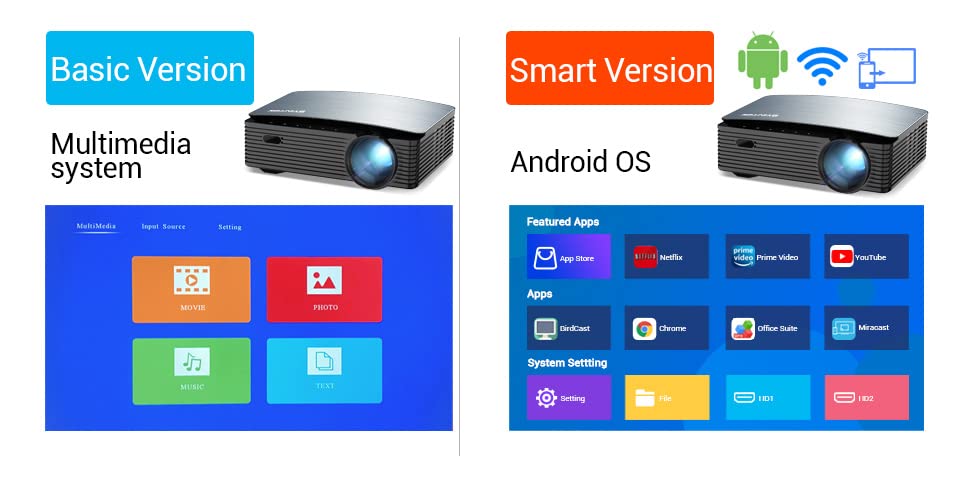
Image 3.4: Comparison of the user interfaces for the Basic (Multimedia system) and Smart (Android OS) versions of the projector.
4. Технічне обслуговування
4.1 Очищення об'єктива
To maintain optimal image quality, regularly clean the projector lens. Use a soft, lint-free cloth specifically designed for optical lenses. Avoid using abrasive cleaners or excessive force.
4.2 Вентиляція
Ensure that the projector's ventilation openings are not blocked. Proper airflow is crucial to prevent overheating and ensure the longevity of the device. Do not place the projector on soft surfaces that may obstruct vents.
4.3 Зберігання
Якщо проектор не використовується протягом тривалого часу, зберігайте його в прохолодному, сухому місці, подалі від прямих сонячних променів та екстремальних температур. Використовуйте оригінальну упаковку або захисний футляр, щоб запобігти накопиченню пилу та фізичним пошкодженням.
Світлодіод lamp has a long operating life of 30,000 hours, minimizing the need for frequent lamp заміна.

Image 4.1: Information on the projector's LED lamp life, rated for 30,000 hours.
5. Вирішення проблем
If you encounter issues with your BYINTEK K25 projector, refer to the following common problems and solutions:
- Немає живлення:
Ensure the power cable is securely connected to both the projector and the electrical outlet. Check if the power outlet is functional. - Без зображення:
Verify that the correct input source is selected (e.g., HDMI1, USB). Check all cable connections between the projector and the source device. Ensure the source device is powered on and outputting a signal. - Розмите зображення:
Adjust the electronic focus using the remote control until the image is sharp. Ensure the projection surface is flat and the projector is at an appropriate distance. - Distorted Image (Trapezoidal):
Use the electronic keystone correction feature to square the image. Adjust both vertical and corner keystone settings as needed. - Немає звуку:
Check the projector's volume level and ensure it is not muted. If using external speakers, verify their connection and power. Ensure the audio output from the source device is active. - Пульт дистанційного керування не відповідає:
Check and replace the batteries in the remote control. Ensure there are no obstructions between the remote and the projector's IR receiver.
6. Технічні характеристики
Below are the technical specifications for the BYINTEK K25 Projector:
| Особливість | Специфікація |
|---|---|
| Бренд | БІНТЕК |
| Модель | K25 |
| Тип дисплея | ЖК |
| Рідна роздільна здатність | 1920 x 1080 (Full HD) |
| Максимальна роздільна здатність дисплея | 1920 х 1080 |
| Projector Maximum White Brightness | 300 ANSI Lumens |
| Коефіцієнт контрастності | 5000:1 |
| Термін експлуатації джерела світла | 30 000 годин (світлодіодний) |
| Мінімальний розмір зображення | 46 дюймів |
| Максимальний розмір зображення | 200 дюймів |
| Мінімальна відстань кидка | 46 дюймів |
| Максимальна відстань кидка | 300 дюймів |
| Технологія підключення | HDMI, USB |
| Апаратура для підключення до | HDMI, USB |
| Сумісні пристрої | Laptop, Gaming Console, Media Player, Mobile Device |
| Тип контролера | Пульт дистанційного керування |
| Спосіб контролю | Дистанційний |
| Форм-фактор | Портативний |
| Тип монтажу | Настільне кріплення |
| Вага товару | 2.5 кілограма |
| Країна походження | Китай |
7. Гарантія та підтримка
The BYINTEK K25 Mini Portable LCD LED Projector comes with a 1 роки гарантії з дати покупки. Будь ласка, збережіть чек про покупку для гарантійного обслуговування.
Контактна інформація 7.1
For technical support, warranty inquiries, or any other assistance, please contact:
- Виробник: БІНТЕК
- номер телефону: +91 8885241706
- Електронна пошта: care@justshop24x7.com