
1. Вступ
The ACKSKY 3-in-1 SD Card Reader is a versatile device designed for seamless data transfer between various memory cards and devices. It features dual card slots for SD and Micro SD cards, along with three different connector types: USB-C, USB-A, and Micro USB. This manual provides instructions for its proper use and maintenance.
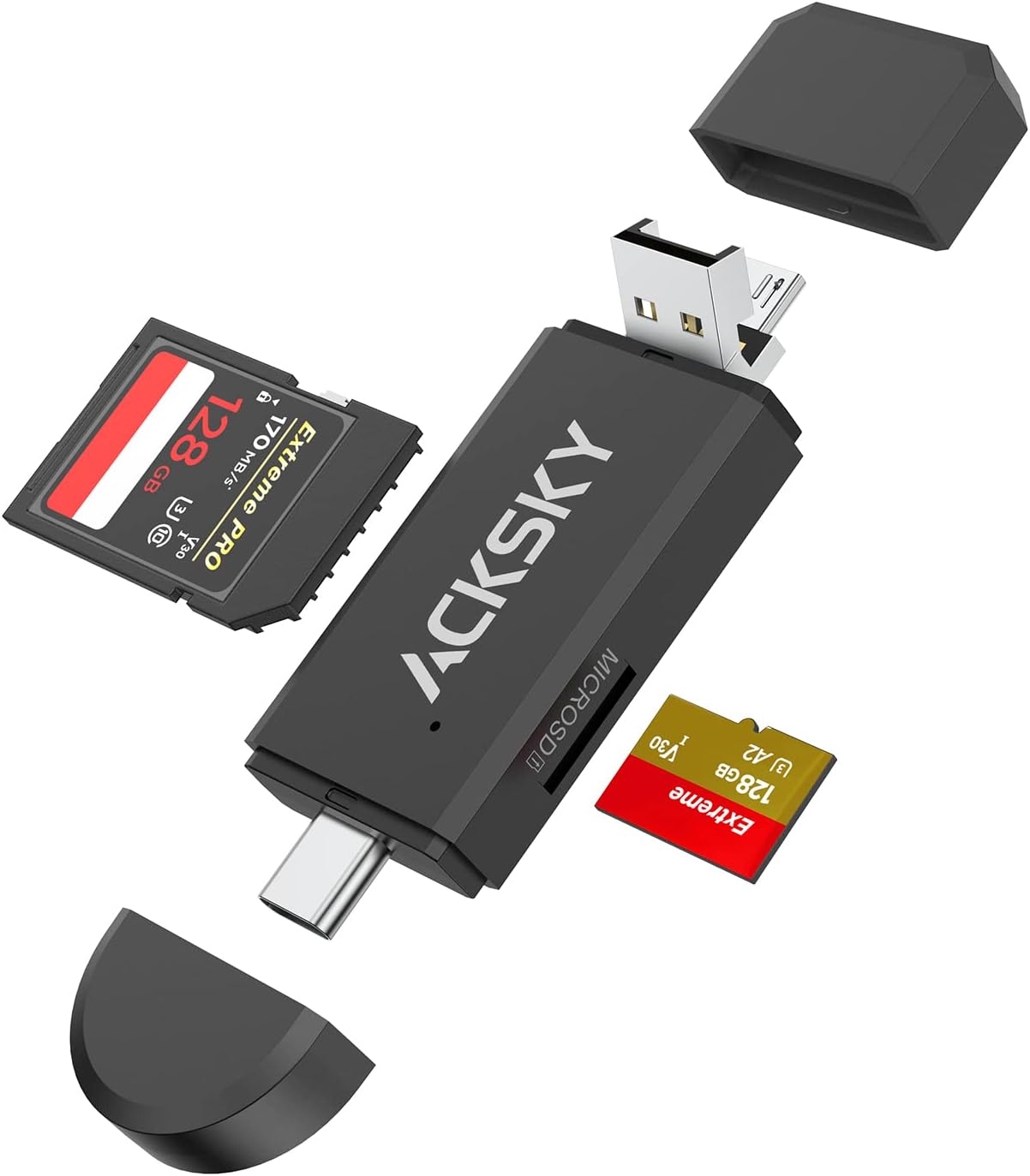
Image 1.1: The ACKSKY 3-in-1 SD Card Reader, showcasing its USB-A and USB-C connectors, along with slots for standard SD and Micro SD cards.
2. Особливості продукту
- Дизайн 3-в-1: Equipped with USB-C, USB-A, and Micro USB plugs for broad compatibility.
- Подвійні слоти для карток: Supports both standard SD cards (SD/SDHC/SDXC/MMC) and Micro SD cards (Micro SDHC/Micro SDXC).
- Функціональність OTG: Enables direct access to memory cards on compatible Android devices.
- Підключи і грай: Для більшості операційних систем драйвери не потрібні.
- Універсальна сумісність: Works with Windows, Mac, Chrome OS, and Linux.
- Портативний дизайн: Compact and durable for on-the-go use.

Image 2.1: Visual representation of the three integrated connector types: USB-A, Micro USB, and USB-C, highlighting the reader's versatility.

Image 2.2: An illustration detailing the dual card slots for SD and Micro SD, along with examples of compatible card formats like SD, SDHC, SDXC, MMC, and Micro SD variants.
3. Налаштування та встановлення
The ACKSKY 3-in-1 SD Card Reader is designed for plug-and-play operation, requiring no additional driver installation for most compatible devices.
3.1 Вставлення карти пам'яті
- Identify the correct slot for your memory card: the larger slot for standard SD cards and the smaller slot for Micro SD cards.
- Gently insert the memory card into the corresponding slot until it clicks into place. Ensure the card is inserted in the correct orientation.
3.2 Підключення до пристрою
- Determine the appropriate port on your host device (computer, laptop, Android phone): USB-A, USB-C, or Micro USB.
- Select the corresponding connector on the ACKSKY card reader. The USB-A connector is typically exposed, while the Micro USB and USB-C connectors may be protected by caps or integrated into a swivel design.
- Plug the chosen connector into your device's port.
- Your device should automatically detect the card reader and the inserted memory card. A new drive letter or notification may appear.

Image 3.1: The card reader connected to a laptop via its USB-A port, with an SD card inserted, ready for data transfer.
4. Інструкція з експлуатації
4.1 Accessing Data
Once connected, the memory card will appear as a removable storage device on your computer or Android phone. You can then:
- Відкрийте диск, щоб view, copy, move, or delete files.
- Transfer photos, videos, documents, and other data between your memory card and your device.
- For Android devices with OTG support, you can directly play media files from the card without transferring them to the phone's internal storage.

Image 4.1: The card reader connected to a smartphone, illustrating its On-The-Go (OTG) functionality for direct media access.
4.2 Safely Removing the Card Reader
To prevent data corruption, always safely eject the memory card or card reader before physically disconnecting it from your device:
- Windows: Click the 'Safely Remove Hardware and Eject Media' icon in the taskbar, then select the card reader.
- Mac: Drag the drive icon of the memory card to the Trash, or right-click (Control-click) the drive icon and select 'Eject'.
- Android: Go to Storage settings and unmount the USB storage device.
5. Сумісність
5.1 Підтримувані операційні системи
- вікна
- Mac OS
- ОС Chrome
- Linux
- Android (with Type-C or Micro USB and OTG support)
5.2 Supported Memory Card Types
- SD-карта
- SDHC (Secure Digital High Capacity)
- SDXC (Secure Digital eXtended Capacity)
- MMC (MultiMediaCard)
- RS-MMC (Reduced Size MultiMediaCard)
- UHS-I (Ultra High Speed - I)
- Карта Micro SD
- Micro SDHC
- Картка Micro SDXC
5.3 Несумісні пристрої
This card reader is не сумісний з:
- iPhone
- iPad
- Kindle devices
- Пожежні таблетки

Image 5.1: A clear visual indicating that the card reader is not compatible with Kindle, Fire Tablets, iPad, and iPhone devices.
6. Технічні характеристики
| Бренд | АКСЬКИЙ |
| Модель | 3-in-1 SD Card Reader |
| Технологія підключення | Micro USB, USB Type A, USB Type C |
| Підтримуваний тип носія | SD Card, SDHC, SDXC, microSD, microSDHC, microSDXC, MMC, RS-MMC, UHS-I |
| Сумісність операційної системи | Android, Linux, Mac OS, Windows, Chrome OS |
| Вага товару | 0.95 унції (приблизно 27 грамів) |
| Розміри продукту (ДxШxВ) | 3 x 1.1 x 0.4 дюймів (приблизно 7.6 x 2.8 x 1.0 см) |
| Колір | чорний |

Image 6.1: A diagram illustrating the compact and portable design of the card reader, including its approximate dimensions.
7. Вирішення проблем
7.1 Зчитувач карток не виявлено
- Перевірити підключення: Ensure the card reader is firmly plugged into the device's port. Try a different port if available.
- Спробуйте інший пристрій: Test the card reader on a different computer or compatible phone to rule out an issue with the host device.
- Перезавантажте пристрій: Sometimes a simple restart of your computer or phone can resolve detection issues.
7.2 Картку пам'яті не виявлено
- Reinsert Card: Remove and reinsert the memory card, ensuring it is seated correctly in its slot.
- Check Card Compatibility: Verify that your memory card type (SD, Micro SD, SDHC, SDXC, etc.) is supported by the reader (refer to Section 5.2).
- Test Card Separately: If possible, test the memory card in another device or card reader to confirm it is not damaged.
- Чисті контакти: Gently clean the metal contacts on the memory card with a soft, dry cloth.
7.3 Повільна швидкість передачі даних
- Швидкість USB-порту: Ensure you are using a USB 2.0 or higher port on your computer for optimal speeds. While the reader is USB 2.0, older or less capable ports may limit performance.
- Швидкість карти: The transfer speed is also limited by the speed class of your memory card.
- File розмір: Перенесення багатьох дрібних fileможе бути повільнішим, ніж передача кількох великих fileоднакового загального розміру.
8. Технічне обслуговування
- Тримати в чистоті: Use a soft, dry cloth to clean the exterior of the card reader. Avoid liquid cleaners.
- Захист роз'ємів: Keep the USB-C and Micro USB connectors protected with their caps when not in use to prevent dust and damage.
- Уникайте екстремальних умов: Do not expose the card reader to extreme temperatures, humidity, or direct sunlight.
- Поводьтеся акуратно: Avoid dropping the device or applying excessive force when inserting/removing cards or connecting to ports.
9. Гарантія та підтримка
For warranty information and technical support, please refer to the product packaging or contact ACKSKY customer service through the retailer where the product was purchased. Keep your purchase receipt as proof of purchase.