
1. Вступ
This manual provides comprehensive instructions for the setup, operation, and maintenance of your Cherry MW 9100 Wireless Rechargeable Mouse. The MW 9100 is a compact, versatile mouse offering dual connectivity options (Bluetooth or 2.4 GHz USB receiver) and a convenient rechargeable battery.
Ключові особливості:
- Compact design with charging functionality.
- Flexible operation: use while charging via USB-C cable.
- Dual connectivity: Bluetooth or 2.4 GHz USB receiver.
- Magnetic storage for the USB receiver, ideal for travel.
- Adjustable DPI settings for varied usage.
2. Вміст упаковки
Перевірте наявність усіх елементів в упаковці:
- Cherry MW 9100 Wireless Rechargeable Mouse
- Зарядний кабель USB-C
- USB-приймач 2.4 ГГц
- Захисний чохол
- Інструкція з експлуатації (цей документ)
3. Налаштування
3.1 Заряджання миші
The Cherry MW 9100 mouse features a built-in rechargeable battery. Before initial use, or when the battery is low, connect the included USB-C cable to the mouse and to a USB power source (e.g., computer USB port, USB wall adapter). The mouse can be used normally while charging.

Зображення 3.1: Топ view of the Cherry MW 9100 mouse, showing the charging indicator light.
3.2 Підключення миші
The MW 9100 offers two connection methods: 2.4 GHz wireless via USB receiver or Bluetooth.
Бездротове з'єднання 3.2.1 2.4 ГГц
- Locate the USB receiver. It is magnetically stored in a compartment on the underside of the mouse.
- Вставте USB-приймач у вільний USB-порт комп’ютера.
- On the underside of the mouse, slide the switch to the "RF" position.
- Миша повинна автоматично підключитися до комп'ютера.
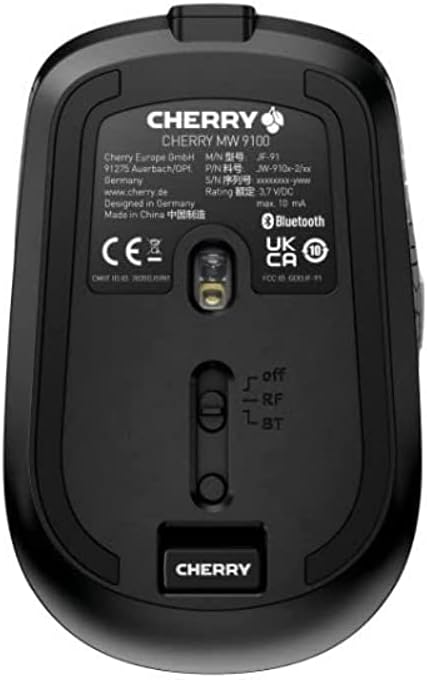
Зображення 3.2: Underside of the Cherry MW 9100 mouse, highlighting the USB receiver storage and the connection mode switch.
3.2.2 Підключення Bluetooth
- On the underside of the mouse, slide the switch to the "BT" (Bluetooth) position.
- Press and hold the small pairing button located near the connection switch on the underside of the mouse until the LED indicator on the mouse starts blinking, indicating pairing mode.
- На комп’ютері або пристрої відкрийте налаштування Bluetooth і знайдіть нові пристрої.
- Select "Cherry MW 9100" from the list of available devices to complete the pairing process.
4. Інструкція з експлуатації
4.1 Основні функції
The Cherry MW 9100 mouse features standard left and right click buttons, a scroll wheel (which also functions as a middle click button), and two side buttons for navigation (typically forward/back).
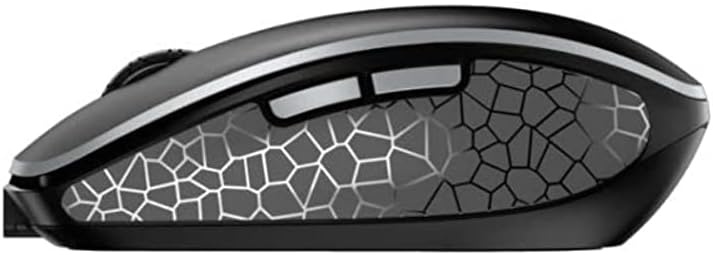
Зображення 4.1: сторона view of the Cherry MW 9100 mouse, illustrating the ergonomic design and side buttons.
4.2 Налаштування DPI
The mouse includes a DPI (Dots Per Inch) button, usually located near the scroll wheel, allowing you to adjust the cursor sensitivity. Press this button to cycle through different DPI settings to match your preference or task requirements.

Зображення 4.2: A hand demonstrating the comfortable grip on the Cherry MW 9100 mouse during use.
5. Технічне обслуговування
To ensure optimal performance and longevity of your Cherry MW 9100 mouse:
- Прибирання: Використовуйте м’яку суху тканину для очищення поверхні миші. Для стійкого бруду злегкаamp Можна використовувати тканину, але переконайтеся, що волога не потрапляє всередину пристрою. Уникайте використання агресивних хімікатів або абразивних матеріалів.
- Зберігання: When not in use, especially during travel, store the mouse in the provided protective pouch to prevent scratches and damage.
- Догляд за акумулятором: Уникайте частого повного розряджання акумулятора. Заряджайте мишу, коли з’являється індикатор низького заряду акумулятора.
6. Вирішення проблем
| проблема | Можлива причина | Рішення |
|---|---|---|
| Миша не відповідає | Low battery, incorrect connection mode, USB receiver not connected, Bluetooth not paired. |
|
| Intermittent connection (Bluetooth) | Interference, device driver issues, distance from device. |
|
| Рух курсора нерівномірний або повільний | Dirty optical sensor, low battery, incorrect DPI setting. |
|
7. Технічні характеристики
| Особливість | Деталь |
|---|---|
| Бренд | вишня |
| Номер моделі | JW-9100US-2 |
| Технологія підключення | Bluetooth, 2.4 GHz USB Wireless |
| Виявлення руху | Оптичний |
| Особливості | Lightweight, Portable, Rechargeable |
| Розміри продукту | 4 x 3 x 2 дюймів |
| Вага товару | 6.4 унції |
| Колір | чорний |
8. Гарантія та підтримка
Щоб отримати інформацію про гарантію та технічну підтримку, зверніться до офіційного постачальника Cherry. website or contact Cherry customer service directly. Keep your proof of purchase for warranty claims.
Виробник: ВИШНЯ
Webсайт: www.cherry.de