
Cuifati Cuifatip0izksa79g3281
Cuifati Wireless Smart Remote Control User Manual
Model: Cuifatip0izksa79g3281
вступ
This manual provides comprehensive instructions for the Cuifati Wireless Smart Remote Control. It covers setup, operation, maintenance, and troubleshooting to ensure optimal performance and longevity of your device. This remote control features 2.4G and Bluetooth 5.0 connectivity, voice control, and IR learning capabilities, making it compatible with a wide range of devices such as Nvidia Shield, PCs, Projectors, Smart TVs, and Android TV Boxes.
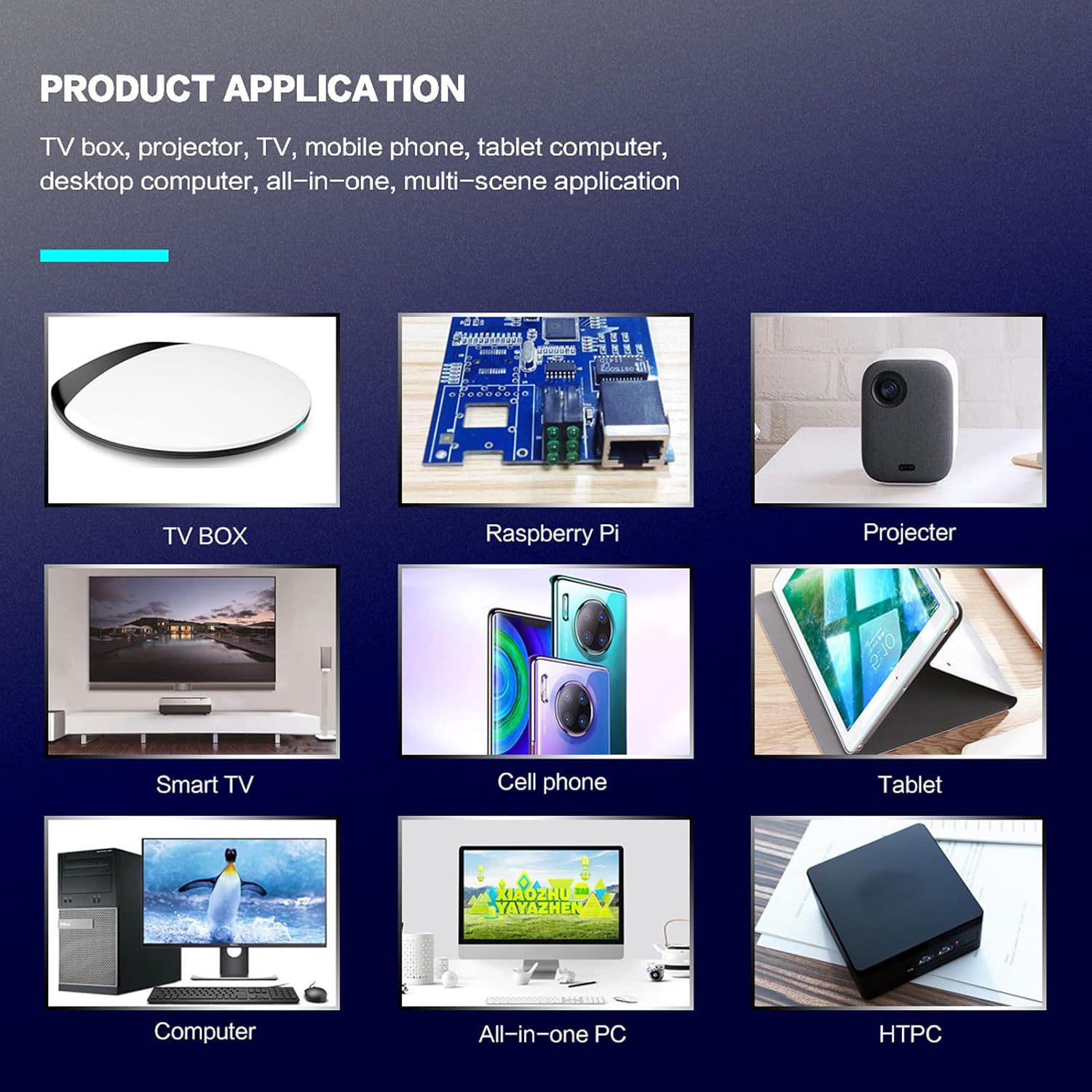
малюнок 1: Product application exampлес.
Вміст упаковки
Будь ласка, перевірте наявність усіх предметів у вашій упаковці:
- 1 x Cuifati Wireless Smart Remote Control
- 1 x 2.4G USB-приймач
- 1 х посібник користувача
Технічні характеристики
| Особливість | Деталь |
|---|---|
| Бренд | Куіфаті |
| Номер моделі | Cuifatip0izksa79g3281 |
| матеріал | ABS |
| томtage | 3.0 В |
| Режими підключення | 2.4G, Bluetooth 5.0 |
| Робочий струм | <15 мА |
| Струм очікування | <20 мкА |
| Відстань дії | >10 meters (32.8 feet) |
| Тип батареї | 2 батареї AAA (не входять в комплект) |
| Кількість кнопок | 5 (Control buttons, total buttons are more) |
| Сумісні пристрої | Streaming devices, Televisions, PCs, Projectors, Smart TVs, Android TV Boxes |
| Особливість | Universal, Voice Control, IR Learning, Backlit |
Посібник із налаштування
1. Встановлення батареї
Для пульта дистанційного керування потрібні дві батарейки типу ААА (не входять у комплект).
- Відкрийте кришку відсіку для батарей на задній панелі пульта дистанційного керування.
- Вставте дві батарейки типу AAA, дотримуючись правильної полярності (+ та -).
- Надійно закрийте кришку батарейного відсіку.

малюнок 2: Battery compartment with AAA batteries.
2. Підключення пульта дистанційного керування
The remote control supports both 2.4G wireless and Bluetooth 5.0 connectivity.
2.1. 2.4G Wireless Connection (via USB Receiver)
- Insert the 2.4G USB receiver into an available USB port on your device (e.g., Smart TV, Android TV Box, PC).
- The device should automatically detect and install the necessary drivers.
- Тепер пульт дистанційного керування готовий до використання.
2.2. Підключення Bluetooth 5.0
For Bluetooth connection, ensure your device supports Bluetooth 5.0 or higher.
- На пульті дистанційного керування натисніть і утримуйте кнопку OK кнопку та Повернення button simultaneously for 3 seconds. The indicator light on the remote will flash rapidly, indicating it is in pairing mode.
- На своєму пристрої перейдіть до налаштувань Bluetooth та знайдіть доступні пристрої.
- Select "G20s Pro" (or similar device name) from the list of found devices to pair.
- Після сполучення індикатор на пульті дистанційного керування перестане блимати.

малюнок 3: Інструкції зі з’єднання Bluetooth.
Інструкція з експлуатації
1. Функції кнопокview
Familiarize yourself with the layout and functions of the remote control buttons.

малюнок 4: Розташування та функції кнопок пульта дистанційного керування.
- Power (IR Learning Key): Turns the device on/off. Can be programmed via IR learning.
- мікрофон: Activates voice input.
- Світловий індикатор: Shows status (pairing, IR learning).
- Mute (IR Learning Key): Mutes/unmutes audio. Can be programmed via IR learning.
- Pg+ / Pg-: Page Up / Page Down.
- Navigation Keys (Up/Down/Left/Right): For menu navigation.
- OK / Enter / Mouse Left: Confirms selection or acts as left mouse click.
- Return / Mouse Right: Goes back or acts as right mouse click.
- додому: Returns to the home screen.
- Open Google Voice Assistant: Dedicated button for voice assistant.
- Volume - / Volume +: Adjusts volume.
- Відтворення/Пауза: Керує відтворенням медіафайлів.
- Попередній / наступний: Skips to previous or next media track.
- BackSpace: Deletes characters.
- Меню: Press and hold to turn on/off the backlight.
2. Голосове керування
The remote control supports voice commands for compatible devices. Press the мікрофон button and speak clearly into the remote to issue commands or search content.
3. Функція навчання ІЧ
The Power and Mute buttons can learn infrared signals from your existing TV remote control, allowing you to control basic TV functions with this remote.

малюнок 5: IR Learning process for the Power button.
- Натисніть і утримуйте потужність кнопка (або Вимкнути звук button) on the Cuifati remote for 3 seconds. The red indicator light will flash slowly, entering IR learning mode.
- Point the infrared emitter of your original TV remote control directly at the infrared receiver of the Cuifati remote (approximately 2-3 cm apart).
- Press the desired button on your original TV remote (e.g., Power button). The Cuifati remote's red indicator light will flash rapidly and then turn off, indicating successful learning.
- Repeat the process for other buttons if desired.
4. Motion Sensing (Air Mouse)
The remote control features a gyroscope core compensation algorithm for motion sensing, allowing it to function as an air mouse. Move the remote in the air to control the cursor on your screen.

малюнок 6: Motion sensing in action.
Технічне обслуговування
- Keep the remote control dry. Avoid exposure to moisture or liquids.
- Протирайте пульт дистанційного керування м’якою сухою тканиною. Не використовуйте абразивні засоби для чищення або розчинники.
- Якщо пульт дистанційного керування не використовуватиметься протягом тривалого часу, вийміть батарейки, щоб запобігти їх витіканню.
- Уникайте падіння пульта дистанційного керування та сильних ударів.
Усунення несправностей
- Пульт дистанційного керування не реагує:
- Переконайтеся, що батарейки правильно встановлені та не розряджені. За потреби замініть їх.
- Check if the 2.4G USB receiver is properly inserted into the device's USB port.
- For Bluetooth connection, ensure the remote is paired correctly. Re-pair if connection is lost.
- Ensure there are no obstructions between the remote and the device (for 2.4G) or within Bluetooth range.
- Голосове керування не працює:
- Ensure the remote is properly connected via 2.4G or Bluetooth.
- Verify that your device supports voice input and that the microphone is enabled.
- Говоріть чітко та близько до мікрофона пульта дистанційного керування.
- Не вдалося ІЧ-навчання:
- Ensure the original remote's IR emitter is pointed directly at the Cuifati remote's IR receiver, within 2-3 cm.
- Make sure the original remote has sufficient battery power.
- Repeat the learning steps carefully.
Гарантія та підтримка
Specific warranty information is not provided in this manual. For warranty details, technical support, or service inquiries, please refer to the product packaging or contact the manufacturer directly through their official webсайт або канали обслуговування клієнтів.
Ask a question about this manual
Ask about setup, troubleshooting, compatibility, parts, safety, or missing instructions. Manuals+ will review the question and use this page’s manual context to help answer it.