
1. Вступ
The Cherry MW 8C Ergo is an ergonomic, right-handed wireless mouse designed for comfort and precision. It offers flexible connectivity options via Bluetooth or a 2.4 GHz wireless USB dongle, ensuring a stable and secure connection with AES-128 encryption. This rechargeable mouse features a high-precision sensor for accurate tracking and is built for durability and extended use. This manual provides detailed instructions for setting up, operating, maintaining, and troubleshooting your MW 8C Ergo mouse.
2. Вміст упаковки
Будь ласка, перевірте упаковку на наявність наступних предметів:
- Бездротова миша Cherry MW 8C Ergo
- Зарядний кабель USB-A – USB-C
- 2.4 GHz Wireless USB Receiver (dongle)
- Storage Pouch (fabric carry pouch)
- Інструкція з експлуатації (цей документ)
3. Особливості продукту
- Ергономічний дизайн: Shaped for comfortable right-handed use, reducing strain during long periods.
- Подвійне бездротове підключення: Seamlessly switch between Bluetooth and 2.4 GHz wireless modes.
- Акумуляторна батарея: Integrated battery provides long-lasting power and can be charged via USB-C.
- Високоточний оптичний датчик: Ensures accurate and smooth cursor control.
- AES-128 Encryption: Secure wireless transmission for data protection.
- Регульований DPI: Customize cursor speed to suit your preferences.
- Міцна конструкція: High-quality materials for reliability and longevity.
4. Налаштування
4.1. Заряджання миші
Before first use, it is recommended to fully charge the mouse. Connect the supplied USB-A to USB-C charging cable to the USB-C port on the front of the mouse and to a USB-A port on your computer or a USB power adapter.
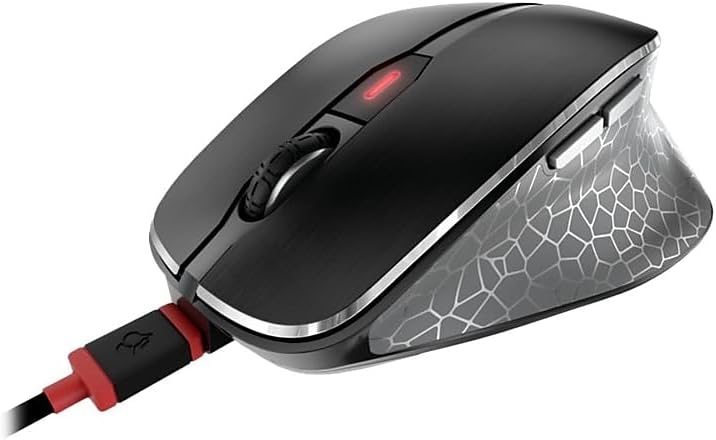
Image: The Cherry MW 8C Ergo mouse connected to its USB-C charging cable, showing the charging port and the mouse's top view.
The LED indicator on the mouse will show charging status. Once fully charged, the LED will change or turn off depending on the model's specific indicator behavior.
4.2. Підключення через бездротовий зв'язок 2.4 ГГц (USB-приймач)
- Locate the 2.4 GHz USB receiver (dongle), usually stored magnetically in a compartment on the bottom of the mouse.
- Підключіть USB-приймач до вільного порту USB-A на вашому комп’ютері.
- On the bottom of the mouse, slide the 3-position switch to the "2.4 GHz" position (often indicated by a small wireless icon).
- Ваш комп’ютер має автоматично виявити та встановити необхідні драйвери. Миша буде готова до використання.
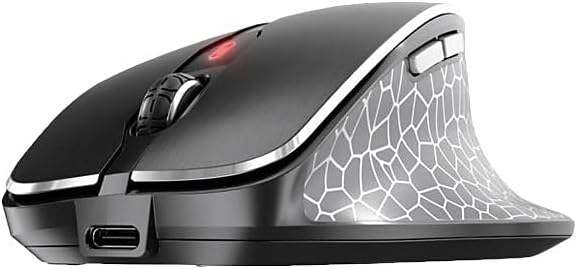
Зображення: Лицьова сторона view of the Cherry MW 8C Ergo mouse, highlighting the USB-C charging port and the scroll wheel.
4.3. Підключення через Bluetooth
- On the bottom of the mouse, slide the 3-position switch to the "Bluetooth" position (often indicated by a Bluetooth icon).
- Press and hold the Bluetooth detection button on the bottom of the mouse for a few seconds until the LED indicator starts blinking, indicating pairing mode.
- На комп’ютері відкрийте налаштування Bluetooth:
- Windows: Go to Settings > Devices > Bluetooth & other devices. Click "Add Bluetooth or other device" and select "Bluetooth".
- macOS: Go to System Preferences > Bluetooth.
- Select "Cherry MW 8C Ergo" from the list of available devices.
- Виконайте будь-які підказки на екрані, щоб завершити процес сполучення. Світлодіодний індикатор на миші перестане блимати після успішного сполучення.
5. Керування мишею
5.1. Функції кнопок
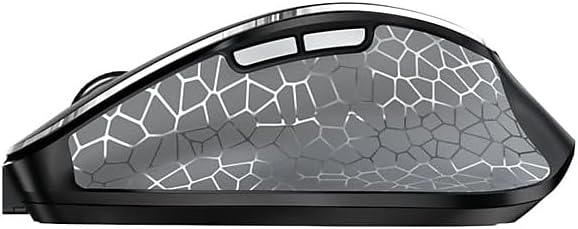
Зображення: Сторона view of the Cherry MW 8C Ergo mouse, highlighting the two programmable side buttons.
- Ліва кнопка миші: Основна функція клацання.
- Клацніть правою кнопкою миші: Secondary click function, typically opens context menus.
- Колесо прокрутки: Прокручування документів вгору/вниз та web сторінки. Також можна натиснути для функції клацання середньою кнопкою миші.
- Кнопка DPI: Located behind the scroll wheel, this button allows you to cycle through different DPI (Dots Per Inch) sensitivity settings.
- Бічні кнопки: Two buttons located on the thumb side of the mouse. By default, these often function as "Forward" and "Back" in web браузери та file explorers. Their functions may be customizable via software (if available).
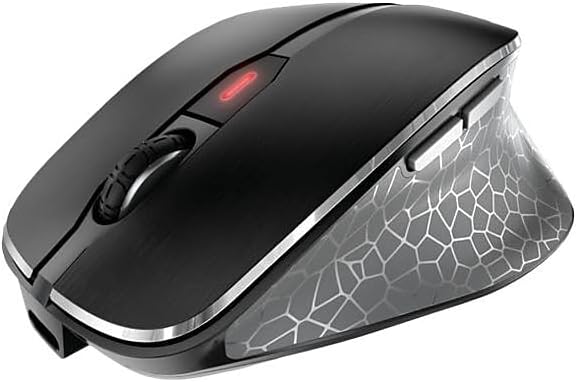
Зображення: Зверху вниз view of the Cherry MW 8C Ergo mouse, clearly showing the scroll wheel and the DPI adjustment button.
5.2. Налаштування чутливості DPI
Press the DPI button (located behind the scroll wheel) to cycle through the available sensitivity settings. Each press will change the cursor speed, allowing you to find the optimal setting for your tasks. The mouse typically has multiple preset DPI levels.
5.3. Перемикання режимів підключення
To switch between 2.4 GHz wireless and Bluetooth modes, use the 3-position switch on the bottom of the mouse. Ensure the correct mode is selected for your desired connection type.
6. Технічне обслуговування
6.1. Очищення миші
- Disconnect the mouse from any charging cables and turn it off using the switch on the bottom.
- Злегка протріть м’якою тканиною без ворсу dampводою або м’яким миючим розчином, щоб протерти поверхню миші.
- Уникайте використання агресивних хімікатів, абразивних засобів для чищення або розпилення рідин безпосередньо на мишу.
- Для оптичного датчика використовуйте сухий ватний тампон, щоб обережно очистити пил або сміття.
6.2. Догляд за акумулятором
- Щоб продовжити термін служби батареї, уникайте частого повного розряджання миші.
- Charge the mouse regularly, especially when the low battery indicator appears.
- If storing the mouse for an extended period, charge it to about 50% and turn it off. Recharge every few months to prevent deep discharge.
7. Вирішення проблем
7.1. Миша не реагує
- Перевірте живлення: Переконайтеся, що миша увімкнена та має достатній заряд батареї.
- Перевірте режим підключення: Verify the switch on the bottom of the mouse is set to the correct mode (2.4 GHz or Bluetooth) for your connection type.
- Підключення 2.4 ГГц:
- Переконайтеся, що USB-приймач надійно підключено до робочого USB-порту.
- Спробуйте підключити приймач до іншого USB-порту.
- Ensure the receiver is within range of the mouse (typically up to 10 meters).
- Підключення Bluetooth:
- Переконайтеся, що Bluetooth увімкнено на вашому комп’ютері.
- Try re-pairing the mouse with your computer (refer to Section 4.3).
- Ensure the mouse is within range of your computer's Bluetooth receiver.
- Перезапуск: Turn the mouse off and then on again. Restart your computer if necessary.
7.2. Рух курсора нерівномірний або неточний
- Чистий датчик: Clean the optical sensor on the bottom of the mouse (refer to Section 6.1).
- Поверхня: Використовуйте мишу на чистій, неблискучій та однорідній поверхні. Уникайте скла або поверхонь з високим рівнем відбиття.
- Налаштування DPI: Adjust the DPI sensitivity using the DPI button to see if a different setting improves performance.
7.3. Mouse Not Charging
- Кабельне підключення: Ensure the USB-C cable is securely connected to both the mouse and the power source.
- Джерело живлення: Try a different USB port on your computer or a different USB power adapter.
- Цілісність кабелю: Inspect the charging cable for any damage. Try using a different USB-C charging cable if available.
8. Технічні характеристики
| Особливість | Деталь |
|---|---|
| Назва моделі | MW 8C Ergo |
| Номер моделі товару | JW-8600US |
| Бренд | вишня |
| Технологія підключення | Bluetooth, 2.4 GHz Wireless |
| Виявлення руху | Оптичний |
| Джерело живлення | Живлення від батареї (перезаряджається) |
| Сумісність операційної системи | Windows 7, Windows 8, Windows 10, Windows 11 |
| Вага товару | 8 унції (приблизно 227 грамів) |
| Розміри продукту (ДxШxВ) | 4.72 x 3.11 x 1.75 дюйма (приблизно 120 x 79 x 44 мм) |
| Колір | чорний |
| Шифрування | AES-128 (for 2.4 GHz wireless) |
9. Гарантія та підтримка
9.1. Інформація про гарантію
Cherry products are manufactured to high-quality standards. This product is covered by a limited warranty against defects in materials and workmanship. Please refer to the official Cherry website or your purchase documentation for specific warranty terms and conditions applicable to your region. Keep your proof of purchase for warranty claims.
9.2. Технічна підтримка
If you encounter any issues not covered in the troubleshooting section or require further assistance, please contact Cherry customer support. You can find contact information, FAQs, and additional resources on the official Cherry webсайт:
Official Cherry Webсайт: www.cherry.de/en/
Please have your product model number (JW-8600US) and proof of purchase ready when contacting support.