
1. Вступ
This manual provides detailed instructions for the setup, operation, and maintenance of your Volcora Thermal Receipt Printer, Model 500204. This high-speed 80mm POS printer features an auto cutter and offers versatile connectivity options including USB and Bluetooth, supporting various operating systems. Please read this manual thoroughly before using the printer to ensure proper functionality and longevity.
2. Інформація про безпеку
- Переконайтеся, що принтер підключено до заземленої розетки.
- Do not expose the printer to water or high humidity.
- Уникайте розміщення принтера під прямими сонячними променями або поблизу джерел тепла.
- Використовуйте лише адаптер живлення, що постачається з принтером.
- Не намагайтеся розбирати або ремонтувати принтер самостійно. Зверніться до служби підтримки клієнтів для отримання допомоги.
- Keep hands clear of the auto cutter mechanism during operation.
3. Вміст упаковки
Перевірте, чи всі перелічені нижче предмети входять до вашої упаковки:
- Volcora Thermal Receipt Printer - Standard
- Адаптер живлення
- Ролик для паперу
- USB кабель
- CD (for drivers and manual)
- Інструкція
- Sample Receipt Paper

малюнок 3.1: Included Components - Thermal Receipt Printer, Power Adapter, USB Cable, Test Paper, and Installation CD.
4. Продукт закінчивсяview

малюнок 4.1: Фронт view of the Volcora Thermal Receipt Printer with a sampквитанцію.
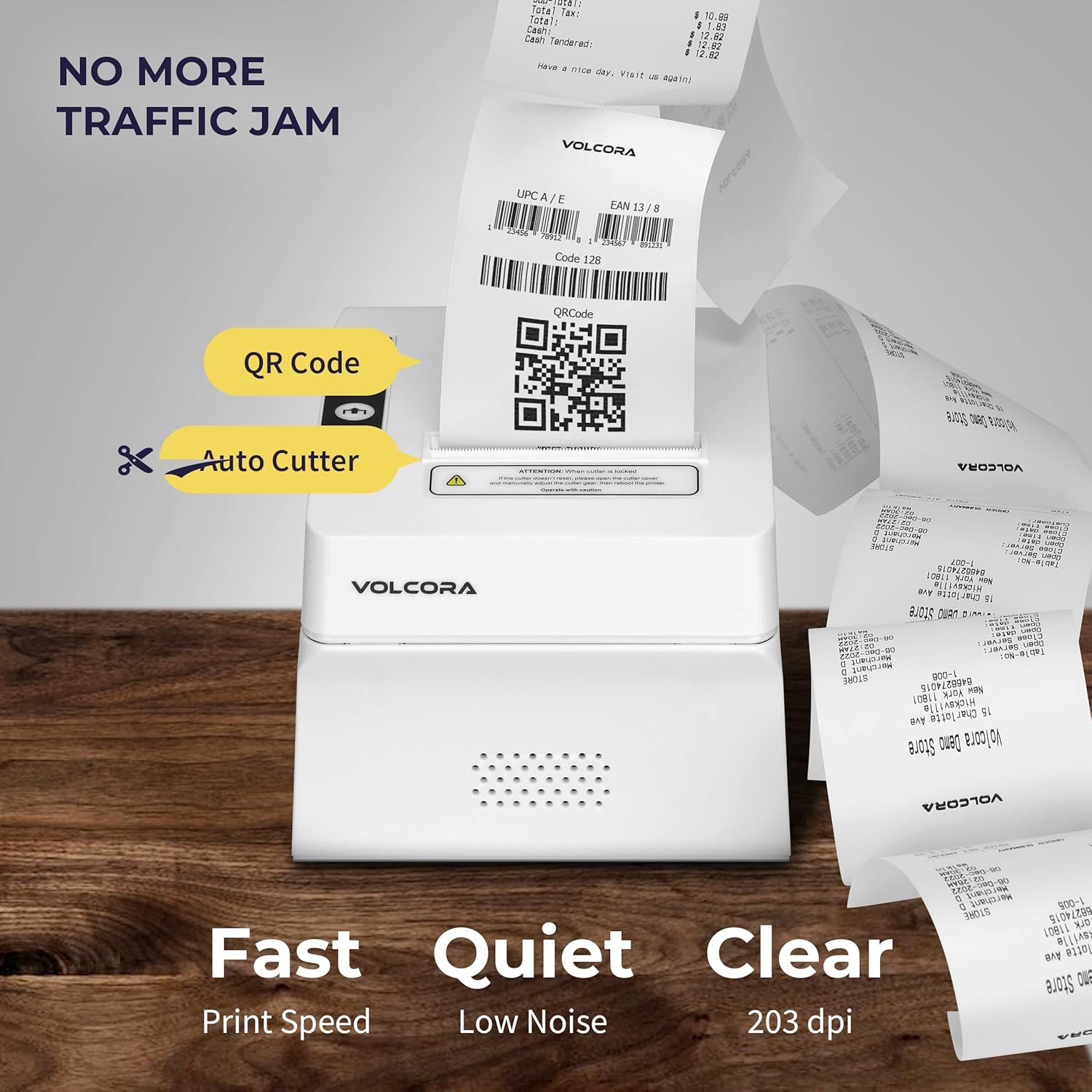
малюнок 4.2: Key features include QR code printing, automatic cutter, fast print speed, low noise, and 203 dpi clear printing.
4.1 Порти та кнопки

малюнок 4.3: Rear ports include Power Supply, Cash Drawer Port (6Pin RJ11), and USB Port. Front panel features Power LED, Error LED, Paper LED, Feed Button, and Cover Open Button.
4.2 Варіанти розміщення

малюнок 4.4: The printer supports both wall mounting (as a kitchen printer) and counter placement (as a receipt printer).
5. Налаштування
5.1 Initial Connection and Paper Roll Installation
- Unbox the printer and all accessories.
- Підключіть адаптер живлення до принтера та розетки.
- Open the paper cover by pressing the "PUSH" button.
- Insert the 80mm thermal paper roll, ensuring the paper feeds from the bottom and the leading edge extends slightly past the cutter.
- Щільно закривайте кришку відсіку для паперу, доки вона не клацне на місці.
- Connect the USB cable from the printer to your computer (for initial setup or USB printing).

малюнок 5.1: закінченоview of the installation process: Download drivers, Install, Connect power and USB, and Test print.
5.2 Printer Self-Test
Performing a self-test helps verify the printer's basic functionality and prints its configuration settings.
- Переконайтеся, що принтер вимкнено.
- Press and hold the "Feed" button.
- While holding the "Feed" button, power on the printer.
- Release the "Feed" button after approximately 5 seconds. The printer should print a self-test page.
For a visual guide on unboxing, connecting, and performing a self-test, please watch the video below:
Відео 5.1: Getting Started with Volcora Thermal Receipt Printer - Unboxing, Connecting, and Self-Test.
6. Driver Installation and Connectivity
The Volcora Thermal Receipt Printer supports USB and Bluetooth connectivity. Proper driver installation is crucial for seamless operation.
6.1 Сумісність системи
Будь ласка, повторноview the compatibility chart before proceeding with driver installation:

малюнок 6.1: Сумісність закінченаview for USB and Bluetooth connections across various operating systems. Note that Mac OS and iOS are not supported.

малюнок 6.2: List of compatible and non-compatible POS software applications.
6.2 Windows Driver Installation (USB)
For Windows users, download the latest drivers from the official Volcora support website. The installation CD also contains the necessary drivers.
- Завантажте драйвер для Windows з volcora.com/support.
- Розархівуйте завантажене file and open the driver application.
- Follow the on-screen prompts, select your printer model (500204), and complete the installation.
- After installation, the printer should be recognized in your Windows "Printers & Scanners" settings, allowing you to print a test page.
Refer to Video 5.1 for initial connection steps. The video also demonstrates driver installation and testing tools for Windows.
6.3 Bluetooth Connection with Windows PC
This section outlines two methods for connecting your printer via Bluetooth to a Windows PC.
Method 1: Driver Pre-installed with USB Connection
- Ensure the printer driver has been installed using a USB cable connection (refer to Section 6.2).
- Go to Windows Settings > Bluetooth & devices > Add device > Bluetooth.
- Select the printer (e.g., "500203" or "Volcora Thermal Printer") from the list of available devices and pair it. Enter the default PIN (usually "0000" or "1234").
- After pairing, check the printer's properties in "Devices and Printers" to identify the assigned COM port (e.g., COM4).
- Use the Setting Tool (available from volcora.com/support) to select the correct COM port and perform a test print.
Method 2: Driver Installation After Bluetooth Connection
- Start by pairing the printer via Bluetooth directly (Windows Settings > Bluetooth & devices > Add device > Bluetooth). Enter the default PIN.
- Open Device Manager (search in Windows) and expand "Ports (COM & LPT)" to find the COM port used by the Bluetooth printer (e.g., COM3 or COM4).
- Install the printer driver (from volcora.com/support or CD), selecting the identified COM port during the installation process. If the first COM port doesn't work, try the other one listed.
- Once the driver is installed, the printer should appear in "Printers & Scanners" and be ready for use.
Відео 6.3: How to connect your Volcora Thermal Receipt Printer via Bluetooth to a Windows PC.
6.4 Bluetooth Connection with Android Tablets
To connect your printer to an Android tablet, follow these steps:
- Go to your Android tablet's Settings and enable Bluetooth.
- шукати new devices and select your printer (e.g., "500203"). Pair the device using the default PIN (usually "0000" or "1234").
- Download the "PrintDemo Tool" from volcora.com/support.
- Open the PrintDemo Tool, go to "Setting", select "Bluetooth" as the interface, and search for your paired printer.
- Perform a "print test" to confirm connectivity.
- For POS applications like Loyverse POS or W&O POS, navigate to their printer settings, select "Bluetooth" as the interface, and choose your Volcora printer to perform a test print.
Відео 6.4: How to connect your Volcora Thermal Receipt Printer via Bluetooth to an Android Tablet.
7. Інструкція з експлуатації
Once the printer is successfully connected and drivers are installed, it will function as a standard printer for your compatible system or POS application. Ensure your application is configured to use the Volcora Thermal Printer for receipt printing.
- Друк: Send print commands from your software. The printer will automatically feed and cut the receipt.
- Подача паперу: Press the "Feed" button on the front panel to manually advance the paper.
- Індикатор помилки: The "Error" LED will illuminate if there is a paper jam, paper out, or other issues. Refer to the troubleshooting section.
8. Технічне обслуговування
Регулярне технічне обслуговування забезпечує оптимальну продуктивність та подовжує термін служби вашого принтера.
- Очищення друкувальної голівки: Використовуйте м’яку безворсову тканину dampened with isopropyl alcohol to gently wipe the thermal print head. Ensure the printer is off and cooled down before cleaning.
- Очищення валика подачі: Rotate the platen roller and wipe it with an alcohol-dampened cloth to remove paper dust or adhesive residue.
- Зовнішнє очищення: Wipe the exterior of the printer with a soft, dry cloth. Avoid abrasive cleaners.
9. Технічні характеристики
Detailed technical specifications for the Volcora Thermal Receipt Printer Model 500204:

малюнок 9.1: Visual representation of printer dimensions and key specifications.
| Особливість | Деталь |
|---|---|
| Розміри продукту | 4" Г x 8" Ш x 8" В |
| Швидкість друку | 220 мм/с |
| Ширина паперу | 80 mm (79.5 millimeters) |
| Ширина друку | 72 мм |
| Щільність точок | 8 dot/mm, 576 dot/line |
| Роздільна здатність друку | 203 точки на дюйм (203 x 203 точки на дюйм) |
| Команда принтера | ESC/POS |
| Типи штрих-коду | UPC-A/ UPC-E/ EAN13/ EAN8/ CODE39/ ITF25/ CODABAR/ CODE93/ CODE128/ QRCODE/ PDF417/ Data matrix |
| Вхідна потужність | Змінний струм 110 В/240 В, 50-60 Гц |
| Вихідна потужність | Постійний струм 24 В/2 А |
| Термін служби автоматичного різака | 1.5 мільйона скорочень |
| Технологія підключення | Bluetooth, USB |
| Технологія друку | Теплові |
| Сумісні пристрої | Ноутбуки, ПК, планшети |
| Ємність пам'яті | 64 КБ |
| Вага товару | 3.76 фунта (1.71 кілограма) |
| Номер моделі | 500204 |
| UPC | 810041565044 |
10. Вирішення проблем
If you encounter issues with your Volcora Thermal Receipt Printer, consider the following common solutions:
- Принтер не відповідає:
- Перевірте підключення живлення та переконайтеся, що принтер увімкнено.
- Verify USB or Bluetooth connection status.
- Perform a printer self-test (Section 5.2) to confirm internal functionality.
- Reinstall drivers if necessary.
- Погана якість друку:
- Переконайтеся, що ви використовуєте високоякісний термопапір.
- Clean the thermal print head (Section 8).
- Check printer settings for print density or speed adjustments.
- Зминання паперу:
- Turn off the printer and carefully open the paper cover.
- Видаліть будь-який застряглий папір або сміття.
- Ensure the paper roll is correctly installed and not too tight.
- Проблеми з підключенням Bluetooth:
- Переконайтеся, що Bluetooth увімкнено як на принтері, так і на вашому пристрої.
- Unpair and re-pair the printer.
- Verify the correct COM port is selected in your driver or application settings.
Для отримання додаткової допомоги зверніться до інформації про підтримку в Розділі 11.
11. Гарантія та підтримка
All Volcora products are backed by a limited lifetime warranty. Our US-based customer support team is available to assist with any issues regarding setup, connection, compatibility, or other product-related concerns.
- Visit Help Portal: https://help.volcora.com
- Download Support Center: https://volcora.com/support
- Контактна особа служби підтримки клієнтів: support@volcora.com

малюнок 11.1: Volcora offers US-based customer support for product assistance.