
вступ
The Keychron Q2 is a fully customizable wired mechanical keyboard featuring a compact 65% layout. Constructed with a solid full aluminum frame, the Q2 is designed for easy assembly and offers a premium typing experience. It supports full QMK and VIA programming for extensive customization and features hot-swappable switches for personalized tactile feedback.

Image: The Keychron Q2 Wired Custom Mechanical Keyboard, showcasing its compact 65% layout and blue color scheme.
Посібник із налаштування
1. Вміст упаковки
Перед початком роботи переконайтеся, що всі компоненти присутні:
- Keychron Q2 Keyboard Kit (Aluminum Case, PCB, Steel Plate, Sound Absorbing Foam, Case Foam, Gaskets)
- Кабель USB Type-C до Type-C
- Перехідник USB Type-A – Type-C
- Знімач перемикача
- Знімач ключів
- Викрутка
- Шестигранний ключ
- Stabilizers (4 sets)
Примітка: Усі інструменти зазвичай розташовані внизу упаковки.

Image: Diagram illustrating the contents of the Keychron Q2 package, including the keyboard, cables, and tools.
2. Підключення клавіатури
- Locate the USB Type-C port on the back of the Keychron Q2 keyboard.
- Connect one end of the provided USB Type-C to Type-C cable to the keyboard.
- Connect the other end of the cable to your computer's USB Type-C port. If your computer only has USB Type-A ports, use the included USB Type-A to Type-C adapter.
- Ensure the operating system switch (located on the back edge of the keyboard) is set to the correct position for your system (Mac or Windows).
- Клавіатура буде автоматично розпізнана вашою операційною системою.

Зображення: Крупний план view of the Keychron Q2 keyboard with a USB-C cable connected, showing the Mac/Win switch.
Інструкція з експлуатації
1. QMK/VIA Customization
The Keychron Q2 supports full QMK and VIA programming, allowing you to remap keys, create macros, and customize lighting effects. To use VIA software:
- Завантажте програмне забезпечення VIA з офіційного сайту Keychron. webсайт (keychron.com/pages/qmk-via).
- Connect your Q2 keyboard to your computer via the USB cable.
- Launch the VIA software. The software should automatically detect your Q2 keyboard. If not, you may need to import the Q2 keymap JSON file, also available on the Keychron webсайт.
- Use the graphical interface to drag and drop functions, assign macros, and configure lighting for each key. Changes are applied in real-time.

Image: Screenshot of the VIA software interface, demonstrating how to remap keys on the Keychron Q2 keyboard.
2. Комутатори з можливістю гарячої заміни
The Q2's PCB supports both 3-pin and 5-pin MX style mechanical switches, allowing for easy switch replacement without soldering.
- Використовуючи наданий знімач для ковпачків клавіш, обережно зніміть ковпачок клавіші з перемикача, який ви хочете замінити.
- Use the provided switch puller to gently grip the top and bottom clips of the switch. Pull the switch straight up to remove it from the PCB.
- Вирівняйте контакти нового перемикача з отворами на друкованій платі. Переконайтеся, що контакти розташовані прямо, щоб уникнути згинання.
- Міцно натисніть на новий перемикач, доки він не клацне.
- Знову прикріпіть ковпачок клавіші.

Зображення: Крупний план view of the Keychron Q2's PCB with several switches removed, demonstrating the hot-swappable feature.
3. Keycaps and RGB Lighting
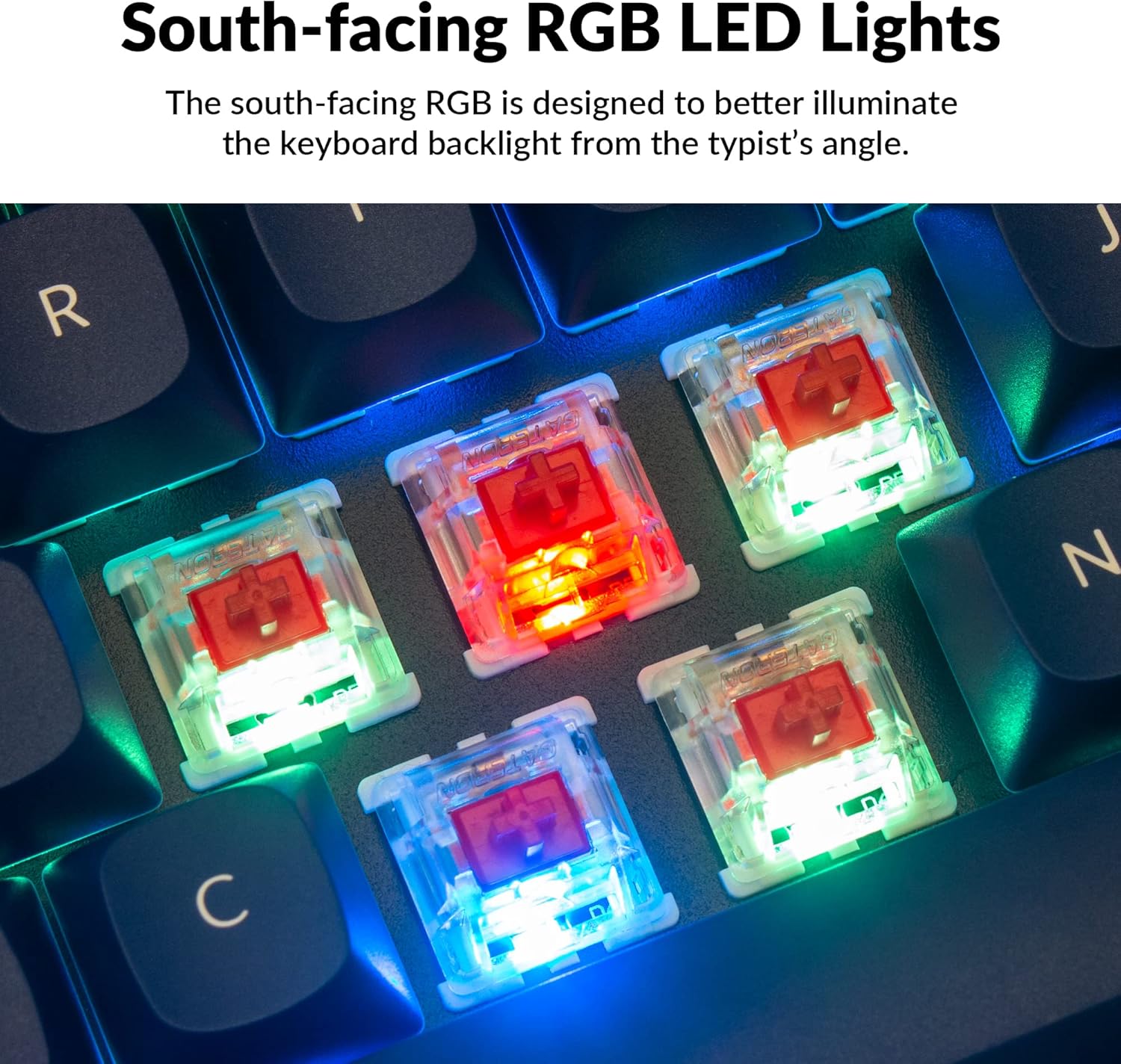
The Q2 comes with premium non-shine-through PBT keycaps, known for their durability and oil resistance. The keyboard features south-facing RGB LEDs, designed to provide better illumination of the backlight from the typist's perspective.
Зображення: Детальний view of the Keychron Q2's double-shot PBT keycaps, highlighting their texture and legends.

Image: A close-up of the Keychron Q2's south-facing RGB LEDs illuminating the switches from below.
Технічне обслуговування
1. Очищення клавіатури
Регулярне чищення допомагає підтримувати продуктивність та зовнішній вигляд клавіатури.
- Видалення пилу: Використовуйте балончик зі стисненим повітрям, щоб здути пил та сміття між клавішами.
- Очищення ковпачків клавіш: For deeper cleaning, remove the keycaps using the provided keycap puller. Wash them with mild soap and water, then ensure they are completely dry before reattaching.
- Очищення корпусу: Протріть алюмінієвий корпус м’якою губкоюamp тканина. Уникайте агресивних хімікатів, які можуть пошкодити покриття.
2. Switch and Stabilizer Maintenance
The hot-swappable design allows for easy maintenance of switches and stabilizers.
- Заміна перемикача: If a switch becomes faulty, replace it using the hot-swapping procedure described in the Operating Instructions.
- Stabilizer Lubrication: For optimal performance and reduced wobbliness on larger keys (space bar, shift, enter), the PCB-mounted screw-in stabilizers can be lubricated. This typically involves disassembling the keyboard to access the stabilizers.

Image: An exploded diagram of the Keychron Q2, showing its various components like keycaps, switches, top case, gaskets, plate, PCB, sound absorbing foam, case foam, bottom case, and silicone gaskets, illustrating ease of disassembly.
Усунення несправностей
Поширені проблеми та рішення:
- Клавіатура не реагує:
- Переконайтеся, що USB-кабель надійно підключено як до клавіатури, так і до комп’ютера.
- Переконайтеся, що перемикач Mac/Windows на задній панелі клавіатури встановлено на правильну операційну систему.
- Try connecting the keyboard to a different USB port or a different computer to rule out port issues.
- Перезавантажте комп'ютер.
- Певні клавіші не працюють:
- Remove the keycap and switch for the non-functional key. Inspect the switch pins for bends or damage. Straighten bent pins carefully or replace the switch if damaged.
- Переконайтеся, що перемикач повністю встановлений на друкованій платі.
- Перевірте програмне забезпечення VIA, щоб переконатися, що ключ не був випадково перепризначений або вимкнений.
- Проблеми з RGB-підсвічуванням:
- Переконайтеся, що клавіатура правильно підключена.
- Use the VIA software to check and adjust lighting settings.
- Perform a factory reset if lighting issues persist (refer to Keychron's official support for specific reset procedures).
- Keyboard Disconnecting Randomly:
- Спробуйте інший кабель USB.
- Ensure the USB port on your computer is stable and providing sufficient power.
- Оновіть драйвери USB вашого комп'ютера.
If you encounter issues not covered here, please refer to the official Keychron support resources.
Технічні характеристики
| Особливість | Деталь |
|---|---|
| Бренд | Keychron |
| Назва моделі | Q2 |
| Номер моделі | Q2-J1 |
| Розкладка клавіатури | 65% (68 Keys), QWERTY |
| Технологія підключення | Дротовий (USB-A, USB-C) |
| Сумісні пристрої | PC (Linux, MacOS, Windows) |
| Тип перемикача | Gateron G Pro Red (Linear), Hot-swappable |
| Підсвічування | RGB (орієнтація на південь) |
| матеріал | Full Aluminum Frame, PBT Keycaps |
| Розміри продукту | 12.89 см (Д) x 4.76 см (Ш) x 1.33 см (В) |
| Особливості | QMK/VIA Programmable, Double Gasket Design |
Інформація про гарантію
Keychron products typically come with a standard manufacturer's warranty. For detailed information regarding the warranty period, coverage, and terms and conditions for your Keychron Q2 keyboard, please refer to the official Keychron webсайт або гарантійний талон, що додається до вашого продукту. Зберігайте підтвердження покупки для гарантійних претензій.
Підтримка та ресурси
For further assistance, software downloads (VIA), firmware updates, and frequently asked questions, please visit the official Keychron support page:
- Офіційний Keychron Webсайт: www.keychron.com
- QMK/VIA Software & Firmware: www.keychron.com/pages/qmk-via
- Магазин Keychron: Відвідайте магазин Keychron на Amazon
You can also find community forums and additional user guides online for advanced customization and troubleshooting tips.