
1. Вступ
This manual provides detailed instructions for the setup, operation, and maintenance of your CHERRY DW 9100 Slim Wireless Keyboard and Mouse Set. This rechargeable desktop set offers both 2.4 GHz wireless and Bluetooth connectivity, featuring a slim design and silent keystroke SX Scissor Mechanism for comfortable and efficient use in various environments.

Image 1.1: The CHERRY DW 9100 Slim Wireless Keyboard and Mouse Set, including the USB nano receiver.
2. Вміст упаковки
Будь ласка, перевірте вміст упаковки після розпакування, щоб переконатися в наявності всіх компонентів:
- CHERRY DW 9100 Slim Wireless Keyboard
- CHERRY DW 9100 Slim Wireless Mouse
- USB наноприймач
- Зарядний кабель USB-C
- Посібник користувача (цей документ)
3. Налаштування
3.1 Заряджання пристроїв
Both the keyboard and mouse are equipped with rechargeable lithium batteries.
- Підключіть зарядний кабель USB-C, що постачається в комплекті, до порту USB-C на клавіатурі та миші.
- Connect the other end of the cable to a powered USB port (e.g., computer, USB wall adapter).
- The status LED on each device will indicate the charging status. A full charge is indicated when the LED changes color or turns off (refer to Section 4.3 for LED indicators).
3.2 Підключення через бездротовий зв'язок 2.4 ГГц
For a stable and fast wireless connection, use the included USB nano receiver.
- Locate the USB nano receiver.
- Підключіть USB nano-приймач до вільного USB-порту на вашому комп’ютері.
- On both the keyboard and mouse, locate the connectivity switch. Set the switch to the 2.4 ГГц position (often indicated by a receiver icon or "RF").
- Пристрої повинні автоматично підключитися до вашого комп’ютера.
3.3 Підключення через Bluetooth
The set supports Bluetooth connectivity for devices that have Bluetooth capabilities.
- On both the keyboard and mouse, locate the connectivity switch. Set the switch to the Bluetooth position (often indicated by a Bluetooth icon).
- На комп’ютері або пристрої відкрийте налаштування Bluetooth.
- Initiate the pairing process on your device. The keyboard and mouse should appear in the list of discoverable devices (e.g., "CHERRY DW 9100 Keyboard", "CHERRY DW 9100 Mouse").
- Select each device to pair them. Follow any on-screen prompts, such as entering a pairing code for the keyboard.
Примітка: The keyboard and mouse can be paired with multiple Bluetooth devices. Use the connectivity switch to toggle between paired devices or 2.4 GHz mode.
4. Інструкція з експлуатації
4.1 Функції клавіатури
The CHERRY DW 9100 Slim Keyboard features a full-size layout with an SX Scissor Mechanism for silent and precise keystrokes.
- Стандартні ключі: Усі стандартні буквено-цифрові та символьні клавіші функціонують належним чином.
- Функціональні клавіші (F1-F12): Ці клавіші можуть мати вторинні функції (наприклад, керування медіа, гучністю, яскравістю), доступ до яких можна отримати натисканням Fn key simultaneously. Refer to your operating system's settings for specific function key behavior.
- Цифрова клавіатура: Provides dedicated number entry.

Зображення 4.1: Бічний професіоналfile of the CHERRY DW 9100 Slim Keyboard, highlighting its thin design.

Image 4.2: Visual representation of the CHERRY SX Scissor Mechanism, responsible for silent and precise keystrokes.
4.2 Функції миші
The CHERRY DW 9100 Slim Mouse features 6 buttons and a scroll wheel for versatile navigation.
- Клік лівою/правою кнопкою миші: Стандартні кнопки миші.
- Колесо прокрутки: For vertical scrolling and as a middle click button.
- Бічні кнопки: Зазвичай використовується для навігації вперед/назад у web браузерів.
- Перемикач DPI: A button, usually near the scroll wheel, allows adjustment of the mouse's sensitivity (DPI - Dots Per Inch). Pressing this button cycles through different DPI settings, indicated by the mouse's status LED.

Зображення 4.3: Верх view of the CHERRY DW 9100 Slim Mouse, showing the left/right click buttons, scroll wheel, and DPI switch.
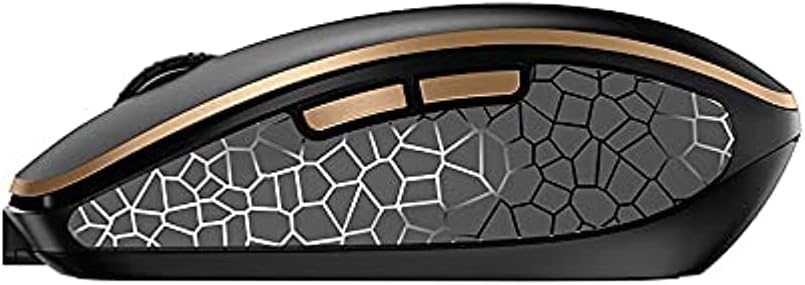
Зображення 4.4: Збоку view of the CHERRY DW 9100 Slim Mouse, illustrating the ergonomic design and side buttons.
4.3 Світлодіоди стану
Both the keyboard and mouse feature status LEDs to provide information on battery level, charging status, and mouse resolution.
- Низький заряд батареї: The LED will flash or illuminate in a specific color (e.g., red) when the battery level is low, indicating that charging is required.
- Зарядка: The LED will illuminate while charging and typically change color or turn off when fully charged.
- Mouse Resolution (DPI): When adjusting the DPI, the mouse LED may briefly flash to indicate the current setting.
5. Технічне обслуговування
5.1 Очищення
Щоб підтримувати продуктивність та зовнішній вигляд ваших пристроїв:
- Від’єднайте пристрої від комп’ютера перед чищенням.
- Злегка протріть м’якою тканиною без ворсу dampпромити водою або м’яким миючим розчином.
- Avoid using harsh chemicals, abrasive cleaners, or solvents, as these can damage the surfaces.
- Для клавіатури використовуйте стиснене повітря, щоб видалити пил та сміття між клавішами.
5.2 Догляд за акумулятором
The integrated lithium batteries are designed for long-term use.
- Заряджайте пристрої, коли з’являється індикатор низького заряду батареї.
- Уникайте частого повного розряджання акумуляторів, щоб продовжити термін їхньої служби.
- If storing the devices for an extended period, charge them to approximately 50% before storage.
6. Вирішення проблем
If you encounter issues with your CHERRY DW 9100 Slim set, refer to the following common solutions:
6.1 Проблеми з підключенням
- No Connection (2.4 GHz):
- Ensure the USB nano receiver is securely plugged into a working USB port.
- Verify the keyboard and mouse connectivity switches are set to the 2.4 ГГц положення.
- Спробуйте підключити приймач до іншого USB-порту.
- Ensure the devices are sufficiently charged.
- Немає з'єднання (Bluetooth):
- Ensure the keyboard and mouse connectivity switches are set to the Bluetooth положення.
- Confirm Bluetooth is enabled on your computer/device.
- Remove previous pairings from your device's Bluetooth settings and attempt to re-pair.
- Ensure the devices are sufficiently charged.
6.2 Проблеми з живленням та заряджанням
- Пристрої, що не заряджаються:
- Check that the USB-C charging cable is properly connected to both the device and the power source.
- Try a different USB-C cable or a different USB power source.
- Переконайтеся, що джерело живлення активне.
- Короткий термін служби батареї:
- Перед використанням переконайтеся, що пристрої повністю заряджені.
- Battery life can vary based on usage patterns.
6.3 Mouse Tracking Issues
- Inaccurate or No Tracking:
- Переконайтеся, що датчик миші чистий і не містить сміття.
- Use the mouse on a suitable surface (e.g., mouse pad). Highly reflective or transparent surfaces may cause issues.
- Adjust the DPI setting using the DPI switch on the mouse.
7. Технічні характеристики
| Особливість | Деталь |
|---|---|
| Номер моделі | JD-9100US-2 |
| Розміри продукту | 17.32 x 5.12 x 0.59 дюймів |
| Вага товару | 2.35 фунта |
| Акумулятори | Rechargeable Lithium (USB-C) |
| Технологія підключення | Bluetooth, 2.4 GHz Radio Frequency (USB) |
| Особливість | Rechargeable, Silent Keystroke (SX Scissor Mechanism) |
| Сумісні пристрої | Персональний комп'ютер |
| Виробник | ВИШНЯ |
Note on Batteries: The product description indicates USB-C rechargeable lithium batteries. The specification "1 AA batteries required. (included)" in the source data appears to be a discrepancy. Please rely on the USB-C rechargeable feature for this model.
8. Гарантія та підтримка
CHERRY products are manufactured to high-quality standards. For detailed warranty information, including terms and conditions, please refer to the official CHERRY webсайт або гарантійний талон, що додається до вашого продукту.
For technical support, troubleshooting assistance beyond this manual, or to inquire about replacement parts, please visit the official CHERRY support portal or contact their customer service directly.
- Official CHERRY Webсайт: www.cherry.de/en/ (or regional equivalent)
- Підтримка клієнтів: Зверніться до webна сайті для отримання контактної інформації.