
Groview JQ818C
GROVIEW Інструкція користувача проектора JQ818C
Brand: Groview
Model: JQ818C
1. Вступ
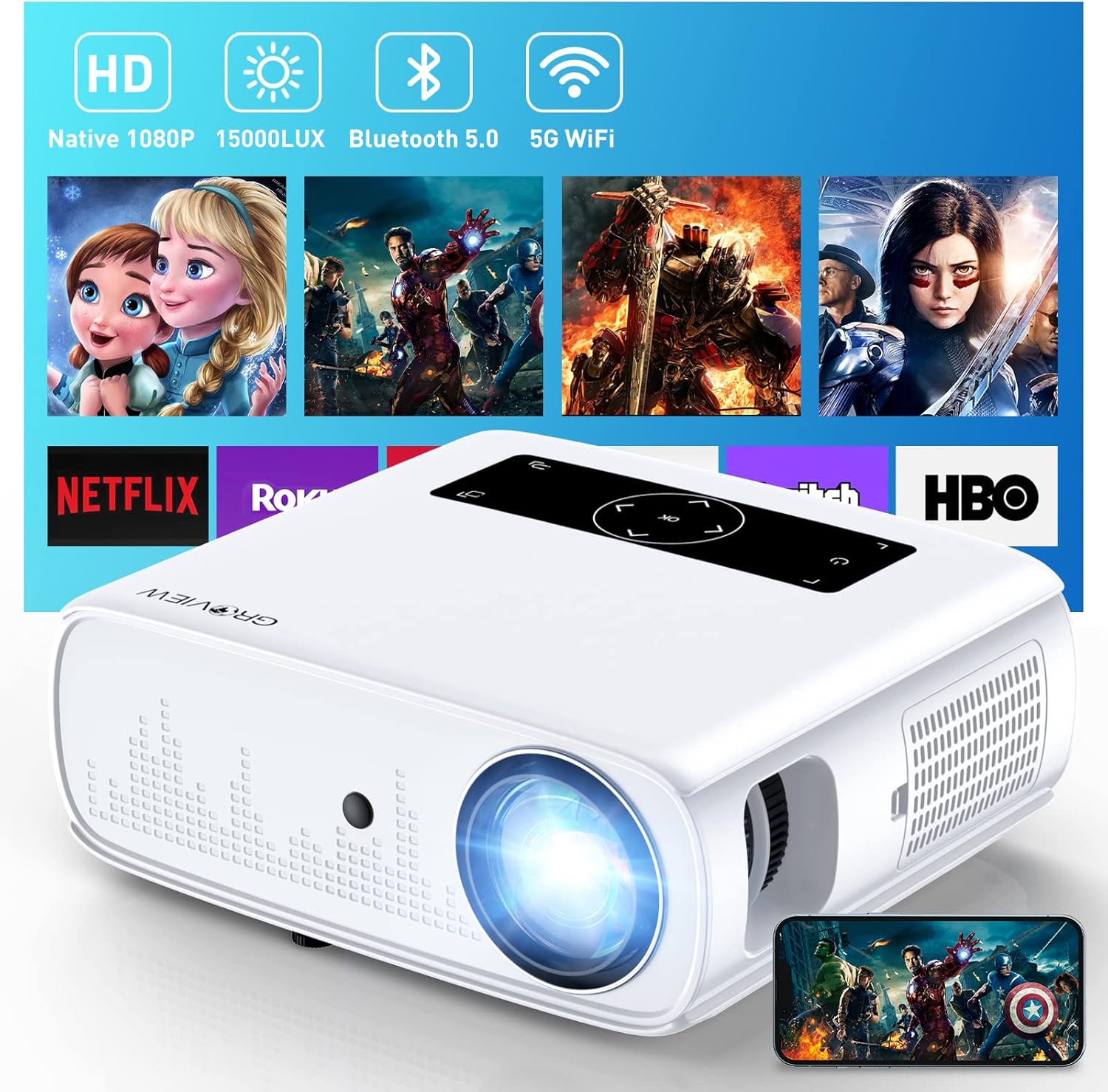
GROVIEW JQ818C Projector is designed to deliver a high-quality home theater experience with its native 1080P resolution, high brightness (15000lux 490ANSI lm), and impressive contrast ratio (12000:1). Utilizing LED light and LCD technology, it supports 4K Ultra HD video for clear and detailed images. This versatile projector offers seamless connectivity options including 2.4+5G dual-band WiFi and Bluetooth, enabling easy screen mirroring and audio integration. Its compact design and user-friendly features make it suitable for various applications, from home entertainment to business presentations.
2. Що в коробці
Upon unboxing your GROVIEW JQ818C Projector, please ensure all the following components are present:
- Проектор JQ818C
- Пульт дистанційного керування
- AV-кабель
- Кабель HDMI
- Шнур живлення
Зображення: The GROVIEW JQ818C Projector shown with its remote control, AV cable, HDMI cable, and power cord.
3. Продукт закінчивсяview
3.1 Фізичні особливості
GROVIEW JQ818C Projector features a sleek, white design with intuitive controls and multiple connectivity options. Its compact dimensions of 10.63 x 9.06 x 3.94 inches and a weight of 5.9 pounds make it portable for various setups.
Зображення: спереду view GROVIEW JQ818C Projector, highlighting its lens and clean design.
3.2 Порти та елементи керування
The projector is equipped with a variety of ports for seamless integration with your devices:
- Порти HDMI (x2): For connecting laptops, gaming consoles (PS5), TV sticks, and other HDMI-enabled devices.
- USB-порти (x2): For connecting USB drives, smartphones, tablets, and other USB devices.
- AV-порт: Для підключення старіших пристроїв за допомогою AV-кабелю.
- Аудіовихід (роз'єм 3.5 мм): Для підключення зовнішніх динаміків або навушників.
- Споживана потужність: Для підключення шнура живлення.
Control buttons are conveniently located on the top panel, allowing for easy navigation and adjustments. A remote control is also included for convenient operation from a distance.

Зображення: Задня частина view of the projector, detailing the HDMI, USB, AV, and audio out ports.

Image: Top panel of the projector with illuminated control buttons.
4. Налаштування
4.1 Розміщення
Розмістіть проектор на стійкій, рівній поверхні. Для оптимального viewing, position it directly in front of your projection surface (wall or screen). The projector features an adjustable foot at the front to slightly tilt the projection upward if needed.

Image: Diagram illustrating recommended projection distances for various screen sizes (50-300 inches).
4.2 Підключення живлення
Connect the provided power cord to the projector's power input and then to a standard electrical outlet.
4.3 Початкове увімкнення та налаштування фокуса
Press the power button on the projector or the remote control to turn on the device. Adjust the focus ring around the lens until the projected image is clear and sharp. The projector also includes a lens cap to protect the lens when not in use.
5. Інструкція з експлуатації
5.1 Підключення пристроїв
GROVIEW JQ818C Projector offers multiple ways to connect your devices:
- HDMI: Use the provided HDMI cable to connect your laptop, game console (PS5), DVD player, or TV stick to either of the two HDMI ports.
- USB: Insert a USB flash drive into one of the USB ports to play media files безпосередньо.
- AV: Connect older devices like DVD players using the AV cable.
5.2 Screen Mirroring (Wireless Connectivity)
Experience seamless content sharing with the projector's advanced screen mirroring capabilities:
- WiFi (2.4G+5G Dual-Band): Connect the projector to your home WiFi network for ultra-fast and stable screen mirroring from your smartphone, tablet, or laptop.
- Стільникова мережа: The projector supports one-step screen mirroring via cellular network technology, allowing you to mirror your device even outdoors without a WiFi network.
- Bluetooth: Connect the projector to external Bluetooth speakers for enhanced audio experience. The built-in 5W dual stereo speakers with SRS sound system also provide clear and dynamic audio.
5.3 Налаштування зображення
- Функція масштабування: Adjust the display size from 50 to 300 inches using the 25% zoom function, allowing you to fine-tune the image without moving the projector.
- Корекція трапецеїдальних спотворень: Manually adjust the keystone to correct distorted images if the projector is not perfectly perpendicular to the screen.
6. Технічне обслуговування
To ensure the longevity and optimal performance of your GROVIEW JQ818C Projector, follow these maintenance guidelines:
- Очищення лінзи: Use a soft, lint-free cloth specifically designed for optical lenses to gently wipe the projector lens. Avoid using abrasive cleaners or cloths that could scratch the surface.
- Очищення зовнішньої частини: Протріть зовнішню частину проектора м’якою сухою тканиною. Не використовуйте рідкі або аерозольні засоби для чищення.
- Вентиляція: Ensure the projector's ventilation openings are clear and unobstructed to prevent overheating. Regularly check for dust buildup.
- Зберігання: When not in use for extended periods, store the projector in a cool, dry place, ideally in its original packaging or a protective case, with the lens cap on.
7. Вирішення проблем
If you encounter any issues with your GROVIEW JQ818C Projector, please refer to the common troubleshooting steps below. For more detailed information, consult the full Посібник користувача (PDF).
- Без зображення:
- Переконайтеся, що шнур живлення надійно підключений, а проектор увімкнено.
- Verify the input source is correctly selected (e.g., HDMI 1, USB, Miracast).
- Check the connected device for proper output settings.
- Розмите зображення:
- Відрегулюйте кільце фокусування на об’єктиві проектора.
- Ensure the projection surface is flat and the projector is positioned correctly.
- Use keystone correction to adjust image shape if needed.
- Немає звуку:
- Перевірте налаштування гучності на проекторі та підключеному пристрої.
- Якщо ви використовуєте зовнішні динаміки, переконайтеся, що вони правильно підключені та увімкнені.
- Перевірте з’єднання Bluetooth, якщо використовуєте бездротове аудіо.
- Проблеми з підключенням (Wi-Fi/Bluetooth):
- Ensure the projector is within range of the WiFi router or Bluetooth device.
- Перезавантажте проектор і підключений пристрій.
- Перевірте наявність будь-яких перешкод від інших бездротових пристроїв.
8. Технічні характеристики
| Особливість | Специфікація |
|---|---|
| Розміри продукту | 10.63 x 9.06 x 3.94 дюймів |
| Вага товару | 5.9 фунта |
| Номер моделі | JQ818C |
| Рідна роздільна здатність | 1920 x 1080 (Full HD) |
| Яскравість | 15000LUX (490ANSI lm) |
| Коефіцієнт контрастності | 12000:1 |
| Підтримувана роздільна здатність відео | Up to 4K Ultra HD (downscaled to 1080P) |
| Розмір проекції | 50-300 дюймів |
| Технологія підключення | Wireless (WiFi 2.4G+5G, Bluetooth), HDMI, USB, AV |
| Вбудовані динаміки | 5W Dual Stereo Speakers with SRS Sound System |
| Особливості | Zoom function, Eye-friendly diffused reflection |
9. Гарантія та підтримка
GROVIEW пропонує а 2-річна гарантія обслуговування клієнтів та політика заміни for the JQ818C Projector, providing peace of mind for your purchase.
For further assistance, detailed instructions, or troubleshooting not covered in this manual, please refer to the comprehensive Посібник користувача (PDF) доступні онлайн.
Ви також можете відвідати офіційну Groview Магазин на Amazon для отримання додаткової інформації про продукт та підтримки.
Ask a question about this manual
Ask about setup, troubleshooting, compatibility, parts, safety, or missing instructions. Manuals+ will review the question and use this page’s manual context to help answer it.