
вступ
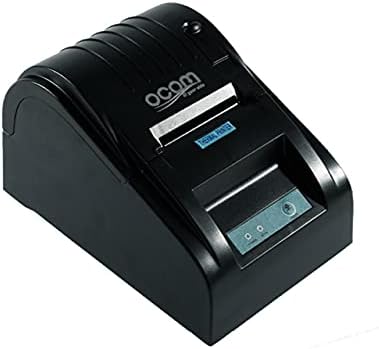
This image shows the OCOM OCPP-585A-U-B Thermal Receipt Printer from a slightly elevated front-right angle. The printer is black with a sleek, compact design. The paper output slot is visible at the top, and the control panel with 'POWER' and 'MODE' indicators is located on the front.
This manual provides detailed instructions for the OCOM OCPP-585A-U-B Thermal Receipt Printer. Please read this manual carefully before using the printer to ensure proper operation and longevity.
Посібник із налаштування
1. Розпакування
Carefully remove the printer and all accessories from the packaging. Verify that all components are present: printer unit, power adapter, USB cable, and a roll of thermal paper.
2. Завантаження термопаперу
- Open the paper cover by pushing the cover open button (usually located on the side or front).
- Insert the thermal paper roll into the paper compartment, ensuring the printing side of the paper faces the print head. The paper should feed smoothly from the bottom of the roll.
- Pull out a small length of paper beyond the paper exit slot.
- Щільно закривайте кришку відсіку для паперу, доки вона не клацне на місці.
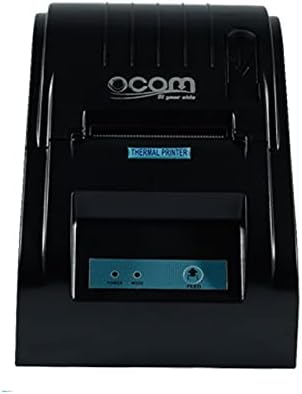
This image displays the OCOM OCPP-585A-U-B Thermal Receipt Printer from a direct top-down perspective. The paper compartment is visible, showing a thermal paper roll correctly inserted. The 'THERMAL PRINTER' label and the control panel with 'POWER' and 'MODE' indicators are clearly visible.
3. Підключення принтера
- Connect the power adapter to the printer's power input port and then plug it into a power outlet.
- Connect the USB cable to the printer's USB port and the other end to your computer or POS system.
- Press the power button to turn on the printer. The power indicator light should illuminate.
Інструкція з експлуатації
Основний друк
Once connected and powered on, the printer is ready to receive print commands from your connected device. Ensure the correct printer driver is installed on your computer/POS system.
- Відкрийте документ або програму, з якої потрібно надрукувати.
- Select 'Print' from the file меню.
- Choose 'OCOM OCPP-585A-U-B' as your printer.
- Adjust print settings if necessary (e.g., paper size, print quality).
- Натисніть кнопку «Друк».
Self-Test Print
To perform a self-test print, ensure the printer is off. Hold down the 'FEED' button (if available, or a combination of buttons as per specific model) while turning on the printer. Release the button once printing begins. This will print a configuration page, confirming basic printer functionality.
Технічне обслуговування
Очищення друкуючої головки
Regular cleaning of the print head ensures optimal print quality and extends printer life.
- Вимкніть принтер і від’єднайте шнур живлення.
- Відкрийте паперову кришку.
- Використовуйте ватний тампон, злегка промокнітьampened with isopropyl alcohol to gently wipe the thermal print head (the dark strip inside the printer).
- Дайте друкуючій голівці повністю висохнути, перш ніж закривати кришку та вмикати принтер.
Cleaning the Paper Path
Видаліть паперовий пил або сміття зі шляху проходження паперу за допомогою м’якої щітки або стисненого повітря.
Усунення несправностей
| проблема | Можлива причина | Рішення |
|---|---|---|
| Принтер не вмикається | Power cable loose; Power outlet faulty | Check power connections; Try a different outlet |
| Немає виводу на друк | Paper loaded incorrectly; Out of paper; Driver not installed/selected | Reload paper correctly; Replace paper roll; Install/select correct printer driver |
| Faint or blank print | Thermal paper loaded upside down; Print head dirty; Paper quality issue | Flip paper roll; Clean print head; Try new thermal paper |
| Принтер офлайн | USB cable disconnected; Printer driver issue | Reconnect USB cable; Reinstall printer driver |
Технічні характеристики
| Особливість | Деталь |
|---|---|
| Перша доступна дата | 2021 червня 20 р |
| Виробник | OCOM |
| ASIN | B097LSGP62 |
| Номер моделі товару | OCPP-585-U-B |
| Торгова марка | OCOM |
| Технологія підключення | USB |
| Технологія принтера | Теплові |
| Колір | чорний |
| Назва моделі | OCPP 585 U B |
| Друковані ЗМІ | етикетки |
| Тип сканера | розписка |
Гарантія та підтримка
This OCOM printer typically comes with a standard manufacturer's warranty. Please refer to the warranty card included with your product for specific terms and conditions, or visit the official OCOM webдля отримання детальної інформації про гарантію.
For technical support, driver downloads, or further assistance, please visit the OCOM official support website or contact their customer service. Keep your model number (OCPP-585A-U-B) and purchase details ready when seeking support.