
1. Продукт закінчивсяview
The SIIG JU-DK0L11-S1 is a versatile USB 3.0 Dual Monitor Docking Station designed to expand your laptop or desktop's connectivity and display capabilities. It supports up to two 1080p@60Hz Full HD video displays via two HDMI ports, along with multiple USB ports, Gigabit Ethernet, and a 3.5mm audio jack. This docking station is compatible with both Windows and macOS operating systems, including Mac M1/M2/M3 Pro&Max.
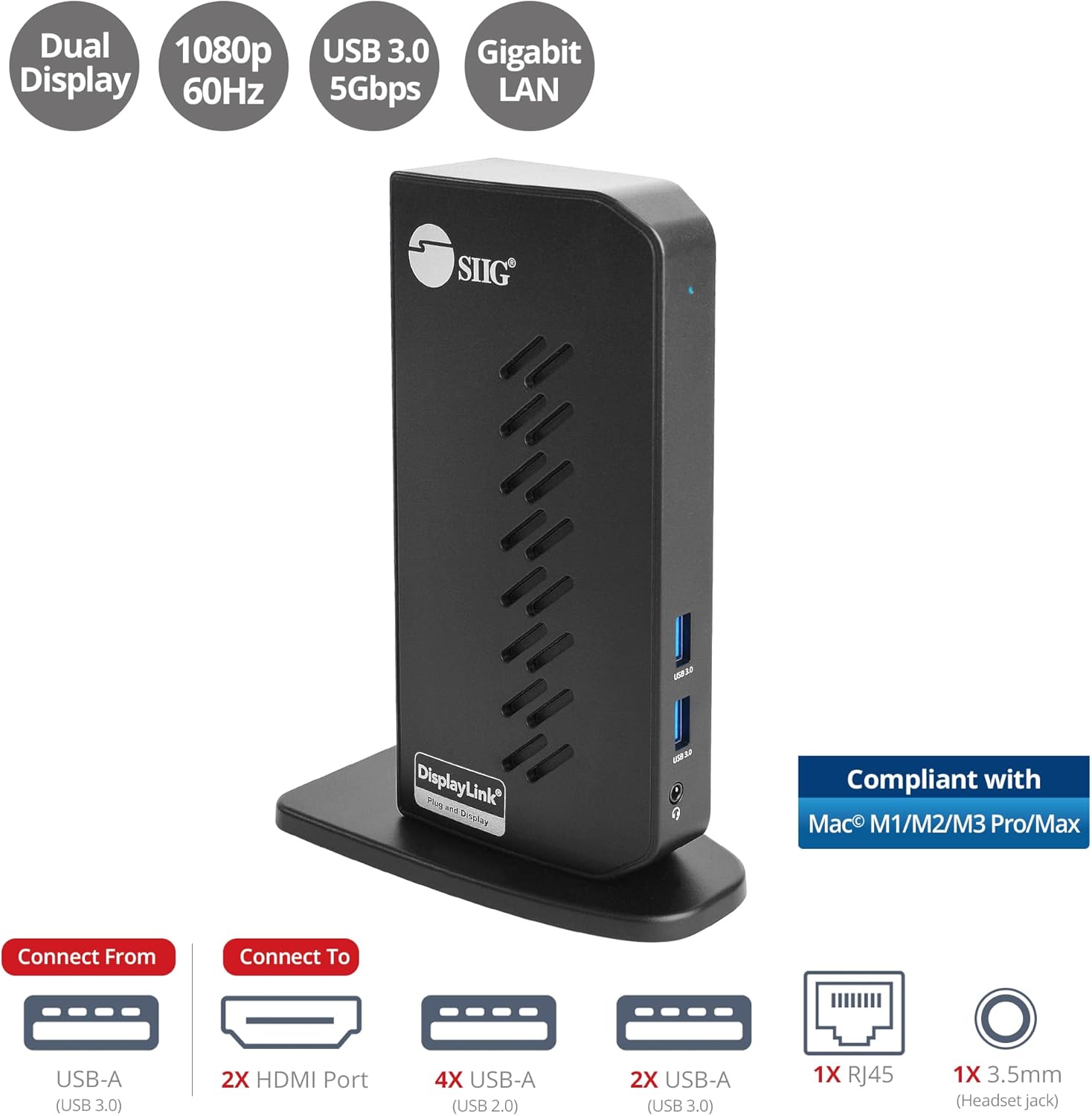
Image 1.1: The SIIG JU-DK0L11-S1 Dual Monitor Docking Station, showcasing its compact vertical design and various connectivity options.
2. Вміст упаковки
Перш ніж продовжувати встановлення, переконайтеся, що всі елементи присутні в упаковці.
- SIIG JU-DK0L11-S1 Dual Head Full HD HDMI Video Docking Station
- Адаптер живлення (12 В/2 А)
- USB 3.0 Type-A to Type-B Cable
- Driver CD (Drivers can also be downloaded from the official SIIG webсайт)
- Посібник користувача

Image 2.1: All components included in the SIIG JU-DK0L11-S1 docking station package, including the docking station, power adapter, USB cable, driver CD, and user manual.
3. Компонування обладнання
Familiarize yourself with the ports and indicators on the docking station.
Передня панель
- Світлодіод живлення: Вказує на стан живлення.
- 2 порти USB 3.0: For connecting high-speed USB devices (5Gbps, 4.5W/900mA).
- Гніздо для гарнітури 3.5 мм: For connecting headphones or stereo speakers with microphone input.
Задня панель
- 4 порти USB 2.0: For connecting standard USB devices (480Mbps, 5V/900mA).
- Гігабітний порт Ethernet RJ45: Для дротового мережевого підключення (10/100/1000 Мбіт/с).
- 2x HDMI Outputs: For connecting external displays (up to 1080p@60Hz).
- USB 3.0 Type-B Port: For connecting the docking station to your host computer.
- Джек живлення: Для підключення адаптера живлення 12 В/2 А.

Зображення 3.1: Детальний опис view of the front and rear panels of the docking station, highlighting all available ports and their functions.
4. Інструкції з налаштування
Виконайте такі кроки, щоб налаштувати док-станцію:
- Встановлення драйверів DisplayLink: Before connecting the docking station, install the necessary DisplayLink drivers on your computer. You can use the included driver CD or download the latest drivers from the official DisplayLink webсайт (www.displaylink.com/downloads) or SIIG's support page.
- Підключіть живлення: Plug the provided 12V/2A power adapter into the docking station's power jack and then into a wall outlet. The Power LED on the front panel should illuminate.
- Підключення до головного комп'ютера: Use the supplied USB 3.0 Type-A to Type-B cable to connect the docking station's USB 3.0 Type-B port to an available USB 3.0 Type-A port on your laptop or desktop computer.
- Підключення дисплеїв: Connect your external monitors to the two HDMI output ports on the rear of the docking station using HDMI cables.
- Підключення периферійних пристроїв: Connect your USB devices (keyboard, mouse, printer, flash drives, etc.) to the available USB 3.0 and USB 2.0 ports. Connect an Ethernet cable to the RJ45 port for a wired network connection. Plug your headset or speakers into the 3.5mm audio jack.
Video 4.1: An official video demonstrating the setup and connectivity of the SIIG JU-DK0L11-S1 Dual Head Full HD HDMI Docking Station, showing how to connect monitors and peripherals.
5. Інструкція з експлуатації
Once the docking station is set up, you can configure your display settings and utilize the connected peripherals.
Режими відображення
The docking station supports three primary display modes:
- Дзеркальний режим: Duplicates your primary display onto the external monitors.
- Розширений режим: Розширює робочий стіл на кілька екранів, що дозволяє збільшити робочий простір.
- Основний режим: Designates one of the connected displays as the main display.
Ви можете налаштувати ці параметри через параметри дисплея вашої операційної системи (наприклад, «Параметри дисплея Windows» або «Параметри системи macOS» > «Дисплеї»).

Image 5.1: A typical dual 1080p monitor setup utilizing the SIIG docking station, demonstrating an extended display configuration for enhanced productivity.
Підключення USB
The docking station provides two USB 3.0 ports for high-speed data transfer (e.g., external hard drives, SSDs) and four USB 2.0 ports for standard peripherals (e.g., keyboard, mouse, printer). Simply plug your devices into the corresponding ports.
Гігабітний Ethernet
For a stable and fast internet connection, connect an Ethernet cable from your router or modem to the RJ45 port on the docking station. This provides a more reliable connection than Wi-Fi, supporting 10/100/1000 BASE-T wired networks.

Зображення 5.2: Крупний план view of the Gigabit RJ45 Ethernet port and USB ports, illustrating their use for network and high-speed data transmission.
Підключення аудіо
The 3.5mm headset jack allows you to connect headphones, speakers, or a microphone. Ensure your operating system's audio settings are configured to use the docking station's audio output/input.
6. Specifications (Model: JU-DK0L11-S1)
| Бренд | СІІГ |
| Номер моделі | JU-DK0L11-S1 |
| Апаратний інтерфейс | 3.5mm Audio, Ethernet, HDMI, USB 1.1, USB 2.0, USB 3.0 |
| Сумісні пристрої | Desktop or laptop computer with an available USB 3.0 Type-A port. Compatible with Windows® 11/10/8.1/8/7 and macOS® 11 / 10.15 to 10.10. |
| Загальна кількість портів USB | 6 (2x USB 3.0, 4x USB 2.0) |
| Загальна кількість портів HDMI | 2 |
| Максимальна роздільна здатність | 1080p@60Hz (per display) |
| Швидкість Ethernet | Гігабіт (10/100/1000 Мбіт/с) |
| Вхідний об'ємtage | 100 вольт (перемінний струм) |
| Розміри продукту (Д x Ш x В) | 5.31 см x 2.87 см x 7.36 см |
| Вага товару | 0.75 фунта |

Image 6.1: Physical dimensions of the SIIG JU-DK0L11-S1 docking station, illustrating its compact and space-saving design.
7. Вирішення проблем
- Немає виводу на дисплей:
- Ensure the docking station is powered on and the Power LED is lit.
- Verify that the USB 3.0 cable is securely connected between the docking station and your computer.
- Check that HDMI cables are firmly connected to both the docking station and your monitors.
- Confirm that DisplayLink drivers are correctly installed and up to date.
- Спробуйте перезавантажити комп'ютер.
- USB-пристрої не розпізнані:
- Ensure the docking station is powered and connected to your computer.
- Спробуйте підключити USB-пристрій до іншого порту на док-станції.
- Connect the USB device directly to your computer to rule out device issues.
- Немає мережевого підключення:
- Verify the Ethernet cable is securely connected to the RJ45 port on the docking station and your network source.
- Перевірте мережеві налаштування комп’ютера, щоб переконатися, що адаптер Ethernet увімкнено.
- Confirm that your router/modem is functioning correctly.
- Проблеми зі звуком:
- Ensure your headset/speakers are properly plugged into the 3.5mm jack.
- Check your computer's sound settings to select the docking station as the default audio output/input device.
8. Технічне обслуговування
To ensure the longevity and optimal performance of your SIIG docking station, follow these maintenance guidelines:
- Підтримуйте чистоту пристрою, протираючи його м’якою сухою тканиною. Уникайте використання рідких засобів для чищення або аерозолів.
- Ensure proper ventilation around the docking station to prevent overheating. The vertical design with heat dissipation features aids in this.
- Уникайте впливу на пристрій екстремальних температур, вологості або прямого сонячного світла.
- Обережно поводьтеся з кабелями та роз'ємами, щоб запобігти пошкодженню.
9. Гарантія та підтримка
For warranty information and technical support, please refer to the documentation included with your product or visit the official SIIG website. SIIG is committed to providing reliable products and customer assistance.
For further assistance, you may contact SIIG customer support directly through their webсайт або контактну інформацію, зазначену на упаковці вашого продукту.