
вступ
This manual provides essential instructions for setting up, operating, maintaining, and troubleshooting your Surfans K7 Kids Tablet. Please read this guide thoroughly to ensure proper use and to maximize the tablet's features for a safe and engaging experience for children.
Продукт закінченийview
Ключові характеристики
- Операційна система Android 10.0: Provides a secure and fast user experience.
- 7-inch IPS FHD Display: Features a 1920 x 1200 resolution eye-care touchscreen with a 178-degree wide viewкут.
- Чотириядерний процесор: Ensures smooth performance for apps and games.
- 2GB RAM, 32GB ROM: Sufficient memory for multitasking and storage, expandable via MicroSD card.
- Подвійні камери: Equipped with 2MP front and 5MP rear cameras for photos and video calls.
- Підключення: Includes Wi-Fi and Bluetooth for wireless connections.
- Pre-installed iWAWA App: Offers updated educational content including games, videos, e-books, drawing, puzzles, and creative arts.
- Доступ до магазину Google Play: Allows downloading additional applications like YouTube Kids, Netflix, and Hulu.
- Parental Control Mode: Enables parents to manage content, set time limits, and customize child profiles.
- Durable Kid-Proof Case: Comes with a colorful, soft, and high-quality silicone case with an integrated 360-degree adjustable stand, suitable for children aged 2 to 10 years.

Image: The Surfans K7 Kids Tablet showcasing its GMS Certified Android 10.0 operating system and access to various applications via Google Play Store.

Image: The Surfans K7 Kids Tablet in use, illustrating its key features including quad-core processor, Android 10.0, 2GB RAM, 32GB ROM, WiFi, and Parent Mode.
Компоненти планшета
Ознайомтеся з фізичними компонентами вашого планшета:
- Кнопка живлення: Typically located on the side, used to turn the tablet on/off or put it to sleep/wake it up.
- Кнопки гучності: Налаштуйте рівень вихідного аудіо.
- Порт USB-C: For charging the tablet and connecting to a computer for data transfer.
- 3.5 мм аудіороз’єм: Для підключення навушників або зовнішніх динаміків.
- Слот для карт MicroSD: Allows for memory expansion using a compatible MicroSD card.
- Фронтальна камера: Used for video calls and taking selfies.
- Задня камера: Для зйомки фото та відео.
- Доповідач: Provides audio output for media and notifications.
Налаштування
1. Зарядка планшета
Before first use, fully charge the tablet. Connect the provided USB cable to the tablet's USB-C port and the other end to the power adapter. Plug the adapter into a wall outlet. The battery indicator on the screen will show the charging status.
2. Увімкнення/вимкнення живлення
- Щоб увімкнути: Press and hold the Power Button until the screen lights up and the Surfans logo appears.
- Щоб вимкнути: Press and hold the Power Button until a menu appears on the screen. Select "Power off" and confirm.
- Для сну/пробудження: Коротко натисніть кнопку живлення, щоб перевести планшет у режим сну або розбудити його.
3. Початкове налаштування
Upon first power-on, follow the on-screen prompts to configure basic settings:
- Виберіть потрібну мову.
- Connect to a Wi-Fi network (see next step).
- Set up your Google account or create a new one. This is necessary for downloading apps from the Google Play Store.
- Review та прийміть умови та положення.
4. Підключення до Wi-Fi
To connect your tablet to the internet:
- Перейти до Налаштування.
- Торкніться Мережа та Інтернет.
- Виберіть Wi-Fi і увімкніть його.
- Планшет просканує доступні мережі. Виберіть потрібну мережу зі списку.
- Enter the Wi-Fi password if prompted, then tap Підключитися.
Інструкція з експлуатації
1. Основна навігація
The Surfans K7 tablet uses a touchscreen for interaction:
- Торкніться: Touch the screen once to select an item, open an app, or press a button.
- Проведіть пальцем: Drag your finger across the screen to scroll through pages, lists, or switch between home screens.
- Масштабування за допомогою розведення пальців: Покладіть два пальці на екран і зведіть їх разом або в сторони, щоб збільшити або зменшити масштаб.
- Сповіщення та швидкі налаштування: Проведіть пальцем униз від верхньої частини екрана, щоб отримати доступ до сповіщень та швидких налаштувань (Wi-Fi, Bluetooth тощо).
2. Downloading Apps from Google Play Store
With a Google account set up, you can download a wide variety of applications:
- Торкніться Play Store значок на головному екрані або в панелі програм.
- Browse or search for apps, games, movies, and books.
- Select an item and tap встановити щоб завантажити та встановити його.
3. Using Pre-installed iWAWA App
The iWAWA app provides a safe and engaging environment for children:
- Знайдіть і торкніться iWAWA значок.
- Explore the various categories such as games, videos, e-books, and creative activities.
- Content within iWAWA is curated to be age-appropriate and educational.
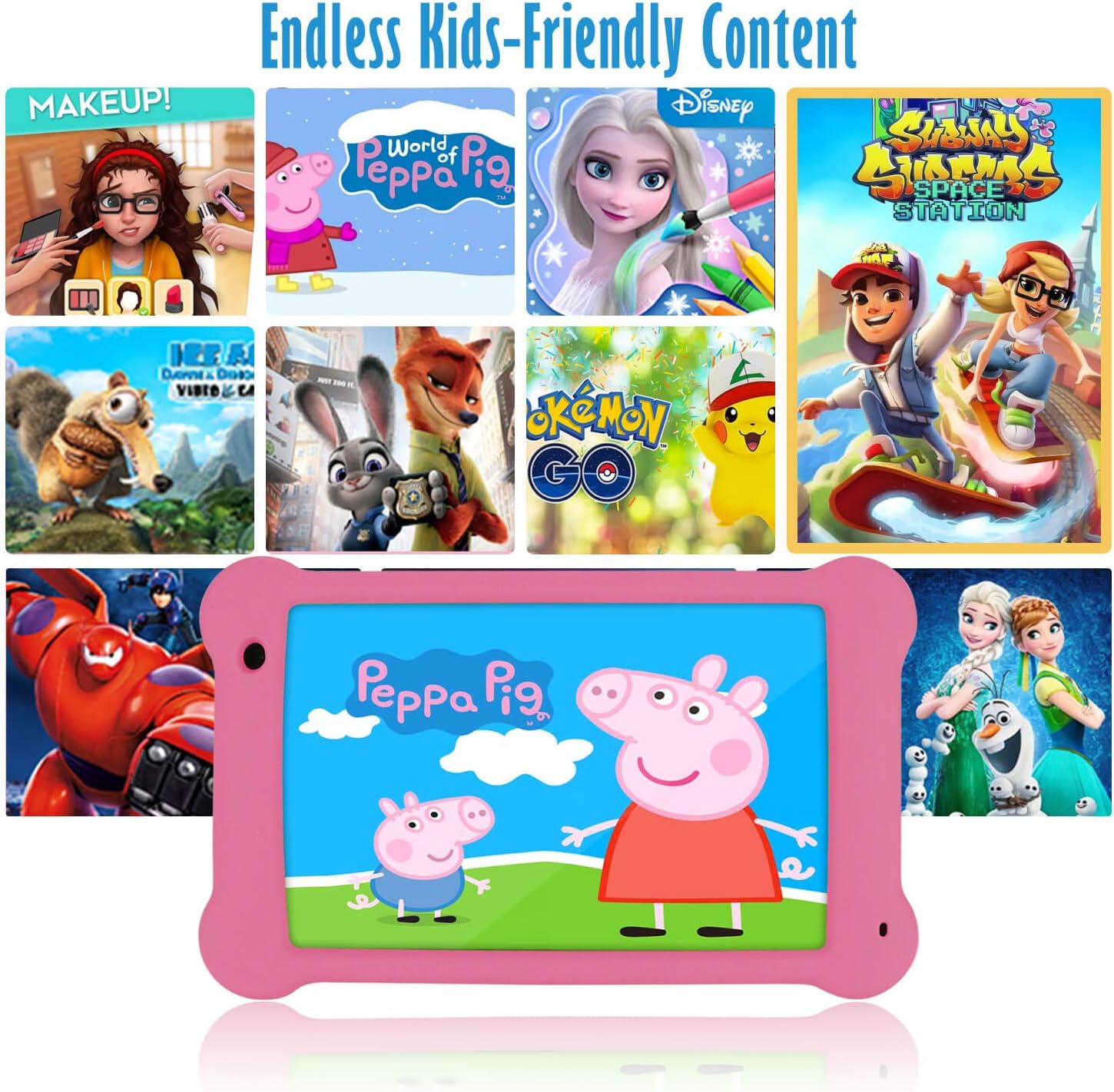
Image: The Surfans K7 Kids Tablet showcasing a variety of popular kid-friendly content, accessible through pre-installed apps and Google Play Store.
Режим батьківського контролю
The Surfans K7 tablet includes a dedicated Parental Control Mode to manage your child's usage and ensure a safe digital environment.
1. Accessing Parental Mode
To access and configure parental controls:
- Знайдіть і відкрийте Режим Батько or iWAWA Parent додаток на планшеті.
- You will be prompted to set up a password or PIN for secure access. Remember this password.
2. Setting Time Limits
Manage how long your child can use the tablet:
- Configure daily usage limits for the tablet.
- Set specific time blocks during which the tablet can or cannot be used (e.g., bedtime restrictions).
3. Content Filtering
Ensure your child accesses only appropriate content:
- Select and approve specific applications, websites, and media content that your child is allowed to access.
- Block inappropriate content categories or specific webсайти.
4. Managing Child Profiles
Create personalized experiences for each child:
- Створення індивідуальних проfiles for multiple children.
- Customize settings, content access, and time limits for each profile based on age and preferences.

Image: A parent and child using the Surfans K7 Kids Tablet, demonstrating the ease of setting up and managing parental controls for time limits, child lock, and content filtering.
Технічне обслуговування
1. Очищення планшета
Щоб підтримувати чистоту та функціональність планшета:
- Use a soft, lint-free cloth (e.g., microfiber cloth) to gently wipe the screen and tablet body.
- Для стійких плям злегкаampпромокніть тканину водою. Уникайте використання агресивних хімікатів, абразивних засобів для чищення або надмірної вологи, оскільки це може пошкодити екран або внутрішні компоненти.
- Перед чищенням переконайтеся, що планшет вимкнено та від’єднано від мережі.
2. Догляд за акумулятором
Proper battery care extends the tablet's lifespan:
- Avoid fully discharging the tablet frequently. Charge the tablet when the battery level is low (e.g., below 20%).
- Do not expose the tablet to extreme temperatures (hot or cold), as this can degrade battery performance.
- Використовуйте лише зарядний пристрій, що постачається з комплекту, або сертифікований сумісний зарядний пристрій.
3. Оновлення програмного забезпечення
Keep your tablet's software up-to-date for optimal performance and security:
- Periodically check for system updates by going to Налаштування > Система > Оновлення системи.
- Ensure your tablet is connected to Wi-Fi and has sufficient battery charge before starting an update.
4. Protective Case Care
The included kid-proof silicone case offers protection:
- Очистіть корпус рекламоюamp тканиною, якщо вона забрудниться.
- Ensure the case is properly fitted around the tablet to provide maximum protection against drops and bumps.

Зображення: Детальний view of the Surfans K7 Kids Tablet's durable kid-proof case, highlighting its soft silicone material and anti-drop corner design for enhanced protection.
Усунення несправностей
This section addresses common issues you might encounter with your Surfans K7 Kids Tablet.
Tablet Does Not Turn On
- Перевірте батарею: Ensure the tablet is charged. Connect it to the charger for at least 30 minutes, then try powering it on again.
- Примусовий перезапуск: Press and hold the Power Button for about 10-15 seconds until the tablet restarts.
Screen is Black but Audio is Playing
This can sometimes occur:
- Briefly press the Power Button to put the screen to sleep, then press it again to wake it up.
- If the issue persists, perform a force restart by pressing and holding the Power Button for 10-15 seconds.
Проблеми з підключенням Wi-Fi
- Увімкнути Wi-Fi: Перейти до Налаштування > Мережа та інтернет > Wi-Fi and ensure Wi-Fi is turned on.
- Перезапустіть маршрутизатор: Перезавантажте Wi-Fi роутер і модем.
- Забудьте про мережу: Go to Wi-Fi settings, tap on your network, and select "Forget network." Then, reconnect to the network and re-enter the password.
- Потужність сигналу: If the signal is weak, move closer to your Wi-Fi router.
Apps Are Slow or Crashing
- Закрийте програми, які не використовуються: Swipe up from the bottom of the screen (or tap the square navigation button) to view recent apps, then swipe them away to close.
- Перезавантажте планшет: A simple restart can often resolve performance issues.
- Очистити кеш програми: Перейти до Налаштування > Програми > [Назва програми] > Пам’ять і кеш > Очистити кеш.
Tablet is Unresponsive
If the tablet freezes and does not respond to touch:
- Perform a force restart by pressing and holding the Power Button for approximately 10-15 seconds until the device powers off and restarts.
Скидання до заводських налаштувань (крайній засіб)
If all other troubleshooting steps fail, a factory reset may be necessary. Warning: This will erase all data on the tablet, including apps, photos, and user settings. Back up any important data before proceeding.
- Перейти до Налаштування > Система > Параметри скидання.
- Торкніться Видалити всі дані (скинути заводські налаштування).
- Підтвердіть своє рішення та дотримуйтесь інструкцій на екрані.
Технічні характеристики

Image: Visual comparison highlighting the superior clarity of the 1920x1200 FHD IPS display with a 178-degree wide viewing angle on the Surfans K7 Kids Tablet.
| Особливість | Специфікація |
|---|---|
| Бренд | Surfans |
| Назва моделі | K7 |
| Операційна система | Android 10.0 |
| Розмір екрана | 7 дюймів |
| Максимальна роздільна здатність екрана | 1920 x 1200 пікселів |
| Марка процесора | ARM (Quad-core 1.6GHz) |
| Installed RAM Memory | 2 ГБ |
| Ємність пам'яті | 32 ГБ |
| Розширюване сховище | Слот для карти MicroSD |
| Front Photo Sensor Resolution | 2 Мп |
| Макс WebРоздільна здатність зображення камери | 5 Мп |
| Роздільна здатність запису відео | FHD 1080p |
| Технологія підключення | Bluetooth, USB, Wi-Fi |
| Бездротова сумісність | 802.11a/b/g/n |
| Апаратура для підключення до | 3.5 mm Audio Jack, USB-C Port |
| Тип батареї | Літій-полімер |
| Ємність акумулятора | 3000 мАг |
| Середній термін служби батареї | 8 години |
| Вага товару | 450 грамів |
| Колір | Рожевий |
| Опис вікового діапазону | Baby, Children (2-10 years) |
Гарантія та підтримка
The Surfans K7 Kids Tablet comes with a standard manufacturer's warranty. For specific warranty terms, conditions, and duration, please refer to the warranty card included in the product packaging or contact Surfans customer support.
For technical assistance, troubleshooting beyond this manual, or further inquiries, please visit the official Surfans webсайті або зверніться до їхнього відділу обслуговування клієнтів, скориставшись контактною інформацією, наданою під час покупки, або на їхньому webсайт.