
1. Вступ
Welcome to the user manual for your XOOPAR Buddy Cable XP71031. This document provides essential information on how to set up, operate, and maintain your multi-connector cable. Please read these instructions carefully to ensure proper use and longevity of your product.
2. Продукт закінчивсяview
The XOOPAR Buddy Cable is a versatile charging and data transfer solution designed for modern mobile devices. It features a unique 'Buddy' shaped design and a compact keychain format for enhanced portability. This cable integrates three common connectors:
- USB-A: For connecting to standard USB ports on computers, wall adapters, and power banks.
- USB-C: Compatible with a wide range of modern smartphones (e.g., Huawei, Google), tablets, and laptops.
- Блискавка: Designed for Apple iPhones, iPads, and other Lightning-compatible devices.

Image: The XOOPAR Buddy Cable showcasing its three integrated connectors (USB-A, USB-C, and Lightning) and its coiled cable design.
3. Налаштування
Using the XOOPAR Buddy Cable is straightforward. Follow these steps to connect your devices:
- Визначте сполучники: Locate the appropriate connector for your power source (USB-A) and your mobile device (USB-C or Lightning).
- Підключення до джерела живлення: Plug the USB-A end of the Buddy Cable into a compatible USB port on a wall adapter, computer, or power bank.
- Підключення до пристрою: Plug the USB-C or Lightning end into the charging port of your smartphone or other compatible device.
- Перевірте підключення: Переконайтеся, що обидва кінці надійно підключені. Ваш пристрій має показувати, що він заряджається або підключений для передачі даних.
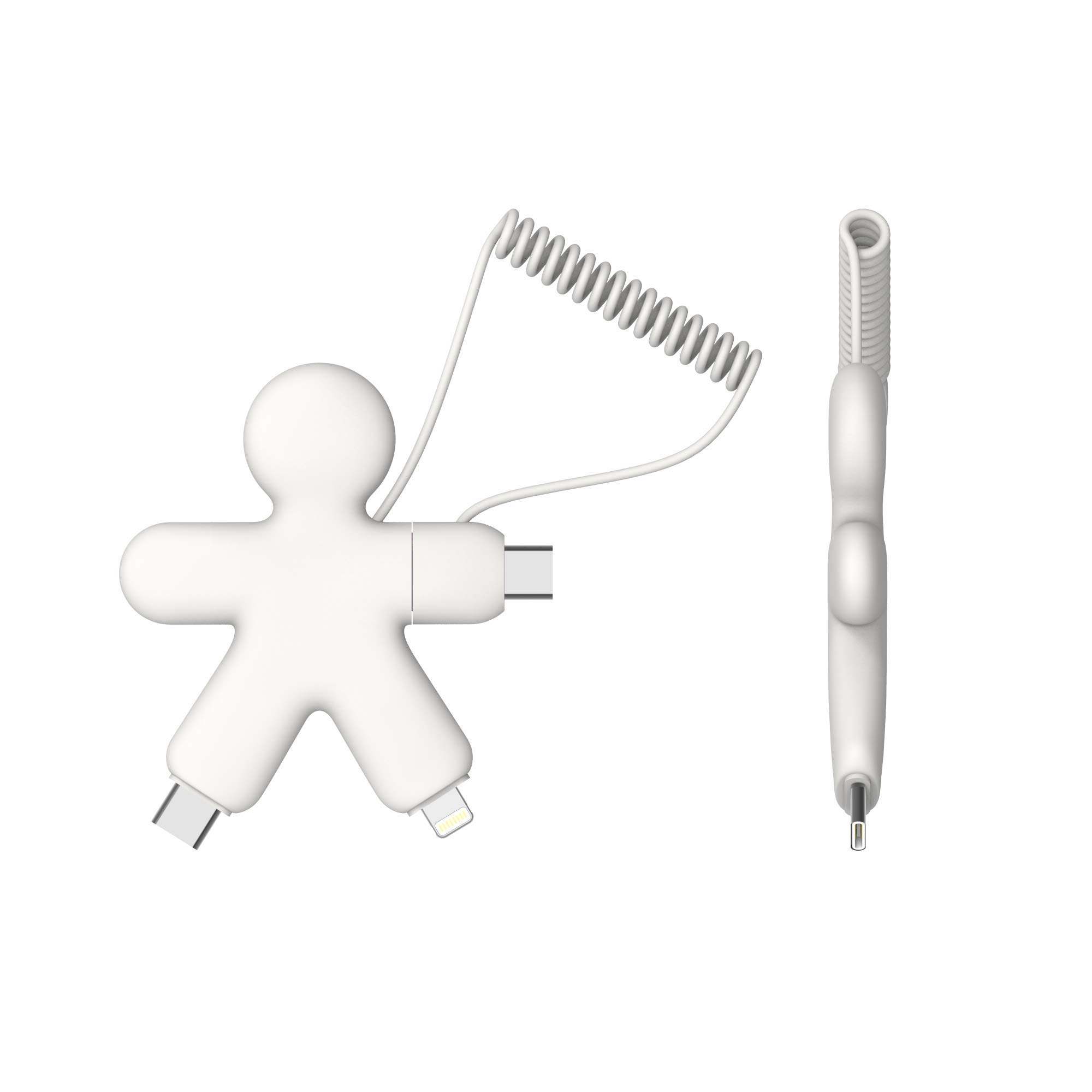
Image: The XOOPAR Buddy Cable facilitating a connection between a smartphone and a portable power bank.
4. Інструкція з експлуатації
The XOOPAR Buddy Cable is designed for both charging and data synchronization. Its high-speed capabilities ensure efficient performance.
4.1. Зарядка вашого пристрою
Once connected as described in the Setup section, your device will begin charging. The cable supports standard charging speeds. For optimal charging, use a compatible power adapter or a powered USB port.

Image: A smartphone being charged by the XOOPAR Buddy Cable connected to a laptop's USB port.
4.2. Передача даних
When connected to a computer, the XOOPAR Buddy Cable allows for data transfer between your device and the computer. Depending on your device and operating system, you may need to confirm the connection type (e.g., 'Allow' on your phone for data access).
5. Технічне обслуговування
To ensure the longevity and optimal performance of your XOOPAR Buddy Cable, follow these maintenance guidelines:
- Прибирання: Gently wipe the cable and connectors with a dry, soft cloth. Avoid using harsh chemicals or abrasive materials.
- Зберігання: Store the cable in a cool, dry place away from direct sunlight and extreme temperatures. The coiled design helps prevent tangling.
- Обробка: Avoid excessive bending or pulling on the cable, especially near the connectors, to prevent internal damage. Always grasp the connector head when plugging or unplugging.
- вологість: Keep the cable away from water and other liquids. If it gets wet, ensure it is completely dry before use.
6. Вирішення проблем
If you encounter issues with your XOOPAR Buddy Cable, try the following troubleshooting steps:
- Пристрій не заряджається:
- Ensure both ends of the cable are securely plugged into the power source and your device.
- Спробуйте використати інший адаптер живлення або порт USB.
- Перевірте кабель за допомогою іншого пристрою, щоб виключити проблему, пов'язану з певним пристроєм.
- Перевірте наявність видимих пошкоджень кабелю або роз'ємів.
- Повільна зарядка:
- Ensure your power source provides sufficient output (e.g., a wall adapter is generally faster than a computer USB port).
- Закрийте непотрібні програми на вашому пристрої.
- Проблеми з передачею даних:
- Confirm that your device is set to allow data transfer when connected to a computer.
- Спробуйте перезавантажити і пристрій, і комп’ютер.
- Переконайтеся, що драйвери USB вашого комп'ютера оновлені.
7. Технічні характеристики
| Особливість | Деталь |
|---|---|
| Бренд | xoopar |
| Номер моделі | XP71031 |
| Колір | Білий |
| Роз'єми | USB-A, USB-C, Lightning |
| Особливості | High Speed, Keychain Format |
| Сумісні пристрої | Smartphones (Apple, Huawei, Google, etc.) |
| Виробник | XOOPAR |
| Країна походження | Китай |
8. Інформація про гарантію
Specific warranty details for the XOOPAR Buddy Cable XP71031 are typically provided with the product packaging or can be found on the official Xoopar webсайт. Будь ласка, зверніться до цих ресурсів для ознайомлення з повними гарантійними умовами.
9. Підтримка
For further assistance, technical support, or inquiries regarding your XOOPAR Buddy Cable XP71031, please visit the official Xoopar webсайт або зверніться до їхнього відділу обслуговування клієнтів. Контактна інформація зазвичай доступна на упаковці продукту або на сайті виробника webсайт.