
MoesGo B08MWL41MH_CA NARF
MoesGo WiFi RF IR Universal Remote Controller User Manual
Model: B08MWL41MH_CA NARF
1. Вступ
The MoesGo WiFi RF IR Universal Remote Controller is a smart home device designed to centralize control of your infrared (IR) and radio frequency (RF) appliances. It allows you to manage various devices such as TVs, air conditioners, fans, RF lights, and electric curtains through a single mobile application, and integrates with voice assistants like Amazon Alexa and Google Home.
This device connects to your home's 2.4GHz Wi-Fi network, enabling remote control from anywhere with an internet connection. It eliminates the need for multiple physical remote controls by consolidating their functions into a smart hub.
2. Вміст упаковки
- MoesGo WiFi RF IR Universal Remote Controller
- USB-кабель живлення (Micro USB)
- Посібник користувача
3. Продукт закінчивсяview

Figure 3.1: MoesGo Universal Remote Controller and its retail packaging, highlighting key features like Timer-Schedule, Voice Control, Device Share, and App Control.
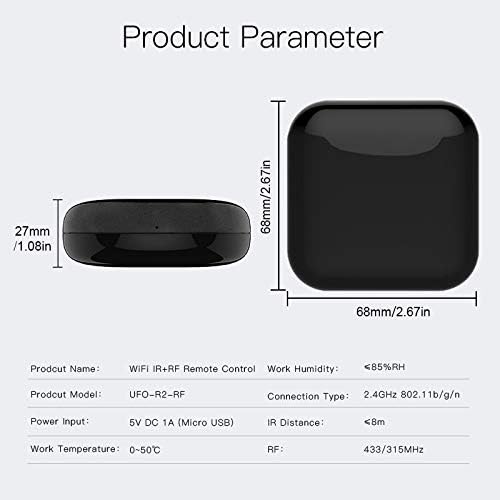
Figure 3.2: Diagram illustrating the physical dimensions of the MoesGo Universal Remote Controller (68mm x 68mm x 27mm) and basic product parameters.
The device features a compact, square design with a glossy black finish. It is powered via a Micro USB port. Its internal components allow for both Infrared (IR) and Radio Frequency (RF) signal transmission, enabling control over a wide range of home appliances.
4. Посібник із налаштування
4.1 Увімкнення пристрою
- Connect the provided USB power cable to the Micro USB port on the MoesGo Universal Remote Controller.
- Plug the other end of the USB cable into a 5V DC 1A power adapter (not included) and then into a wall outlet.
- The device will power on, and an indicator light will typically flash, indicating it is ready for network pairing.
4.2 Завантаження та встановлення програми
The MoesGo Universal Remote Controller operates with the Tuya Smart or Smart Life application. Ensure your smartphone is connected to a 2.4GHz Wi-Fi network before proceeding.
- Scan the QR code provided in the quick start guide or search for "Tuya Smart" or "Smart Life" in your mobile app store (App Store for iOS, Google Play Store for Android).
- Завантажте та встановіть програму.
- Зареєструйте новий обліковий запис або увійдіть, використовуючи існуючий.
4.3 Сполучення пристроїв за допомогою Wi-Fi
- Відкрийте додаток Tuya Smart або Smart Life.
- Торкніться значка "+" icon in the top right corner to add a device.
- Select "Universal Remote Control" or "IR/RF Remote Control" from the device list under "Others" or "Controller".
- Follow the on-screen instructions to confirm the indicator light is flashing rapidly. If not, reset the device according to the app's instructions (often by holding a button for a few seconds).
- Введіть назву (SSID) та пароль вашої мережі Wi-Fi 2.4 ГГц.
- The app will begin connecting the device. Once connected, the indicator light will stop flashing and remain solid.
- Rename the device for easy identification (e.g., "Living Room Remote").
4.4 Adding IR and RF Devices

Figure 4.1: Screenshot of the mobile application interface, demonstrating the selection between adding an IR Remote or an RF Remote, with various appliance categories listed.
After successfully adding the universal remote, you can begin adding your home appliances.
- In the app, select your newly added universal remote.
- Tap "Add Remote" or a similar option. You will typically see options for "IR Remote" and "RF Remote".
- For IR Devices (e.g., TV, Air Conditioner, DVD Player):
- Select the type of appliance (e.g., TV, Air Conditioner).
- The app may offer a database of pre-programmed remote codes. Try these first.
- If a code works, confirm it. If not, select the "DIY" or "Learn" function.
- Point your original IR remote at the MoesGo device (within 8 meters) and press the desired button. The app will prompt you to press buttons one by one to learn their functions.
- For RF Devices (e.g., RF Light, Electric Curtain, RF Fan):
- Select the type of RF appliance.
- Choose the "Learn" or "DIY" mode.
- Press the button on your original RF remote. The MoesGo device will attempt to capture the RF signal (315MHz or 433MHz).
- Test the learned function to ensure it works correctly.

Figure 4.2: Visual representation of the MoesGo Universal Remote Controller's capability to control a wide array of devices, including STB, TV, DVD Player, Air Conditioner, RF Fan (IR), and Audio Equipment, Electric Roller Blind, Electric Curtain, RF Light, RF Light Switch (RF), with integration for Amazon Alexa and Google Home.
5. Експлуатація пристрою
5.1 Керування пристроями через застосунок
Once your appliances are added, you can control them directly from the Tuya Smart or Smart Life app. The app provides a virtual remote interface for each added device.

Figure 5.1: A smartphone displaying the smart home application, illustrating how it can remotely control various appliances such as TVs, air conditioners, and audio systems through the MoesGo Universal Remote Controller.
- Open the app and select the universal remote.
- Choose the specific appliance you wish to control (e.g., "Living Room TV").
- Use the virtual buttons on the screen to operate the appliance (e.g., power on/off, change channel, adjust volume, set AC temperature).
5.2 Інтеграція голосового керування
The MoesGo Universal Remote Controller is compatible with Amazon Alexa and Google Home, allowing for convenient voice control of your connected appliances.

Малюнок 5.2: Впрamples of voice commands: "Alexa, turn on the TV" for IR control, and "Google Home, turn on the light" for RF control, demonstrating seamless integration with smart speakers.
- Зв'язати облікові записи: In your Alexa or Google Home app, search for the "Tuya Smart" or "Smart Life" skill/service and link your account.
- Відкрийте для себе пристрої: Після підключення попросіть свого голосового помічника «Виявити пристрої» або вручну ініціюйте пошук пристроїв у додатку.
- Голосові команди: You can now use voice commands to control your appliances. Examples:
- «Алексо, увімкни телевізор».
- "Hey Google, set the air conditioner to 24 degrees."
- "Alexa, turn off the living room fan."
5.3 Функціональність дистанційного керування

Figure 5.3: Illustration showing the ability to control home appliances, such as an air conditioner, remotely via a mobile phone application, even when outside the home.
As the device is Wi-Fi enabled, you can control your appliances from anywhere with an internet connection using the Tuya Smart or Smart Life app on your smartphone. This allows you to pre-cool your home before arriving or turn off forgotten devices.
6. Технічне обслуговування
- Тримайте пристрій у чистоті, протираючи його м’якою сухою тканиною.
- Уникайте впливу прямих сонячних променів, високих температур або надмірної вологості на пристрій.
- Do not disassemble or attempt to repair the device yourself. Refer to qualified service personnel for any issues.
- Ensure the device is placed in a central location within the room, with an unobstructed line of sight to IR-controlled appliances for optimal performance.
7. Вирішення проблем
- Пристрій не підключається до Wi-Fi:
- Переконайтеся, що ваша мережа Wi-Fi працює на частоті 2.4 ГГц. Пристрій не підтримує мережі 5 ГГц.
- Перевірте правильність пароля Wi-Fi.
- Place the device closer to your Wi-Fi router.
- Check if the indicator light is flashing rapidly for pairing mode. If not, reset the device.
- Ensure your router's security is WPA2.
- IR control not working:
- Ensure there is a clear line of sight between the MoesGo device and the IR appliance.
- The IR distance is typically less than 8 meters. Ensure the device is within range.
- Re-learn the IR commands if the pre-programmed codes do not work.
- Check if the original remote's batteries are working when learning commands.
- RF control not working:
- Ensure the RF frequency of your appliance (315MHz or 433MHz) is supported by the MoesGo device.
- Re-learn the RF commands. Some RF remotes may require specific learning procedures (e.g., pressing a button multiple times).
- RF signals can be affected by obstacles, though less so than IR. Ensure the device is not heavily obstructed.
- Голосове керування не реагує:
- Verify that your Tuya Smart/Smart Life account is correctly linked to Alexa or Google Home.
- Ensure devices are discovered in your voice assistant app.
- Use the exact names you assigned to your devices in the Tuya Smart/Smart Life app.
- Перевірте підключення до Інтернету.
8. Технічні характеристики
| Параметр | Значення |
|---|---|
| Назва продукту | Пульт дистанційного керування WiFi IR+RF |
| Модель продукту | UFO-R2-RF (B08MWL41MH_CA NARF) |
| Вхідна потужність | 5 В DC 1 A (Micro USB) |
| Робоча температура | 0-50°C (32-122°F) |
| Робоча вологість | <85% відносної вологості |
| Тип підключення | 2.4 ГГц 802.11b/g/n Wi-Fi |
| ІЧ відстань | <8m (Line of Sight) |
| РЧ частота | 433/315 МГц |
| Розміри продукту | 2.67 x 2.67 x 1.08 дюйма (68 x 68 x 27 мм) |
| Вага товару | 3.84 унції |
| Максимальна кількість підтримуваних пристроїв | 12 (as per product specifications, though app may support more virtual remotes) |
| Сумісні пристрої | Air Conditioner, Fan, Television, and other IR/RF appliances |
9. Підтримка та гарантія
For detailed instructions, advanced features, or further assistance, please refer to the official user guide provided by MoesGo.
Завантажити офіційний посібник користувача (PDF)
Information regarding product warranty is typically provided with your purchase documentation or can be found on the official MoesGo webсайт. Будь ласка, збережіть підтвердження покупки для гарантійних претензій.
Ask a question about this manual
Ask about setup, troubleshooting, compatibility, parts, safety, or missing instructions. Manuals+ will review the question and use this page’s manual context to help answer it.