
вступ
Thank you for choosing the iClever BK10 Bluetooth Wireless Keyboard. This manual provides detailed instructions on how to set up, operate, and maintain your keyboard to ensure optimal performance. Please read this manual carefully before use and retain it for future reference.
Вміст упаковки
- Бездротова Bluetooth-клавіатура iClever BK10
- USB-кабель для зарядки
- Посібник користувача
Технічні характеристики
| Бренд | iClever |
| Номер моделі | BK10 |
| Технологія підключення | Bluetooth |
| Сумісні пристрої | Android 9+, ChromeOS (BT 4.0+), Windows 10/11, iPadOS 13.4+, macOS 10.15+ |
| Розкладка клавіатури | АЗЕРТИ |
| Кількість клавіш | 78 |
| Тип перемикача | Ножичний перемикач |
| Джерело живлення | Працює від батареї |
| Розміри продукту | 43 Д x 14 Ш x 2.5 В сантиметрів |
| Внутрішній матеріал | Акрилонітрилбутадієнстирол, нержавіюча сталь |
Налаштування
1. Початкове заряджання
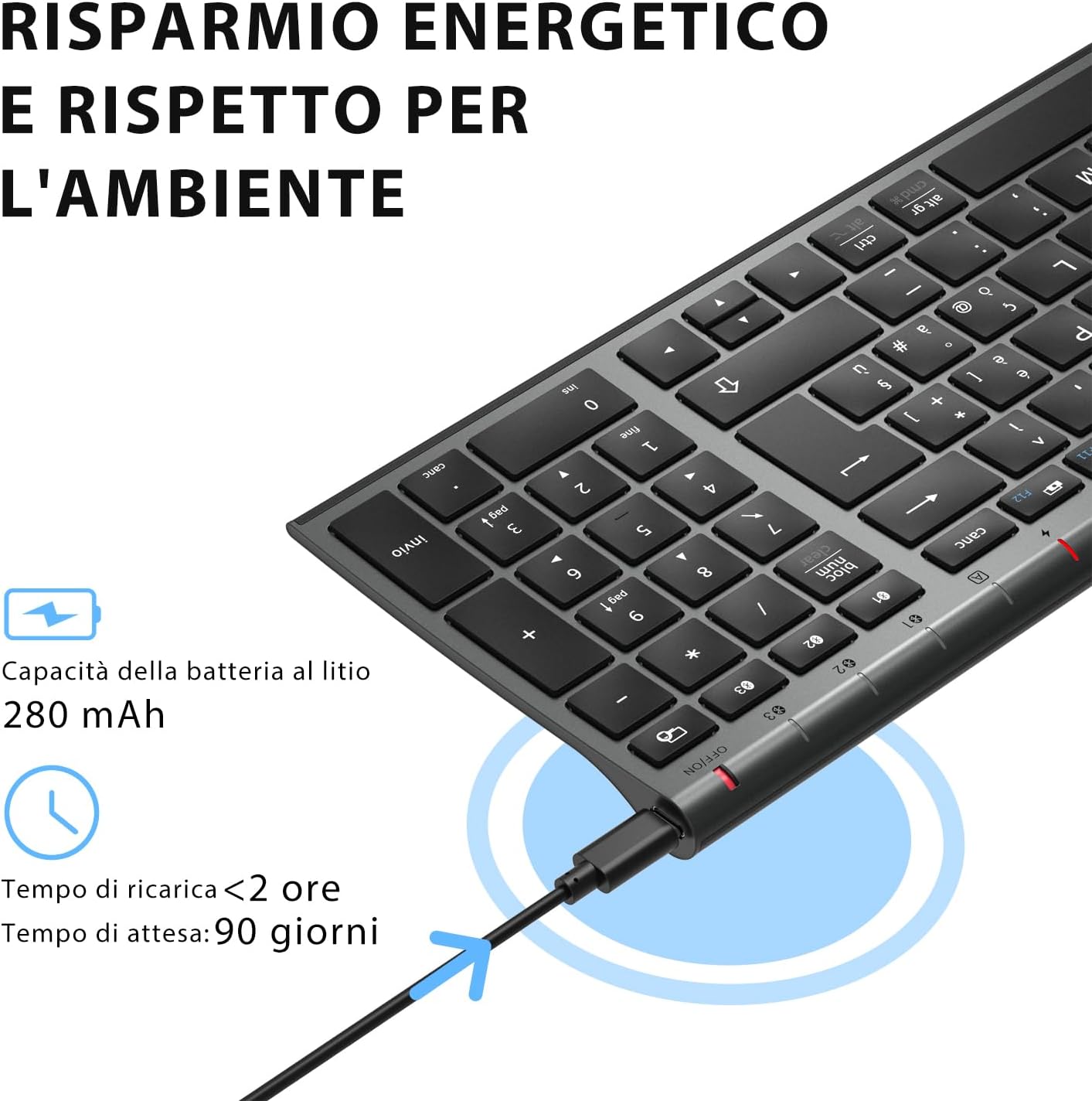
Before first use, fully charge the keyboard. Connect the provided USB charging cable to the keyboard's USB-C port and the other end to a USB power source (e.g., computer, wall adapter). The charging indicator light will show charging status and turn off when fully charged.

The iClever BK10 keyboard connected via USB-C for charging. This image details the 280 mAh lithium battery capacity, a charging time of less than 2 hours, and a standby time of 90 days.
2. Увімкнення/вимкнення живлення
Locate the power switch on the keyboard. Slide the switch to the 'ON' position to power on the keyboard. Slide it to the 'OFF' position when not in use to conserve battery.
3. Підключення Bluetooth
The iClever BK10 keyboard supports connection to up to three devices simultaneously.
- Увімкніть клавіатуру за допомогою вимикача живлення.
- Натисніть Fn одночасно з однією з клавіш каналу Bluetooth (BT1, BT2, або BT3) to select a channel.
- Press and hold the selected Bluetooth channel key (e.g., BT1) for 3-5 seconds until the indicator light for that channel starts blinking rapidly. This indicates the keyboard is in pairing mode.
- На вашому пристрої (комп’ютері, планшеті, смартфоні) увімкніть Bluetooth та здійсніть пошук доступних пристроїв.
- Select "iClever BK10" (or similar name) from the list of found devices.
- Follow any on-screen prompts to complete the pairing process. The indicator light will stop blinking and remain solid for a few seconds, then turn off, indicating a successful connection.

The iClever BK10 keyboard demonstrating its ability to connect to an iPad, MacBook, and iPhone via three distinct Bluetooth channels. The image also illustrates key mapping for Windows/Android (Alt/Cmd) and iPad/Mac (Alt/Cmd) operating systems.
Робота з клавіатурою
1. Перемикання між сполученими пристроями
To switch between your paired devices, simply press the Fn клавішу разом із відповідною клавішею каналу Bluetooth (BT1, BT2, або BT3) that your device is paired to. The keyboard will automatically connect to the selected device.
2. Function Keys (Fn)
The keyboard features a row of function keys (F1-F12) that also serve as multimedia and shortcut keys. To use the secondary function of these keys, press and hold the Fn key while pressing the desired function key.
3. Сумісність операційної системи
The iClever BK10 keyboard is designed to be compatible with various operating systems. Key functions may adapt slightly depending on the connected OS. For optimal performance, ensure your device's Bluetooth version is 4.0 or higher.

Close-up of the iClever BK10 keyboard with a hand typing, highlighting the low-profile keys and scissor switch mechanism designed for quiet and comfortable typing.
Технічне обслуговування
1. прибирання
Щоб очистити клавіатуру, вимкніть її та від’єднайте від усіх пристроїв. Використовуйте м’яку тканину без ворсу, злегка протертуampened with water or a mild cleaning solution. Avoid using harsh chemicals, abrasives, or excessive moisture. Do not spray cleaners directly onto the keyboard.
2. Догляд за акумулятором
To prolong the battery life of your keyboard:
- Charge the keyboard fully before its first use.
- Уникайте частої повної розрядки акумулятора.
- Зберігайте клавіатуру в прохолодному, сухому місці, якщо вона не використовується протягом тривалого часу.
- Turn off the keyboard when transporting it or when not in use to prevent accidental key presses and battery drain.
Усунення несправностей
1. Клавіатура не підключається/не сполучається
- Переконайтеся, що клавіатура увімкнена та повністю заряджена.
- Переконайтеся, що на вашому пристрої ввімкнено Bluetooth.
- Переконайтеся, що клавіатура перебуває в режимі сполучення (індикатор блимає).
- Спробуйте розірвати та повторно підключити клавіатуру в налаштуваннях Bluetooth вашого пристрою.
- Перезавантажте і клавіатуру, і пристрій.
- Ensure your device's Bluetooth version is compatible (BT 4.0+ recommended).
2. Клавіші не реагують
- Check if the keyboard is connected to the correct device.
- Ensure the battery is not low. Charge the keyboard if necessary.
- Перезавантажте клавіатуру та підключений пристрій.
- Очистіть будь-яке сміття навколо клавіш.
3. Connection Drops Frequently
- Ensure there are no strong interference sources (e.g., Wi-Fi routers, other Bluetooth devices) nearby.
- Keep the keyboard within the recommended operating range of your device.
- Переконайтеся, що клавіатура повністю заряджена.
Гарантія та підтримка
iClever products come with a standard warranty. For detailed warranty information, technical support, or customer service, please refer to the warranty card included with your product or visit the official iClever website. Please have your product model number (BK10) and purchase information ready when contacting support.
Продукт закінченийview Зображення

Зверху вниз view of the iClever BK10 Bluetooth Wireless Keyboard, showcasing its full layout including the numeric keypad and function keys.
Сторона view of the iClever BK10 keyboard, illustrating its ultra-thin profile with a thickness ranging from 0.16 inches to 0.45 inches.

The iClever BK10 keyboard positioned on a desk in an office environment, alongside a computer monitor, laptop, tablet, and smartphone, illustrating its versatile use in various professional and personal setups.