
1. Вступ
This manual provides detailed instructions for the installation, operation, and maintenance of your MoesGo Smart RF433 WiFi Wall Switch. This smart switch is designed for convenient control of your lighting, offering multiple control methods including touch, app, voice, and RF433 remote.
Ключові характеристики:
- Для встановлення не потрібен нульовий провід.
- Supports 2.4GHz WiFi connectivity for Smart Life/Tuya App control.
- Compatible with Alexa and Google Home for hands-free voice control.
- RF433 frequency support for remote control (remote not included).
- Programmable timing schedules and countdowns.
- Relay status memory and backlight preferences.

Image 1.1: MoesGo Smart RF433 WiFi Wall Switch, showcasing its sleek design and "No neutral" indicator.
2. Інформація про безпеку
WARNING: Electrical installation should only be performed by a qualified electrician. Always turn off power at the circuit breaker before installation or maintenance.
- Ensure the power supply is disconnected before handling any wiring.
- This device is designed for 2.4GHz Wi-Fi networks only. It is not compatible with 5.0GHz Wi-Fi.
- A capacitor is required for proper operation and must be connected to both ends of the bulb.
- Only use with certified bulbs that have a rated power of 5W or higher.
- This switch is not designed for use as a 3-way switch.
- The capacitor may produce a faint humming sound during operation. This is normal.
3. Вміст упаковки
Будь ласка, перевірте упаковку на наявність наступних предметів:
- MoesGo Smart RF433 WiFi Wall Switch (1 unit)
- Capacitor (1 unit)
- Монтажні гвинти (2 шт.)
- Посібник користувача (цей документ)
4. Технічні характеристики
| Особливість | Деталь |
|---|---|
| Бренд | MoesGo |
| Номер моделі | WS-EU1-LB-N-MG |
| Режим роботи | УВІМКНЕНО ВИМКНЕНО |
| Тип контакту | Нормально закритий |
| матеріал | скло |
| Тип монтажу | Настінне кріплення |
| Міжнародний захист рейтингу | IP65 |
| Колір | чорний |
| Розміри (упаковка) | 11 х 10.2 х 5.1 см |
| Вага (упаковка) | 193 грами |

Image 4.1: Detailed dimensions of the MoesGo Smart Switch and a basic wiring diagram for single-wire installation with capacitor.
5. Встановлення та налаштування
5.1 Контрольний список перед встановленням
- Verify your Wi-Fi network is 2.4GHz. 5GHz networks are not supported.
- Ensure the bulbs connected to the switch have a rated power of 5W or higher.
- Confirm you are not attempting to install this as a 3-way switch.
- Have the included capacitor ready.
5.2 Інструкції з підключення
- Вимкніть живлення: Знайдіть автоматичний вимикач і вимкніть живлення вимикача, який ви замінюєте. Переконайтеся, що живлення вимкнено за допомогою регулятора гучності.tagтестер.
- Зняти старий вимикач: Carefully remove your existing wall switch from the wall box.
- Connect Capacitor: The included capacitor is essential for stable operation with no neutral wire. Connect the capacitor across the two terminals of the light bulb (in parallel with the load). This helps prevent flickering and ensures proper functionality.
- Підключіть смарт-перемикач:
- Connect the live wire (L) from your electrical box to the 'L IN' terminal on the MoesGo switch.
- Connect the load wire (L1) going to your light fixture to the 'L OUT' terminal on the MoesGo switch.
- Переконайтеся, що всі з’єднання надійні.
- Встановіть комутатор: Gently push the wired switch into the wall box and secure it with the provided screws. Attach the glass panel.
- Відновлення живлення: Знову увімкніть живлення на автоматичному вимикачі.

Image 5.1: Visual guide highlighting critical installation requirements: 2.4GHz Wi-Fi, minimum 5W bulb power, not for 3-way use, and no neutral wire needed.

Image 5.2: Illustration showing the capacitor and its importance for the MoesGo Smart Switch, indicating it should be connected to the bulb.
5.3 App Pairing (Smart Life/Tuya)
- Завантажити додаток: Завантажте додаток «Smart Life» або «Tuya Smart» з магазину додатків вашого смартфона (iOS або Android).
- Реєстрація/Вхід: Відкрийте застосунок і зареєструйте новий обліковий запис або увійдіть, використовуючи існуючий.
- Увійдіть у режим сполучення: On the MoesGo switch, press and hold the touch button for approximately 5-10 seconds until the indicator light starts blinking rapidly. This indicates it's in pairing mode.
- Додати пристрій: In the app, tap the "+" icon (usually in the top right corner) to add a device. Select "Switch (Wi-Fi)" or "Wall Switch".
- Підтвердьте миготіння: Confirm that the indicator light on the switch is blinking rapidly in the app.
- Введіть дані Wi-Fi: Введіть назву та пароль вашої мережі Wi-Fi 2.4 ГГц.
- Підключити: The app will begin connecting to the switch. Once connected, the indicator light on the switch will stop blinking and remain solid.
- Перейменувати пристрій: You can rename the switch in the app for easier identification (e.g., "Living Room Light").
6. Операція
The MoesGo Smart Switch offers multiple ways to control your lighting:
6.1 Сенсорне управління
Simply touch the designated area on the glass panel of the switch to turn the light ON or OFF. The touch control functions independently of app or voice commands.

Image 6.1: A hand touching the MoesGo Smart Switch, illustrating the touch control functionality.
6.2 App Control (Smart Life/Tuya)
Once paired with the Smart Life or Tuya Smart app, you can control your switch from anywhere with an internet connection.
- Дистанційне увімкнення/вимкнення: Tap the switch icon in the app to turn the light ON or OFF.
- Relay Status Settings: Access the switch settings in the app to configure the relay status after a power outage (ON/OFF/Remember last status). You can also adjust backlight preferences.
- Контроль спільного доступу: Share control of the switch with family members or friends through the app, allowing multiple users to manage the device.
- Груповий контроль: Create groups within the app to control multiple smart switches simultaneously.

Image 6.2: Screenshot of the Smart Life/Tuya app interface showing options for setting relay status and backlight preferences for the MoesGo Smart Switch.
6.3 Голосове керування (Alexa та Google Home)
Integrate your MoesGo Smart Switch with Amazon Alexa or Google Home for convenient hands-free voice control.
- Зв'язати обліковий запис: In the Alexa or Google Home app, enable the "Smart Life" or "Tuya Smart" skill/service and link your account.
- Відкрийте для себе пристрої: Попросіть Alexa або Google Home виявити нові пристрої.
- Голосові команди: Використовуйте такі команди, як:
- «Алексо, увімкни [Ім'я перемикача]»
- «Гей, Google, вимкни [Ім’я комутатора]»
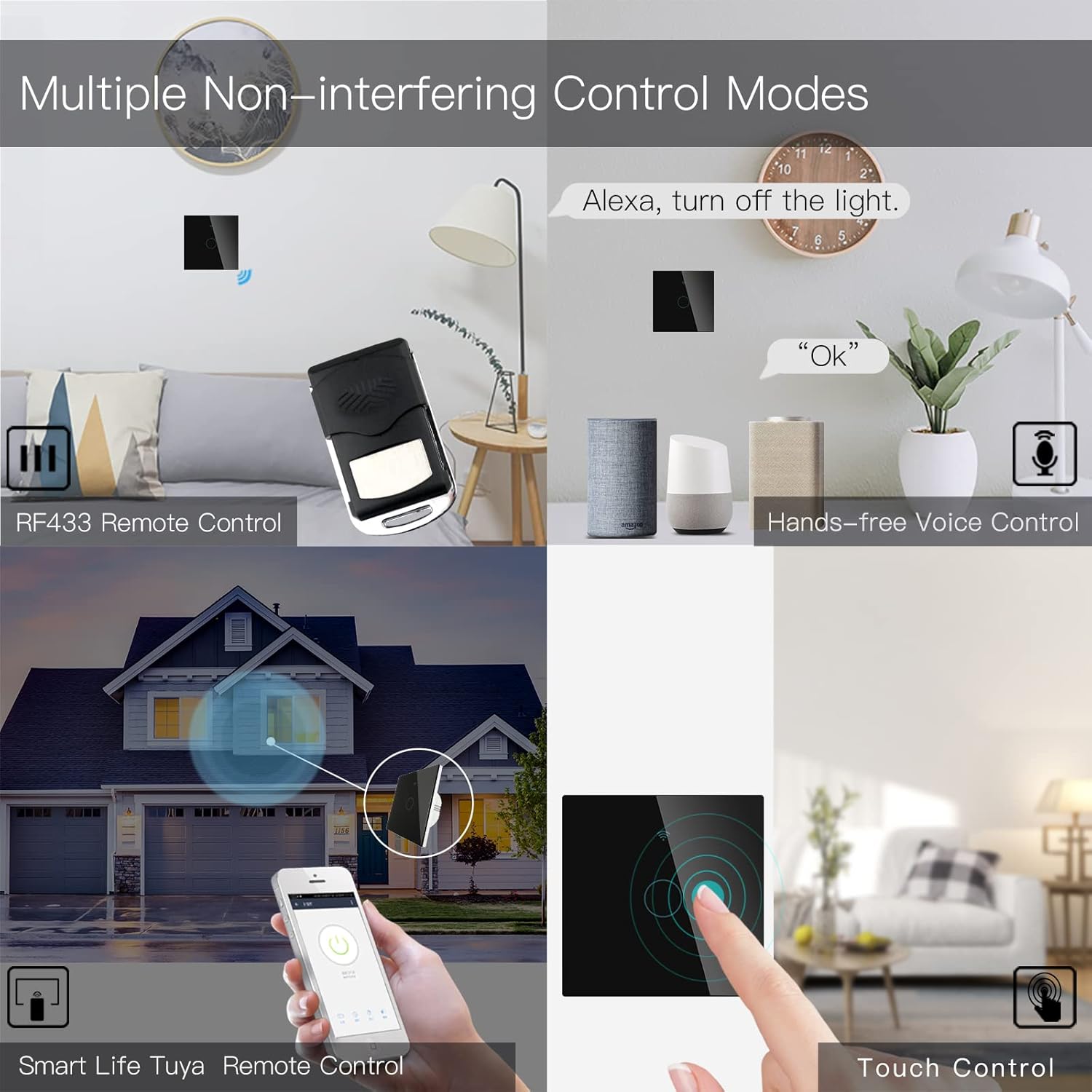
Image 6.3: Depiction of the MoesGo Smart Switch being controlled via voice commands using Amazon Alexa and Google Home devices.
6.4 RF433 Remote Control
The switch supports RF433 frequency for remote control. An RF433 remote (not included) with 1527 encoding can be paired with the switch.
- Enter RF Pairing Mode: In the Smart Life/Tuya app, navigate to the switch settings and find the "RF area" to enter pairing mode.
- Парний пульт: Press a button on your RF433 remote. Ensure a one-second delay between presses to avoid errors. The switch will confirm successful pairing.
6.5 Timing Schedules and Countdown
Utilize the Smart Life/Tuya app to set up automated schedules for your lights.
- Розклади: Program specific times for the light to turn ON or OFF daily or on selected days of the week.
- Зворотний відлік: Set a countdown timer for the light to turn OFF after a specified duration (e.g., 1, 5, 30 minutes, 1 hour).

Зображення 6.4: Колишнійample of setting a timing schedule in the Smart Life/Tuya app, showing lights turning on at 7:00 AM and off at 10:00 PM.
7. Технічне обслуговування
To maintain your MoesGo Smart Switch:
- Прибирання: Gently wipe the glass panel with a soft, dry cloth. Avoid abrasive cleaners or solvents.
- Оновлення прошивки: Періодично перевіряйте додаток Smart Life/Tuya на наявність оновлень прошивки, щоб забезпечити оптимальну продуктивність і безпеку.
8. Вирішення проблем
- Перемикач не відповідає:
- Перевірте, чи увімкнено автоматичний вимикач.
- Ensure the wiring is correct and secure.
- Verify the capacitor is properly installed across the bulb terminals.
- Мерехтіння світла:
- This often indicates an issue with the capacitor installation or an incompatible bulb. Ensure the capacitor is correctly wired and the bulb meets the 5W minimum power requirement.
- Не вдається підключитися до Wi-Fi:
- Переконайтеся, що ваша мережа Wi-Fi працює на частоті 2.4 ГГц.
- Ensure the switch is in pairing mode (rapidly blinking indicator light).
- Перевірте правильність пароля від Wi-Fi.
- Move the switch closer to your Wi-Fi router during pairing.
- Faint Humming Sound:
- A faint humming sound from the capacitor is normal for no-neutral switches. If the sound is loud or concerning, recheck the capacitor installation and bulb compatibility.
- RF433 Remote Pairing Issues:
- Ensure the switch is in RF pairing mode via the app.
- Press remote buttons with a one-second delay between presses.
- Verify the remote uses 1527 encoding.
9. Гарантія та підтримка
For warranty information and technical support, please refer to the official MoesGo webсайт або зверніться безпосередньо до служби підтримки клієнтів. Зазвичай детальна інформація надається на упаковці продукту або на офіційних онлайн-ресурсах виробника.