
вступ
This manual provides detailed instructions for the proper setup, operation, and maintenance of your Supvan TP76E Black & White Label Printer. Please read this manual thoroughly before using the device to ensure optimal performance and longevity. The Supvan TP76E is designed for efficient label printing, offering monochrome output at speeds up to 25 labels per minute.
Вміст упаковки
Перш ніж почати, перевірте, чи всі елементи присутні в упаковці:
- Supvan TP76E Label Printer
- Адаптер живлення
- USB кабель
- Sample Label Roll
- Посібник користувача (цей документ)
Налаштування
1. Розпакування та розміщення
Carefully remove the printer from its packaging. Place the printer on a stable, flat surface with adequate ventilation. Ensure there is enough space around the printer for easy access to ports and for label output.

Figure 1: Supvan TP76E Label Printer (Side View)
This image displays the Supvan TP76E label printer from a side angle, highlighting its integrated keyboard, the transparent cover over the label compartment, and the overall compact design. The handle on the right side is also visible.
2. Підключення живлення
- Connect the power adapter to the power input port on the printer.
- Підключіть інший кінець адаптера живлення до стандартної електричної розетки.
- Press the power button to turn on the printer. The display should illuminate.
3. Loading Label Roll
The TP76E uses thermal label rolls. Follow these steps to load a new roll:
- Open the transparent cover of the label compartment located at the top of the printer.
- Place the label roll onto the spindle, ensuring the labels feed from the bottom of the roll towards the print head.
- Feed the leading edge of the label through the guide until it is positioned under the print head.
- Надійно закрийте прозору кришку.
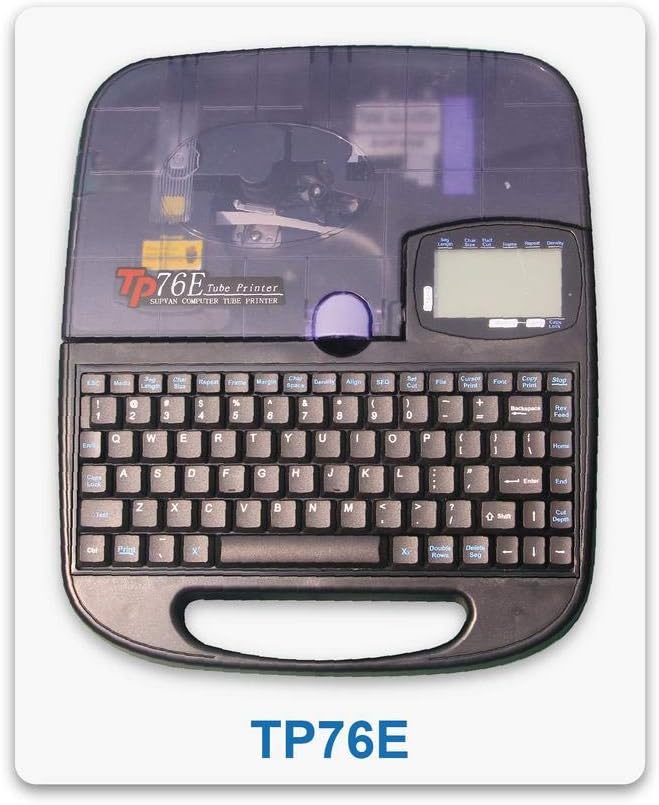
Figure 2: Supvan TP76E Label Printer (Top View)
Це зображення забезпечує вид зверху вниз view of the Supvan TP76E, clearly showing the full QWERTY keyboard layout, the LCD display, and the transparent cover of the label roll compartment. This perspective is useful for understanding the user interface.
4. Connecting to a Computer (Optional)
The TP76E supports USB connectivity for printing from a computer.
- Connect one end of the provided USB cable to the USB port on the printer.
- Під’єднайте інший кінець кабелю USB до вільного порту USB на комп’ютері.
- Install the necessary drivers and software from the official Supvan website or the included installation media (if applicable).
Інструкція з експлуатації
1. Базове створення етикеток
- Увімкніть принтер.
- Use the integrated QWERTY keyboard to type your desired text. The text will appear on the LCD display.
- Utilize the navigation keys to move the cursor and edit text.
- Натисніть Роздрукувати кнопку, щоб роздрукувати етикетку.
2. Formatting Options
The TP76E offers various formatting options accessible via dedicated keys or menu functions:
- Розмір шрифту: Adjust the size of the text to fit your label requirements.
- Bold/Italic: Apply bold or italic styling to your text for emphasis.
- Підкреслити: Add an underline to text.
- Рама: Додайте декоративні рамки навколо тексту.
- Вирівнювання: Choose left, center, or right alignment for your text.
3. Збереження та виклик міток
The printer allows you to save frequently used label designs for quick recall:
- Після створення мітки перейдіть до зберегти function (refer to the display menu).
- Select an empty memory slot to store the label.
- To recall a saved label, navigate to the Відкликати or ВІДЧИНЕНО function and select the desired label from the list.
Технічне обслуговування
1. Очищення друкуючої головки
Regular cleaning of the print head ensures clear and consistent print quality. Clean the print head if you notice faded or incomplete prints.
- Turn off the printer and disconnect the power adapter.
- Відкрийте кришку відсіку для етикеток.
- Gently wipe the print head surface with a cotton swab lightly dampзмочіть ізопропіловим спиртом. Не використовуйте воду або абразивні засоби для чищення.
- Дайте друкуючій голівці повністю висохнути, перш ніж закривати кришку та знову підключати живлення.
2. Заміна рулонів етикеток
When the label roll is depleted, replace it as follows:
- Відкрийте кришку відсіку для етикеток.
- Вийміть порожній стрижень рулону етикеток.
- Insert a new label roll as described in the Налаштування розділ.
- Закрийте кришку.
Усунення несправностей
This section addresses common issues you might encounter with your Supvan TP76E printer.
| проблема | Можлива причина | Рішення |
|---|---|---|
| Принтер не вмикається | No power supply; Power adapter faulty | Ensure power adapter is securely connected to printer and outlet. Try a different outlet. |
| No labels are printing | Label roll empty; Labels incorrectly loaded; Print head dirty | Replace label roll. Re-load labels correctly. Clean the print head as per maintenance instructions. |
| Якість друку погана/блякла | Print head dirty; Low quality labels | Clean the print head. Ensure you are using high-quality thermal labels. |
| Принтер не розпізнається комп'ютером | USB cable faulty; Drivers not installed or outdated | Try a different USB cable or port. Install or update printer drivers from the Supvan webсайт. |
Технічні характеристики
Key technical specifications for the Supvan TP76E Label Printer:
- Номер моделі: Supvan TP76E
- Вихід на принтер: Монохромний (чорно-білий)
- Технологія друку: Теплові
- Підключення: USB
- Друковані носії: етикетки
- Макс. місткість вхідних аркушів: 25 (labels per minute)
- Двосторонній друк: немає
- Потрібні батареї: немає
Гарантія та підтримка
For warranty information, technical support, or to purchase accessories and replacement parts, please contact Supvan customer service or visit their official webсайт.
Більше інформації та допоміжних ресурсів ви можете знайти на офіційному сайті SUPVAN Store on Amazon.
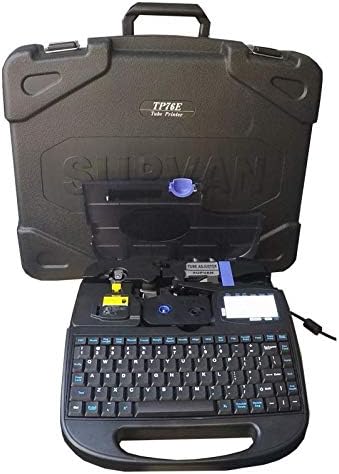
Figure 3: Supvan TP76E Label Printer in Carrying Case
This image shows the Supvan TP76E label printer neatly stored within its custom-fitted protective carrying case, emphasizing its portability and secure storage solution.