
1. Вступ
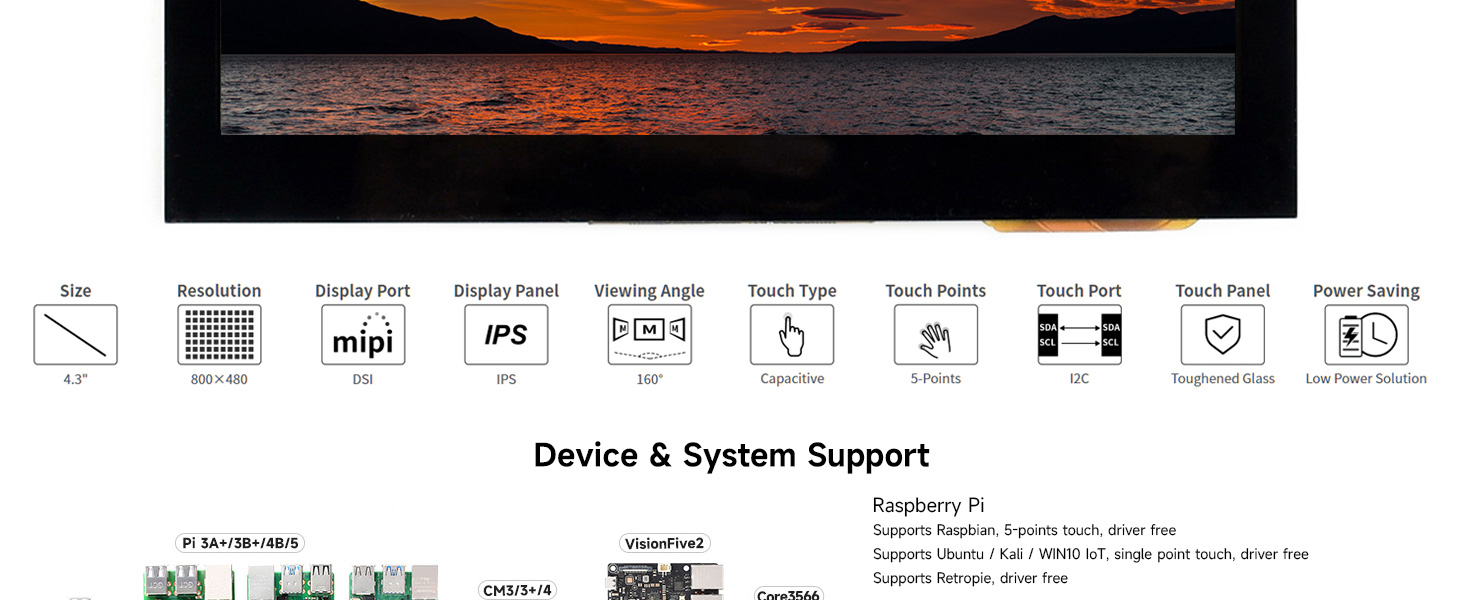
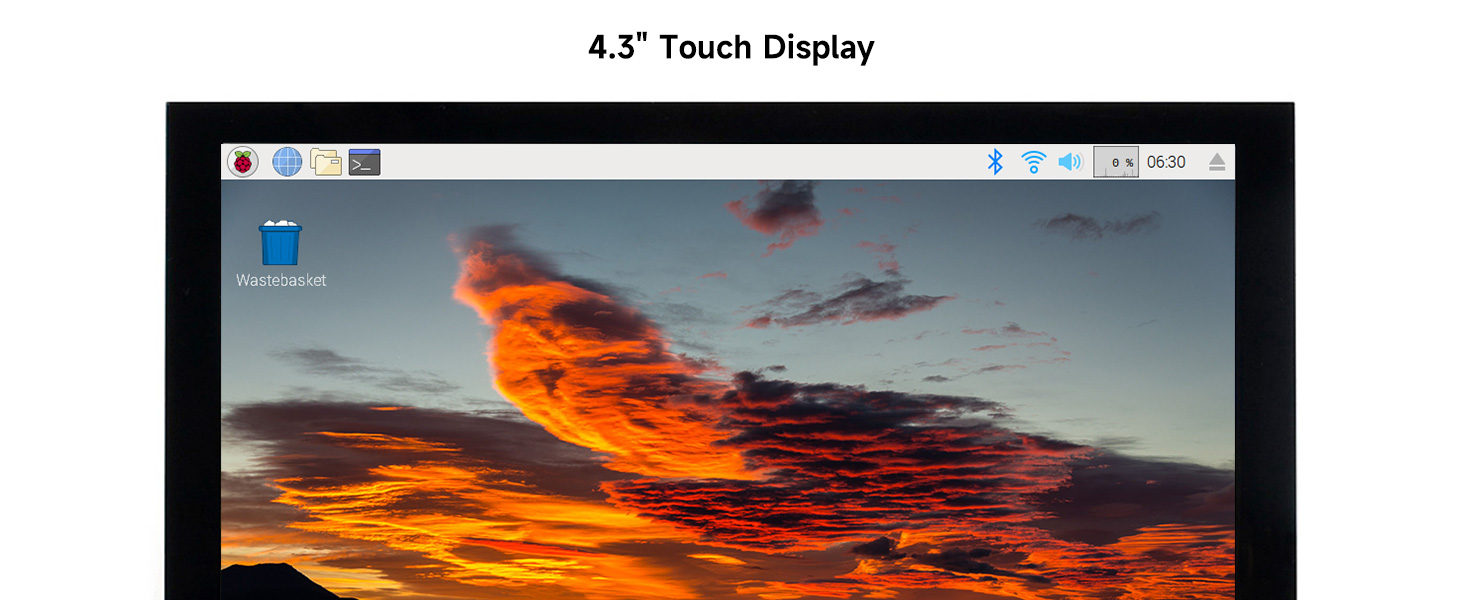
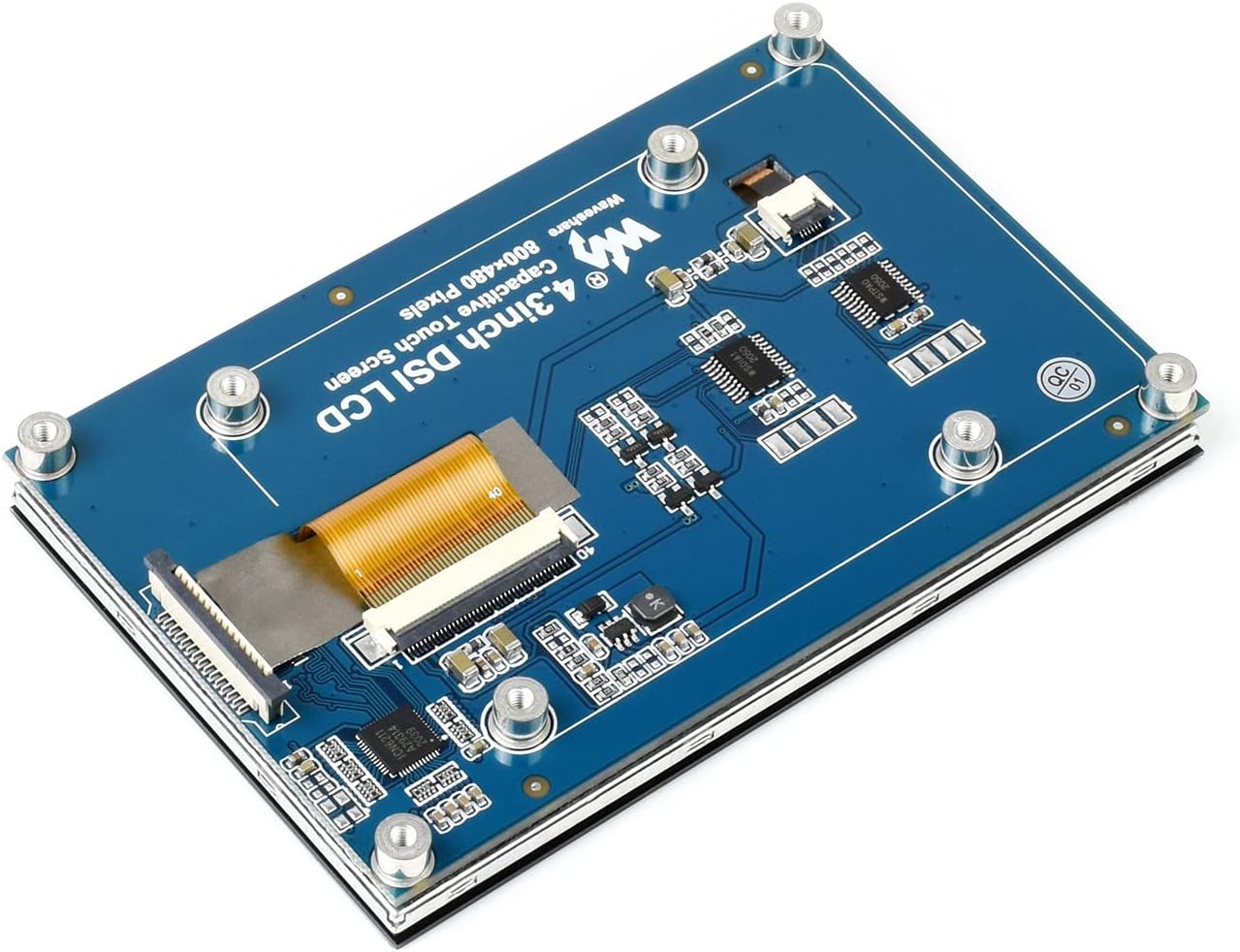
This manual provides detailed instructions for the setup, operation, and maintenance of your Waveshare 4.3-inch DSI LCD Capacitive Touch Display. This display is designed for use with various Raspberry Pi models and other compatible single-board computers, offering an 800x480 resolution IPS wide-angle viewing experience with a MIPI DSI interface and 5-point capacitive touch.
Вміст упаковки
Перевірте, чи всі перелічені нижче предмети входять до вашої упаковки:
- 4.3inch DSI LCD x1
- FPC 15PIN 1.0 pitch 50mm (opposite sides) x1
- Набір гвинтів x1

2. Налаштування
Сумісність
The Waveshare 4.3-inch DSI LCD is compatible with the following devices:
- Raspberry Pi 5/4B/3B+/3A+/3B/2B/B+/A+
- CM3/3+/4 (requires an extra adapter board)
- VisionFive2 (supports Debian, single point touch, driver free)
- Core3566 (supports Debian / Ubuntu, 5-point touch, driver free)
Інструкції з підключення
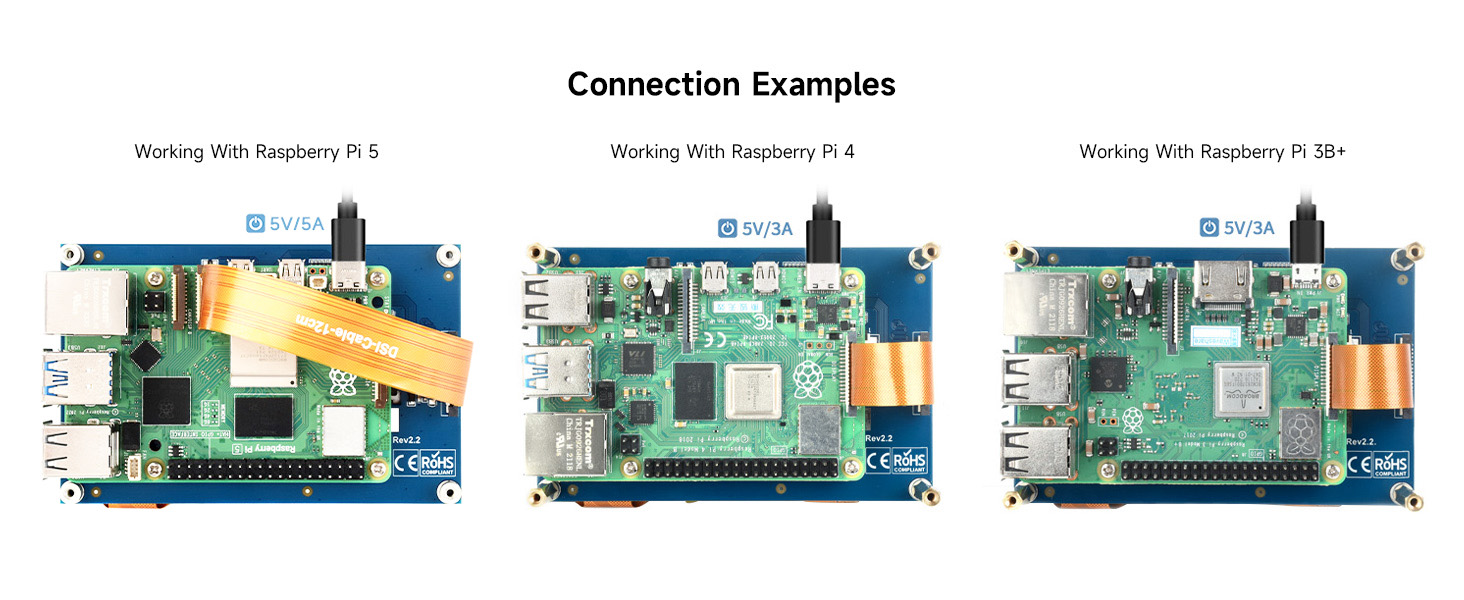
Follow these steps to connect the display to your Raspberry Pi:
- Ensure your Raspberry Pi is powered off.
- Locate the DSI port on your Raspberry Pi. This is typically a flat, ribbon cable connector.
- Carefully open the DSI connector latch on the Raspberry Pi.
- Insert the FPC cable (included) into the DSI port on the Raspberry Pi, ensuring the contact fingers are facing the latch.
- Close the DSI connector latch to secure the FPC cable.
- Connect the other end of the FPC cable to the DSI port on the 4.3-inch display, ensuring proper orientation and securing the latch.
- Optionally, use the provided screws to mount the display to your Raspberry Pi for a stable assembly.
- Power on your Raspberry Pi. The display should initialize automatically.

3. Інструкція з експлуатації
Початкове ввімкнення
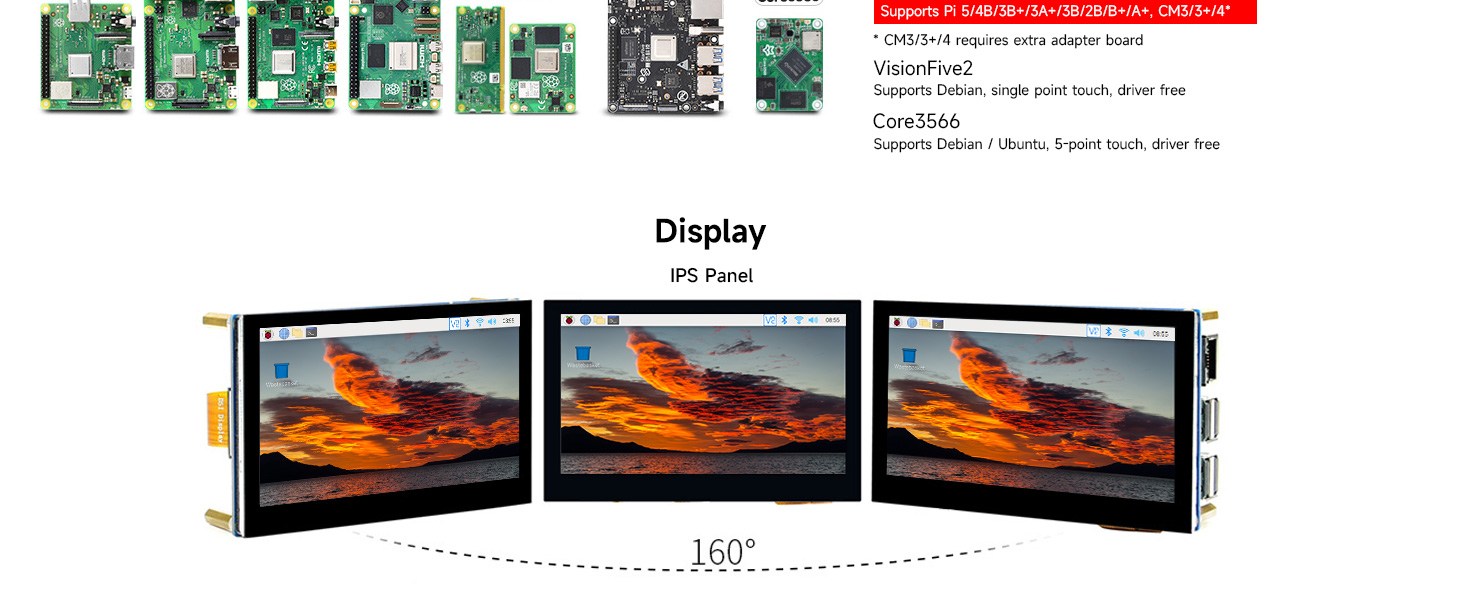
After connecting the display to your Raspberry Pi and powering it on, the display should automatically detect and configure itself. For Raspberry Pi OS, Ubuntu, Kali, Retropie, and WIN10 IoT, the display is driver-free, meaning no additional software installation is required for basic display and touch functionality.
Сенсорне керування
The display features a capacitive touch panel supporting up to 5-point multi-touch, depending on the operating system. This allows for intuitive interaction with the graphical user interface.
Керування підсвічуванням
The display supports software control of backlight brightness. Refer to the specific documentation for your operating system or Raspberry Pi distribution for instructions on adjusting backlight settings programmatically.
4. Технічне обслуговування
Очищення дисплея
To clean the display surface, use a soft, lint-free cloth. For stubborn smudges, lightly dampПротріть тканину водою або розчином для чищення екранів. Уникайте використання агресивних хімікатів, абразивних матеріалів або надмірної вологи, оскільки це може пошкодити екран або внутрішні компоненти.
Транспортування та зберігання
Handle the display by its edges to avoid touching the screen surface or the delicate FPC cable. When not in use, store the display in a cool, dry environment, away from direct sunlight and extreme temperatures. Protect it from physical impact and static electricity.
5. Вирішення проблем
Display Not Showing Image
- Check DSI Cable Connection: Ensure the FPC cable is securely seated in both the Raspberry Pi's DSI port and the display's DSI port. The latches should be fully closed, and the contact fingers correctly oriented.
- Джерело живлення: Verify that your Raspberry Pi is receiving adequate power. An insufficient power supply can sometimes lead to display issues.
- Operating System Configuration: While driver-free for many systems, ensure your Raspberry Pi's operating system is up-to-date. Some older OS versions might require specific configuration files.
Touch Functionality Not Working
- Recheck DSI Connection: The DSI cable carries both display and touch data. A loose connection can affect touch input.
- Підтримка операційної системи: Confirm that your operating system fully supports capacitive touch input via DSI.
- Калібрування: In some cases, touch screen calibration might be necessary, though typically not for driver-free setups. Refer to your OS documentation.
Intermittent Flickering
- Джерело живлення: Ensure a stable and sufficient power supply for your Raspberry Pi and connected peripherals. Fluctuations can cause display instability.
- Цілісність кабелю: Inspect the FPC cable for any damage or kinks.
For further assistance, please refer to the official Waveshare online documentation or support resources.
6. Технічні характеристики
Detailed technical specifications for the Waveshare 4.3-inch DSI LCD Capacitive Touch Display:
| Особливість | Специфікація |
|---|---|
| Розмір екрана | 4.3 дюймів |
| роздільна здатність | 800 x 480 пікселів |
| Панель дисплея | IPS (In-Plane Switching) |
| Viewкут нахилу | 160 градусів |
| Інтерфейс | MIPI DSI |
| Натисніть Тип | Ємнісні |
| Точки дотику | До 5 точок дотику |
| Touch Panel Material | Загартоване скло |
| Частота оновлення | До 60 Гц |
| Розміри | Детальні розміри див. на рисунку 7. |
| Вага товару | 0.352 унції |

7. Гарантія та підтримка
Інформація про гарантію
Waveshare products are typically covered by a limited warranty against defects in materials and workmanship. Please retain your proof of purchase for warranty claims. Specific warranty terms and duration may vary by region and retailer. For detailed warranty information, refer to the official Waveshare webсайт або зверніться до місця придбання.
Технічна підтримка
For technical assistance, additional documentation, or to report issues, please visit the official Waveshare support page or contact their customer service. Online resources often include FAQs, tutorials, and community forums that can provide solutions to common queries.
Official Waveshare Store: Waveshare Store on Amazon