
1. Вступ
This user manual provides detailed instructions for the Waveshare Raspberry Pi 4 Model B Display Kit. It covers the assembly, setup, operation, and maintenance of your 7-inch capacitive touch LCD display kit designed for the Raspberry Pi 4. Please read this manual thoroughly before use to ensure proper functionality and to maximize your experience with the product.
2. Вміст упаковки
Перевірте, чи всі перелічені нижче елементи входять до вашої упаковки. Якщо будь-які компоненти відсутні або пошкоджені, зверніться до служби підтримки клієнтів.

Image: All components included in the Waveshare Raspberry Pi 4 Display Kit.
- 7-inch Capacitive Touch LCD
- Acrylic Case (Black/White)
- Кабель HDMI
- USB-A to Micro-USB Cable (for touch and power)
- Адаптер живлення
- Карта пам'яті Micro SD (16 ГБ)
- Пристрій для читання карт Micro SD
- Screws and Standoffs for assembly
3. Продукт закінчивсяview
The Waveshare Raspberry Pi 4 Model B Display Kit combines a high-resolution 7-inch capacitive touch screen with essential accessories, allowing you to build a compact, all-in-one computer solution with your Raspberry Pi 4.
3.1 Raspberry Pi 4 Model B Features (Raspberry Pi board sold separately)
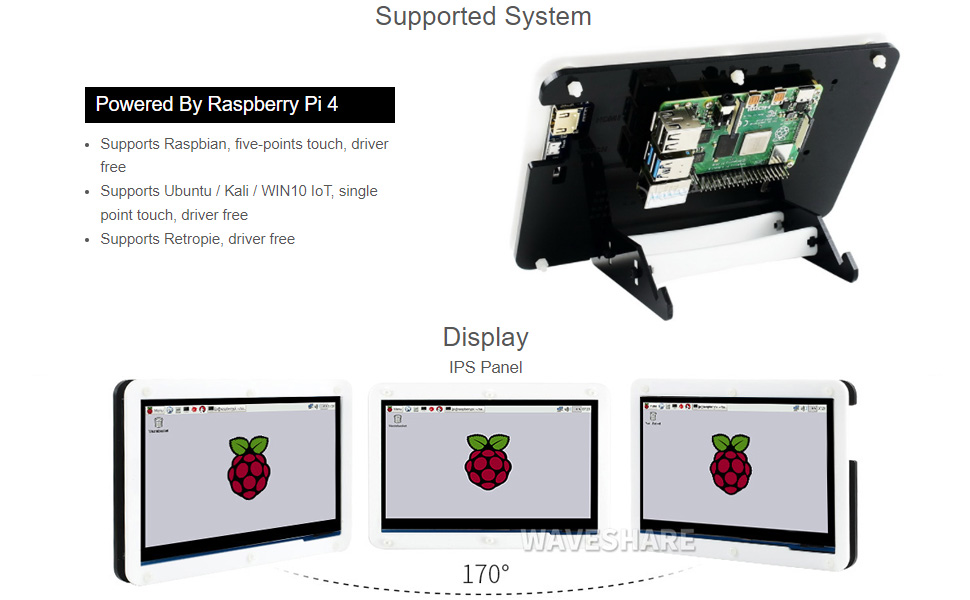
Image: Raspberry Pi 4 Model B board layout with key components labeled.
- Процесор: Broadcom BCM2711, чотирьохядерний процесор Cortex-A72 (ARM v8), 64-розрядний процесор на частоті 1.5 ГГц
- Пам'ять: LPDDR4-2400 SDRAM (available in 1GB, 2GB, 4GB, or 8GB options)
- Підключення: 2.4 GHz and 5.0 GHz IEEE 802.11ac wireless, Bluetooth 5.0, Gigabit Ethernet
- Порти USB: 2 × порти USB 3.0, 2 × порти USB 2.0
- Відео та звук: 2 × micro-HDMI ports (up to 4Kp60 supported), 2-lane MIPI DSI display port, 2-lane MIPI CSI camera port, 4-pole stereo audio and composite video port
- GPIO: 40-контактний роз'єм GPIO
- Потужність: 5V DC via USB-C connector (minimum 3A recommended)
4. Посібник із налаштування
Follow these steps to assemble and set up your Waveshare Raspberry Pi 4 Display Kit.
4.1 Збірка обладнання

Image: Fully assembled Waveshare Raspberry Pi 4 Display Kit.
- Prepare the Raspberry Pi: Ensure your Raspberry Pi 4 Model B board is ready.
- Mount the Raspberry Pi: Attach the Raspberry Pi 4 board to the designated mounting points on the back panel of the acrylic case using the provided screws and standoffs.
- Підключення дисплея: Connect the 7-inch LCD to the Raspberry Pi 4. Typically, this involves connecting the HDMI cable from the display to one of the micro-HDMI ports on the Raspberry Pi, and the USB-A to Micro-USB cable for touch functionality and power.
- Зберіть корпус: Secure the front panel of the acrylic case around the display and then attach it to the back panel, enclosing the Raspberry Pi and display. Ensure all cables are properly routed and not pinched.
- Прикріпити підставку: Assemble and attach the included stand to the bottom of the case for stable positioning. The stand often allows for adjustable viewing angles (e.g., 45° or 60°).
4.2 Конфігурація програмного забезпечення
The Waveshare 7-inch capacitive touch LCD is designed for driver-free operation with several popular operating systems.
- Встановлення операційної системи: Install your preferred operating system (e.g., Raspbian, Ubuntu, Kali, WIN10 IoT, Retropie) onto the provided 16GB Micro SD card using a suitable imaging tool (e.g., Raspberry Pi Imager).
- Вставте SD-карту: Insert the prepared Micro SD card into the Raspberry Pi's Micro SD card slot.
- Увімкнення: Connect the power adapter to the display kit. The Raspberry Pi and display should power on automatically.
- Робота без водія: For most supported systems, the display and touch functionality will work automatically without additional driver installation.
5. Інструкція з експлуатації
5.1 Сенсорна функціональність

Image: User interacting with the capacitive touch screen.
- The 7-inch display features a capacitive touch panel, supporting up to five-point touch input.
- Ensure the USB touch cable is securely connected between the display and the Raspberry Pi for touch input to function.
- Touch gestures and multi-touch capabilities will depend on the operating system and applications running on your Raspberry Pi.
5.2 Підтримувані операційні системи
The display kit offers broad compatibility with various Raspberry Pi operating systems:
- Raspbian: Supports five-point touch, driver-free.
- Ubuntu / Kali / WIN10 IoT: Supports single-point touch, driver-free.
- Retropie: Supports driver-free operation.
6. Технічні характеристики
| Особливість | Специфікація |
|---|---|
| Розмір дисплея | 7 дюймів |
| Натисніть Тип | Capacitive, up to 5-points |
| Інтерфейс | HDMI for display, USB for touch |
| Сумісність | Raspberry Pi 4 Model B |
| Підтримка операційної системи | Raspbian, Ubuntu, Kali, WIN10 IoT, Retropie |
| Memory Storage Capacity (SD Card) | 16 ГБ |
| Вага товару | 1.28 фунта |
| Номер моделі | PI4B Display Acce |
| Виробник | Waveshare |
7. Технічне обслуговування
- Прибирання: Використовуйте м’яку тканину без ворсу, щоб обережно протерти екран. Для стійких плям злегка протрітьampПротріть тканину водою або засобом для чищення екранів. Уникайте агресивних хімікатів або абразивних матеріалів.
- Зберігання: When not in use, store the kit in a cool, dry place away from direct sunlight and extreme temperatures.
- Обробка: Handle the display and Raspberry Pi board with care to avoid physical damage. Avoid applying excessive pressure to the screen.
8. Вирішення проблем
8.1 Немає виводу на дисплей
- Перевірте живлення: Ensure the power adapter is securely connected to the display kit and plugged into a working power outlet.
- Підключення HDMI: Verify that the HDMI cable is firmly connected between the display and the Raspberry Pi's micro-HDMI port. Try a different micro-HDMI port if available.
- SD-карта: Confirm that the Micro SD card with a properly installed operating system is inserted correctly into the Raspberry Pi.
- Джерело живлення: Ensure your Raspberry Pi is receiving adequate power (a 5V/3A USB-C power supply is recommended for Raspberry Pi 4).
8.2 Touch Functionality Not Working
- Підключення USB: Check that the USB-A to Micro-USB cable is securely connected from the display to a USB port on the Raspberry Pi.
- Підтримка операційної системи: Confirm that your operating system supports the touch functionality of this display. While most are driver-free, some configurations might require specific settings.
- Перезавантаження: Try rebooting the Raspberry Pi.
8.3 Screen Flickering or Instability
- Джерело живлення: Ensure a stable and sufficient power supply is used for both the display and the Raspberry Pi.
- Цілісність кабелю: Check the HDMI and USB cables for any damage or loose connections.
9. Гарантія та підтримка
For warranty information, technical support, or further assistance, please refer to the official Waveshare webсайт або зверніться до продавця. Зберігайте чек про покупку як підтвердження покупки для гарантійних претензій.