
ASUS TUF B365M-PLUS GAMING (Wi-Fi)
ASUS TUF B365M-PLUS Gaming (Wi-Fi) Motherboard
Інструкція з експлуатації
1. Вступ
The ASUS TUF B365M-PLUS Gaming (Wi-Fi) motherboard is engineered for durability and performance, providing a stable foundation for your gaming rig. It features military-grade TUF components, enhanced cooling controls, and integrated Wi-Fi for a robust computing experience. This manual provides essential information for the proper installation, operation, and maintenance of your motherboard.

Загалом view of the ASUS TUF B365M-PLUS Gaming (Wi-Fi) Motherboard alongside its retail packaging.
2. Посібник із налаштування
2.1 Перевірки перед інсталяцією
- Ensure you have a compatible CPU (LGA1151 for 8th/9th Gen Intel Core processors).
- Verify RAM compatibility (DDR4, up to 64GB, 2400MHz).
- Prepare a clean, static-free workspace. Use an anti-static wrist strap.
2.2 Встановлення материнської плати
- Install the CPU into the LGA1151 socket, aligning the triangle markers.
- Нанесіть термопасту та встановіть кулер процесора.
- Insert DDR4 memory modules into the DIMM slots until they click into place.
- Mount the motherboard into your PC case using standoffs and screws.
- Connect the 24-pin ATX power connector and the 8-pin CPU power connector.
- Встановіть відеокарту в основний слот PCIe x16.
- Connect storage devices (SATA drives, M.2 SSDs).
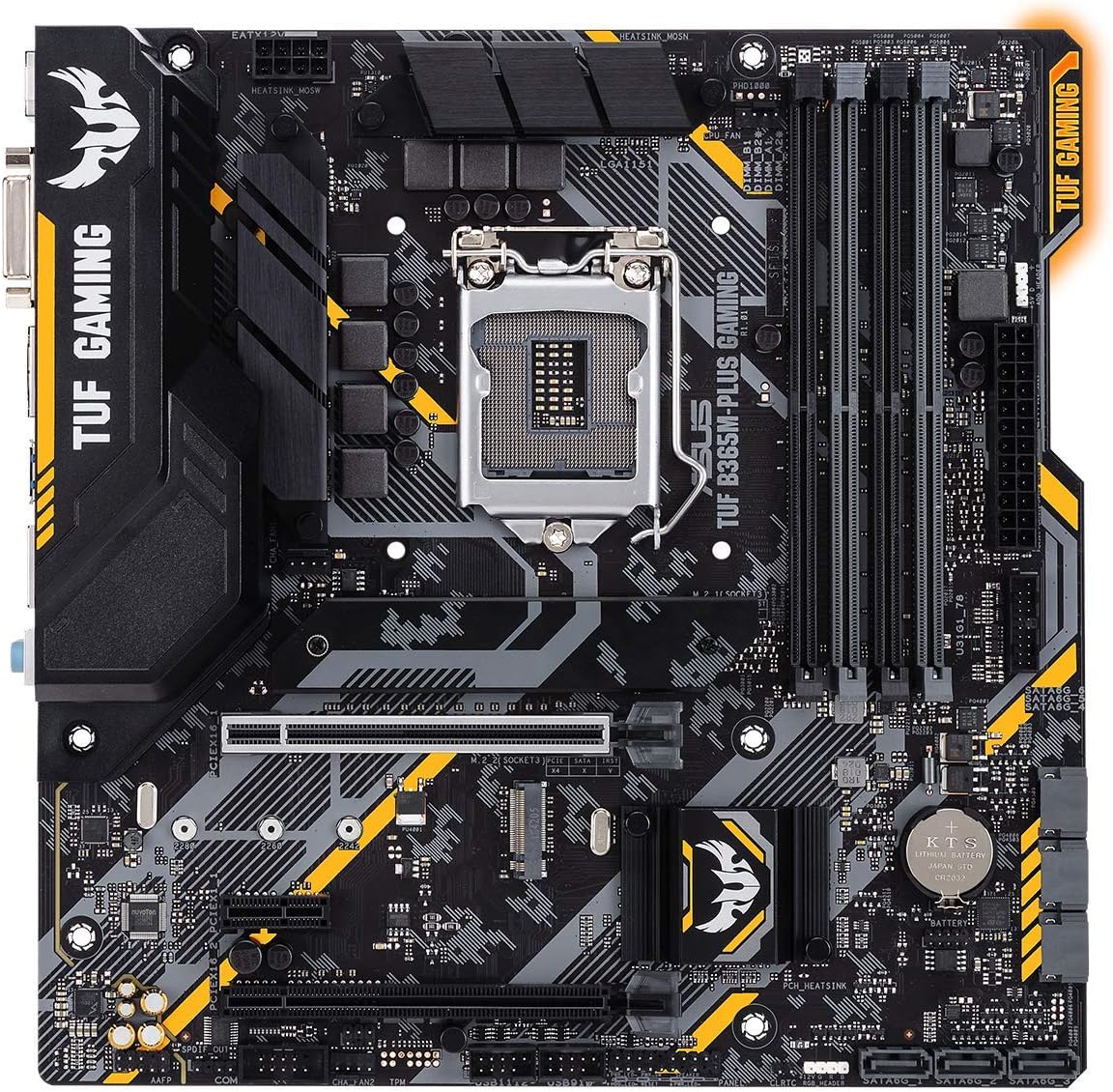
З верху до низу view of the ASUS TUF B365M-PLUS Gaming (Wi-Fi) Motherboard, highlighting the CPU socket, RAM slots, and PCIe slots.
2.3 Підключення периферійних пристроїв
- Connect your monitor to the graphics card or motherboard's video output (HDMI, DVI).
- Plug in USB devices (keyboard, mouse) to the rear I/O panel.
- Connect Ethernet cable for wired network or install the bundled Wi-Fi card.
- Connect front panel headers (power button, reset button, USB, audio).
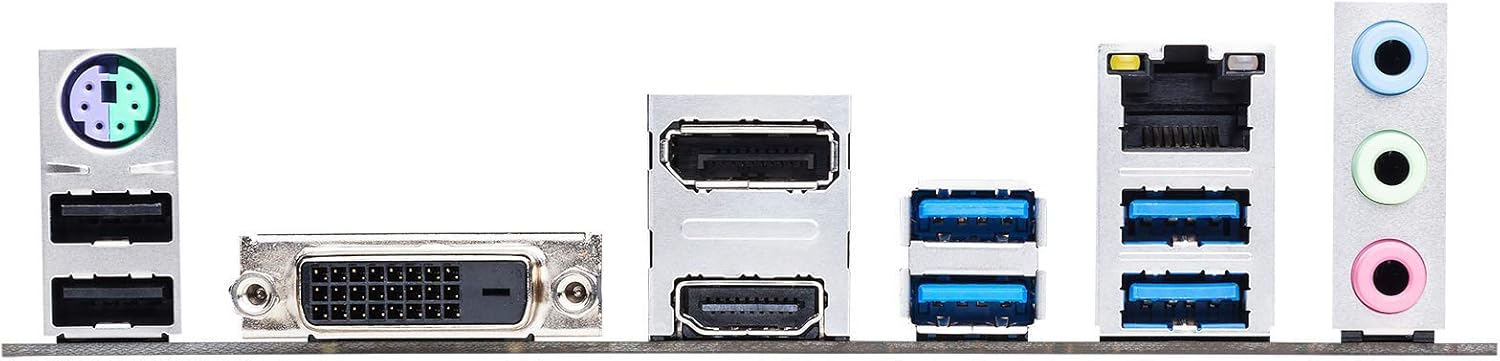
Close-up of the rear input/output (I/O) panel, displaying ports for USB, HDMI, DVI, LAN, and audio.
3. Інструкція з експлуатації
3.1 Перше завантаження та налаштування BIOS/UEFI
Upon first power-on, the system will typically enter the BIOS/UEFI interface. Here you can configure boot order, system time, and various hardware settings. Refer to the on-screen instructions or the ASUS support website for detailed BIOS navigation.
3.2 Встановлення драйвера
After installing your operating system, install the necessary drivers for the motherboard's components (chipset, audio, LAN, Wi-Fi, graphics). These are typically provided on a support DVD or available for download from the ASUS official webсайт.
3.3 Програмні утиліти
ASUS provides several utilities to enhance your experience:
- Fan Xpert 2+: For flexible cooling control and fan optimization based on thermal sensors.
- Синхронізація аури: To customize and synchronize RGB lighting effects across compatible components.
- AI Suite 3: An all-in-one interface for system tuning and monitoring.
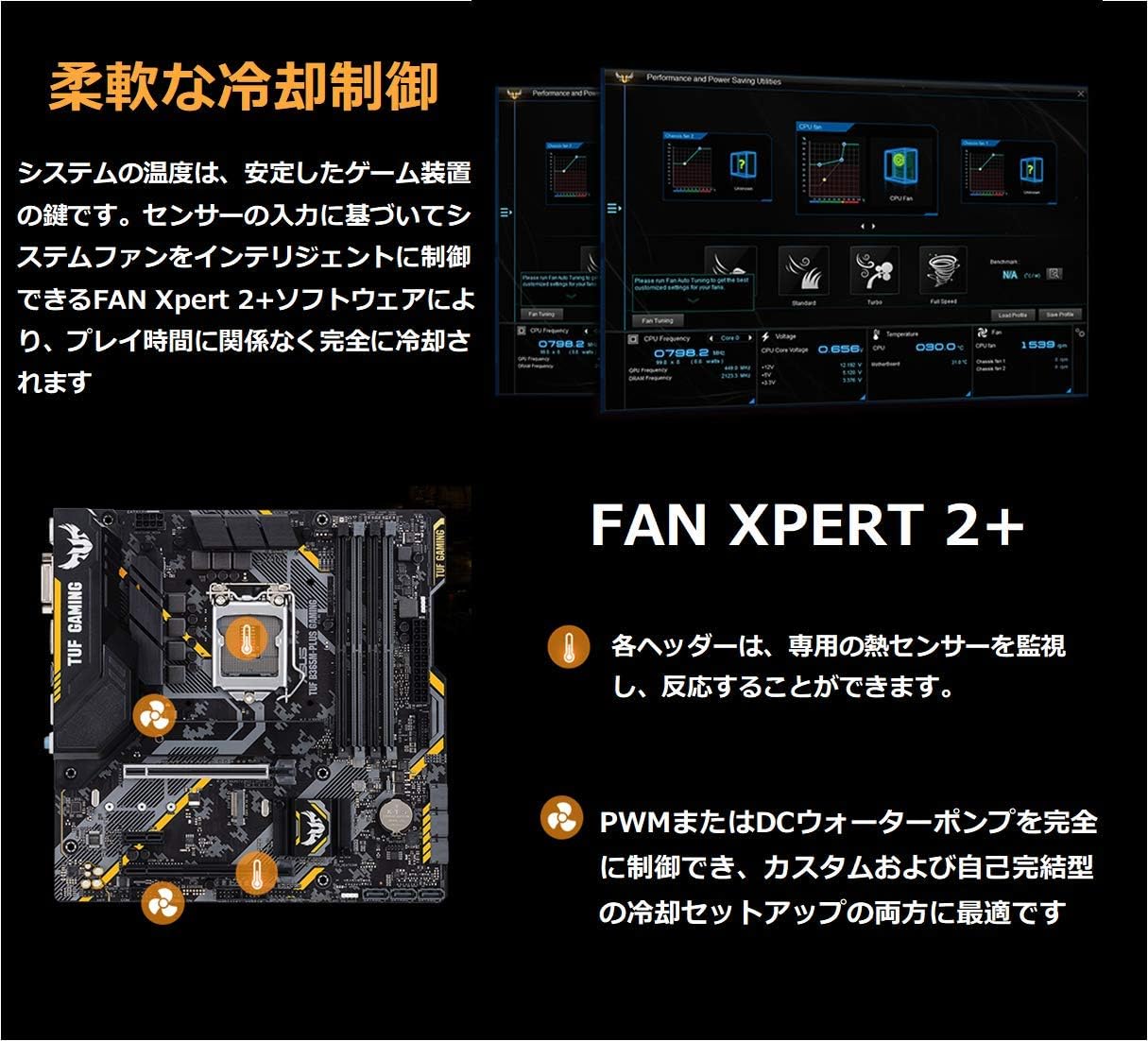
Screenshot and diagram explaining Fan Xpert 2+, a flexible cooling control system that monitors thermal sensors and intelligently manages system fans for optimal performance and quietness.
4. Технічне обслуговування
4.1 Процедури очищення
Regularly clean dust from your PC case and motherboard components using compressed air. Ensure the system is powered off and unplugged before cleaning. Avoid direct contact with components.
4.2 Оновлення BIOS
Періодично перевіряйте службу підтримки ASUS website for BIOS updates. BIOS updates can improve system stability, compatibility, and performance. Follow the provided instructions carefully when updating the BIOS to avoid system damage.
4.3 Перевірка компонентів
Ensure all cables and components are securely seated. Loose connections can lead to system instability or failure. Check for any visible damage or signs of overheating on components.
5. Вирішення проблем
5.1 Поширені проблеми та рішення
- Немає живлення/Немає завантаження: Check all power connections (24-pin ATX, 8-pin CPU). Ensure power supply is functional.
- Немає дисплея: Verify monitor connection and input source. Reseat graphics card and RAM modules. Try integrated graphics if available.
- Нестабільність/збої системи: Update drivers and BIOS. Test RAM modules individually. Check CPU and GPU temperatures.
- Bluetooth/Wi-Fi Issues: Ensure Wi-Fi card is properly installed and antennas are connected. Update wireless drivers. Some users have reported Bluetooth audio issues; ensure drivers are up-to-date and consider external dongles if problems persist.
- Проблеми з програмним забезпеченням: If ASUS Armoury Crate or other utilities cause issues, ensure they are updated to the latest version or consider reinstalling them.
For more detailed troubleshooting, consult the ASUS support webсайт або зверніться до технічної підтримки.
6. Технічні характеристики
| Особливість | Специфікація |
|---|---|
| Бренд | ASUS |
| Серія | TUF B365M-PLUS GAMING (Wi-Fi) |
| Назва моделі | TUF B365M-PLUS GAMING (Wi-Fi) |
| Гніздо ЦП | LGA 1151 |
| Тип чіпсета | Intel B365 |
| Технологія оперативної пам'яті | DDR4 |
| Тактова частота пам'яті | 2400 МГц |
| Максимальний розмір оперативної пам'яті | 64 ГБ |
| Бездротовий тип | 802.11ac |
| Розміри продукту | 9.6 x 9.5 x 1.5 дюймів |
| Вага товару | 1.8 фунта |
| Дата першої доступності | 23 серпня 2019 р |

Graphic demonstrating ASUS OptiMem technology, which improves DDR4 memory stability and reduces crosstalk, alongside an image of the bundled PCIe to M.2 Wi-Fi card for wireless connectivity.

Illustration highlighting the dual onboard M.2 slots and M.2 heatsink for high-speed storage, and indicating support for Intel Optane Memory technology.
7. Гарантія та підтримка
This product comes with a manufacturer's warranty. For detailed warranty terms and conditions, please refer to the documentation included with your product or visit the official ASUS support webсайт. Щоб отримати технічну допомогу, завантаження драйверів та додаткову інформацію, відвідайте www.asus.com/support/.
Пропозиція 65 Попередження: Цей продукт може містити хімічні речовини, відомі штату Каліфорнія, що спричиняють рак та вроджені вади або інший репродуктивний шкоду.
Ask a question about this manual
Ask about setup, troubleshooting, compatibility, parts, safety, or missing instructions. Manuals+ will review the question and use this page’s manual context to help answer it.