
вступ
The SanDisk Ultra Flair USB 3.0 Flash Drive provides high-speed data transfer and reliable storage in a durable metal casing. Designed for efficiency, it allows you to move files quickly and securely. This manual will guide you through the setup, operation, maintenance, and troubleshooting of your flash drive.
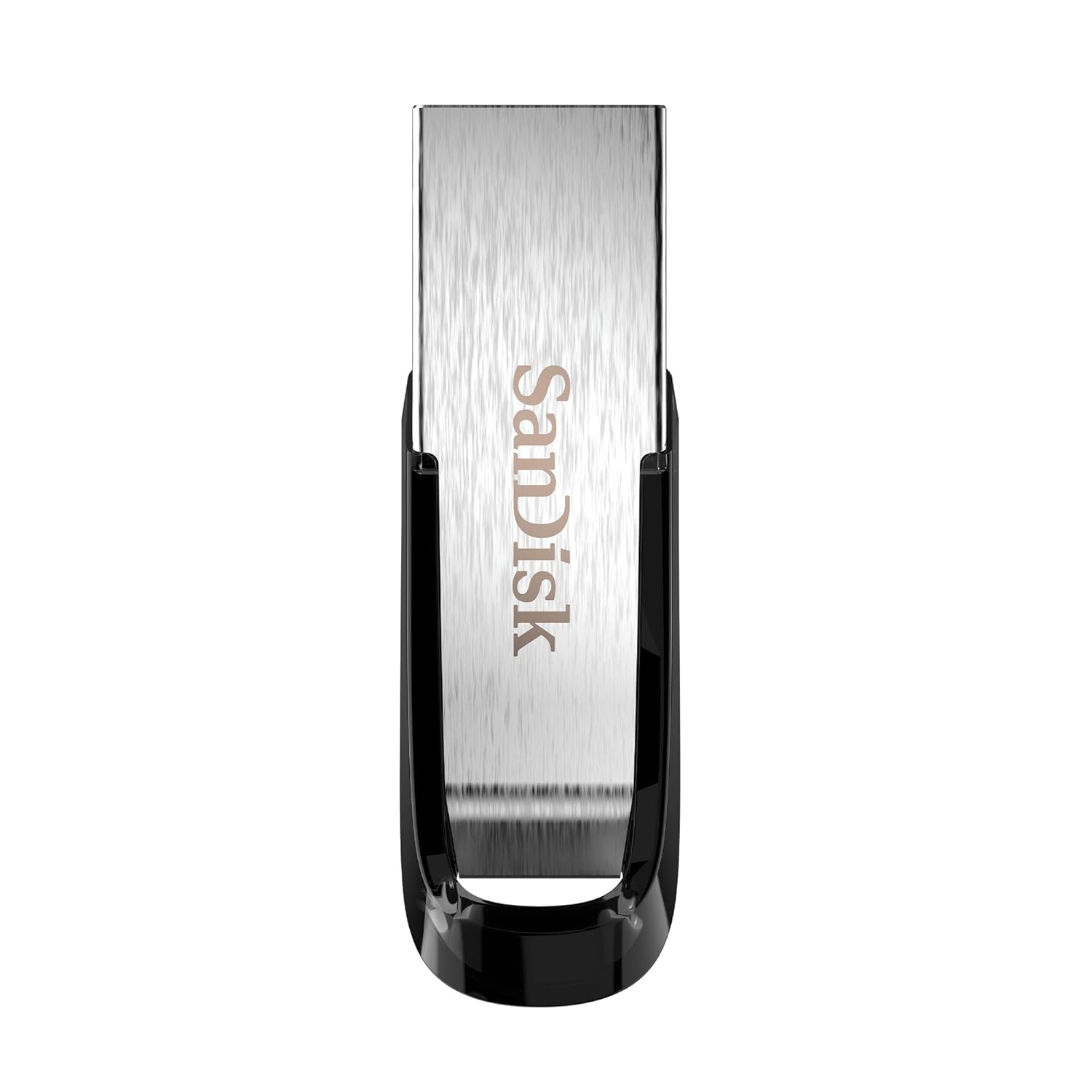
Image: The SanDisk Ultra Flair USB 3.0 Flash Drive, showcasing its sleek metal design and USB 3.0 connector.
Налаштування
- Вставте флеш-накопичувач: Locate an available USB port on your computer (desktop, laptop, or compatible device). Gently insert the SanDisk Ultra Flair USB 3.0 Flash Drive into the USB port. For optimal performance, use a USB 3.0 port (often identified by a blue interior). The drive is also backward compatible with USB 2.0 ports.
- Автоматичне розпізнавання: Your operating system (Windows, macOS, Linux) should automatically detect and install the necessary drivers for the flash drive. A notification may appear indicating that the device is ready for use.
- Доступ до диска:
- Windows: Open "This PC" or "My Computer." The flash drive will appear as a removable disk (e.g., "SanDisk Ultra Flair" or a drive letter like E: or F:).
- macOS: The flash drive icon will appear on your desktop or in the Finder sidebar under "Locations."
- Pre-loaded Software: The drive may come with pre-loaded software, such as SanDisk SecureAccess. You can choose to install and use this software for password protection and file шифрування
Інструкція з експлуатації
Перенесення Files
Передавати files to or from your SanDisk Ultra Flair flash drive:
- Відкрийте диск: Double-click the flash drive icon in "This PC" (Windows) or on your desktop/Finder (macOS) to open its contents.
- Перетягніть і опустіть:
- Копіювати files до флеш-накопичувач: перетягування files or folders from your computer into the flash drive's window.
- Копіювати files від флеш-накопичувач: перетягування files or folders from the flash drive's window to a location on your computer.
- Копіювати Вставити: Alternatively, right-click on the desired files/folders, select "Copy," then navigate to the destination, right-click, and select "Paste."

Image: A person working on a computer, illustrating the fast data transfer capabilities of the SanDisk Ultra Flair USB 3.0 Flash Drive.
Using SanDisk SecureAccess Software
The SanDisk SecureAccess software allows you to create a password-protected folder (vault) on your flash drive to secure sensitive files with 128-bit AES encryption.
- Установка: If not already installed, run the SecureAccess installer found on the drive. Follow the on-screen instructions to set up your vault and password.
- Додавання Files: Перетягніть files into the SecureAccess vault window to encrypt them.
- Доступ Files: To access encrypted files, open the SecureAccess application and enter your password.

Image: A person using a computer, representing the ease of backup and organization with SanDisk software.
Safely Removing the Flash Drive
Always safely remove the flash drive to prevent data corruption:
- Windows: Click the "Safely Remove Hardware and Eject Media" icon in the system tray (bottom-right corner), then select your flash drive. Wait for the "Safe to Remove Hardware" message before physically disconnecting.
- macOS: Drag the flash drive icon from your desktop to the Trash, or click the Eject icon next to the drive name in Finder. Wait for the icon to disappear before physically disconnecting.
Технічне обслуговування
- Фізичний догляд: The SanDisk Ultra Flair features a durable metal casing. While robust, avoid exposing the drive to extreme temperatures, moisture, or strong magnetic fields. Keep the USB connector clean and free from dust or debris.
- Резервне копіювання даних: Regularly back up important data from your flash drive to another storage device to prevent data loss.
- Оновлення програмного забезпечення: Періодично перевіряйте офіційну версію SanDisk website for any available firmware updates or new versions of SanDisk SecureAccess software.
Усунення несправностей
- Диск не розпізнано:
- Спробуйте вставити накопичувач в інший USB-порт на вашому комп'ютері.
- Test the drive on another computer to rule out a port or system issue.
- Переконайтеся, що накопичувач повністю вставлено в USB-порт.
- Перезавантажте комп'ютер.
- Низька швидкість передачі даних:
- Ensure you are using a USB 3.0 port for maximum speed. USB 2.0 ports will result in slower transfers.
- Перенесення багатьох дрібних fileможе бути повільнішим, ніж передача кількох великих files.
- Закрийте інші програми, які можуть використовувати системні ресурси.
- Drive Gets Warm During Use:
It is normal for the metal casing of the SanDisk Ultra Flair to become warm during prolonged data transfers, especially with USB 3.0 speeds. The metal design helps dissipate heat efficiently. This typically does not affect performance or durability.
- Lost or Corrupted Files:
Your SanDisk Ultra Flair includes a one-year subscription to RescuePRO software. Visit the SanDisk website to download and activate RescuePRO for data recovery attempts.
Технічні характеристики

Зображення: Детальне view of the SanDisk Ultra Flair USB 3.0 Flash Drive, showing its physical dimensions.
| Особливість | Деталь |
|---|---|
| Бренд | SanDisk |
| Назва моделі | SanDisk Ultra Flair |
| Номер моделі | SDCZ73-032G-I35 |
| Ємність пам'яті | 32 ГБ |
| Апаратний інтерфейс | USB 3.0 (зворотно сумісний з USB 2.0) |
| Швидкість читання | До 150 XNUMX МБ/с |
| Особливості | Міцний метал casing, Fast Data Transfer, Sleek design, Password Protected (with SecureAccess software), Data Encryption, Easy File Recovery (with RescuePRO software) |
| Сумісні пристрої | Devices with USB 3.0 or USB 2.0 port |
| колір | Срібло |
| Розміри (Д x Ш x В) | Приблизно 43 мм x 13 мм x 7 мм (1.69 дюйма x 0.51 дюйма x 0.28 дюйма) |
| Вага товару | 4 грамів |
| UPC | 619659173975 |
| Країна походження | Тайвань |
| Вміст коробки | 1x SanDisk Ultra Flair Flash Drive |
Інформація про гарантію
The SanDisk Ultra Flair USB 3.0 Flash Drive comes with a 5 рік обмеженої гарантії provided by SanDisk. This warranty covers manufacturing defects under normal use. Please retain your proof of purchase for warranty claims.
For detailed terms and conditions, or to initiate a warranty claim, please visit the official SanDisk support webсайт.
Підтримка
For further assistance, technical support, or to download software like SanDisk SecureAccess or RescuePRO, please visit the official SanDisk support webсайт:
Офіційна підтримка SanDisk Webсайт
Ви також можете знайти поширені запитання та форуми спільноти на їхніх website for common issues and tips.