
Важливі інструкції з безпеки
To ensure safe operation and prolong the life of your monitor, please read and follow these instructions carefully:
- Завжди від’єднуйте шнур живлення від електричної розетки перед чищенням монітора.
- Не піддавайте монітор впливу дощу або вологи, щоб уникнути ураження електричним струмом.
- Забезпечте належну вентиляцію навколо монітора, щоб запобігти перегріву. Не блокуйте вентиляційні отвори.
- Використовуйте лише адаптер живлення та кабелі, що постачаються виробником.
- Уникайте розміщення важких предметів на шнурі живлення або моніторі.
- If the monitor is damaged or malfunctions, do not attempt to repair it yourself. Contact qualified service personnel.
Вміст упаковки
Before proceeding with the setup, please check the contents of your package to ensure all items are present:
- Acer CB272U smiiprx LED Monitor
- Підставка для монітора (основа та кронштейн)
- Шнур живлення
- Кабель HDMI
- Короткий посібник / Гарантійний талон
Налаштування
1. Збірка підставки для монітора
- Carefully remove the monitor from its packaging. Place the monitor face down on a soft, clean cloth or surface to prevent scratches to the screen.
- Attach the stand arm to the back of the monitor panel. Ensure it is securely fastened, typically by sliding it into place until it clicks or by tightening screws.
- Connect the stand base to the bottom of the stand arm. Secure the base by tightening the captive screw located underneath the base.

Малюнок 1: Задня частина view of the Acer CB272U smiiprx monitor with the stand attached, illustrating the assembly points.
2. Connecting the Monitor to Your Computer
- Connect one end of the provided HDMI cable to the HDMI port on the monitor.
- Connect the other end of the HDMI cable to the HDMI output port on your computer or graphics card.
- Підключіть шнур живлення до входу живлення монітора, а потім підключіть інший кінець до заземленої електричної розетки.

Рисунок 2: Кутова задня частина view showing the input ports of the monitor, including HDMI and power connections.
Експлуатація монітора
Увімкнення та вимкнення
Locate the power button on the monitor's bezel. Press it once to turn the monitor on. The power indicator light will illuminate. Press it again to turn the monitor off.
Adjusting Display Settings (OSD Menu)
The On-Screen Display (OSD) menu allows you to customize various monitor settings. Use the control buttons (usually located on the back or bottom right of the monitor) to navigate the OSD menu. Common adjustments include:
- Яскравість/Контрастність: Налаштуйте загальну яскравість та різницю між світлими та темними ділянками.
- Параметри кольору: Змінити колірну температуру, гаму та окремі рівні RGB.
- Джерело введення: Manually select the video input (e.g., HDMI).
- Аудіо: Керування гучністю вбудованих динаміків.
Ергономічні налаштування
The Acer CB272U smiiprx monitor stand offers multiple ergonomic adjustments to optimize your viewкомфорт:
- Регулювання висоти: Підніміть або опустіть монітор до рівня очей.
- Нахил: Adjust the screen angle forward or backward to reduce glare.
- Поворотний: Rotate the monitor horizontally to share your screen or adjust viewкут.
- Опорна точка: Rotate the screen to a portrait orientation for document viewнаписання або кодування.
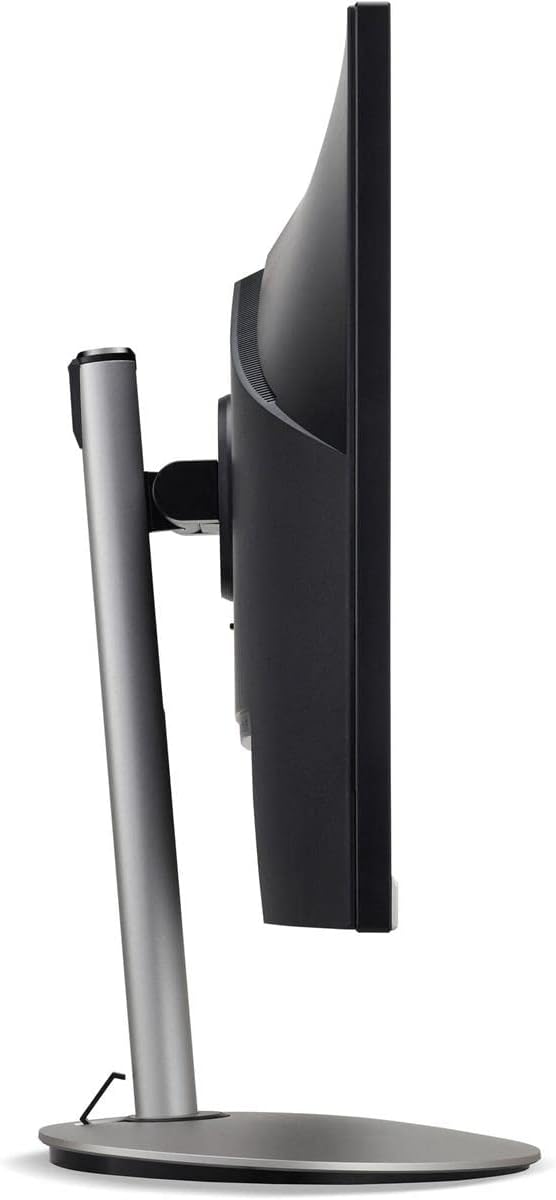
Рисунок 3: Бічний профіfile of the monitor, illustrating its adjustable stand for ergonomic positioning.
Технічне обслуговування
Cleaning the Monitor Screen and Casing
To clean your monitor, first ensure it is turned off and unplugged from the power outlet. Use a soft, lint-free cloth. For stubborn marks, lightly dampen the cloth with water or a specialized non-abrasive screen cleaner. Не розпилюйте рідину безпосередньо на екран абоasing. Уникайте використання агресивних хімікатів, абразивних засобів для чищення або розчинників.
Правила зберігання
If you need to store the monitor for an extended period, it is recommended to use its original packaging to protect it from dust, moisture, and physical damage. Store in a cool, dry environment away from direct sunlight and extreme temperatures.
Усунення несправностей
Зверніться до таблиці нижче, щоб дізнатися про поширені проблеми та їх вирішення:
| проблема | Можлива причина | Рішення |
|---|---|---|
| На екрані немає зображення | Відключено кабель живлення; відключено відеокабель; вибрано неправильне джерело вхідного сигналу. | Перевірте підключення кабелів живлення та відео; переконайтеся, що монітор увімкнено; виберіть правильне джерело вхідного сигналу в екранному меню. |
| Зображення розмите або спотворене | Incorrect resolution setting; Faulty video cable. | Set the display resolution to 2560 x 1440 at 75 Hz; Try a different HDMI cable. |
| Немає звуку з динаміків | Monitor volume too low or muted; Incorrect audio output selected on computer. | Adjust monitor volume via OSD; Unmute audio; Select the monitor as the audio output device in your computer's sound settings. |
| Мерехтіння монітора | Невідповідність частоти оновлення; Перешкоди; Несправний кабель. | Ensure refresh rate is set to 75 Hz; Check for nearby electronic devices causing interference; Replace video cable. |
Технічні характеристики
Key technical specifications for the Acer CB272U smiiprx LED Monitor:
| Особливість | Деталь |
|---|---|
| Назва моделі | CB272U smiiprx |
| Розмір екрана | 24.1 дюймів |
| Рідна роздільна здатність | 2560 x 1440 (WQHD) |
| Частота оновлення | 75 Гц |
| Час відгуку | 1 Millisecond (VRB) |
| Співвідношення сторін | 16:9 |
| Тип дисплея | LED-backlit LCD / TFT active matrix (IPS) |
| Яскравість | 350 кд/м² |
| Коефіцієнт контрастності | 1000:1 (статичний) |
| Підключення | HDMI |
| Адаптивна синхронізація | FreeSync |
| Вбудовані динаміки | так |
| Dimensions (WxDxH with stand) | 24.1 x 9.2 x 20.5 дюйма |
| Вага (з підставкою) | 18.1 фунта |

Figure 4: Monitor dimensions with stand, indicating width, depth, and height.
Інформація про гарантію
The Acer CB272U smiiprx LED Monitor comes with a 3-річна обмежена гарантія виробника. This warranty covers defects in materials and workmanship under normal use. For complete details regarding warranty coverage, limitations, and how to make a claim, please refer to the warranty documentation included with your product or visit the official Acer support webсайт.
Please retain your proof of purchase (receipt or invoice) as it will be required for any warranty service.
Підтримка клієнтів
Should you require further assistance, technical support, or wish to download the latest drivers and firmware updates for your monitor, please visit the official Acer support webсайт:
Ви також можете знайти контактну інформацію служби підтримки клієнтів Acer у вашому регіоні на сторінці підтримки webсайт для персоналізованої допомоги.