
1. Важлива інформація з безпеки
Please read all safety instructions carefully before using your monitor. Keep this manual for future reference.
- Не кладіть монітор на нестабільний візок, підставку, штатив, кронштейн або стіл.
- Забезпечте належну вентиляцію навколо монітора. Не блокуйте вентиляційні отвори.
- Використовуйте лише шнур живлення та адаптер, що постачаються з монітором.
- Avoid exposing the monitor to rain or moisture to prevent fire or electric shock.
- Не відкривайте монітор casing. Звертайтеся до кваліфікованого сервісного персоналу з усіх питань технічного обслуговування.
- Unplug the monitor from the wall outlet during lightning storms or when unused for long periods.
2. Вміст упаковки
Перевірте наявність усіх елементів у вашій упаковці:
- Samsung LC27F396FHNXZA 27-Inch Curved Monitor
- База підставки
- Стенд Neck
- Power Adapter and Power Cable (1.5 m)
- Кабель HDMI
- Посібник швидкого встановлення
- Гарантійний талон
3. Налаштування
3.1 Збірка підставки
- Обережно покладіть монітор екраном донизу на м’яку чисту тканину, щоб запобігти подряпинам.
- Прикріпіть шийку підставки до задньої панелі монітора, доки вона не зафіксується почутим клацання.
- Connect the stand base to the stand neck by aligning the tabs and tightening the screw at the bottom of the base.

3.2 З'єднувальні кабелі
Ensure the monitor and your computer are powered off before connecting any cables.
- Кабель живлення: Connect the power adapter to the monitor's power input, then plug the power cable into the adapter and a wall outlet.
- Video Cable (HDMI or VGA): Connect one end of the HDMI or VGA cable to the corresponding port on your computer's graphics card and the other end to the HDMI or VGA input on the monitor. Ensure cables are tightened securely.
- Аудіокабель (додатково): If you wish to use external speakers or headphones, connect a 3.5mm audio cable from your computer's audio output to the monitor's 3.5mm audio input.
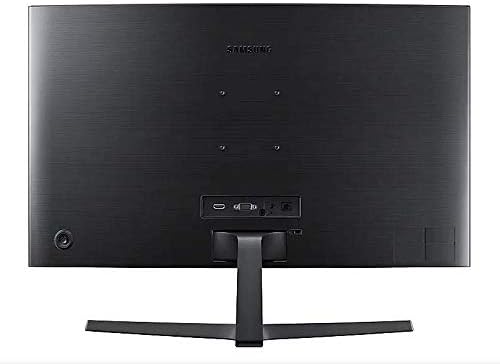
3.3 Увімкнення
Після підключення всіх необхідних кабелів увімкніть комп’ютер, а потім натисніть кнопку живлення на моніторі. Монітор має автоматично розпізнати вхідний сигнал.
4. Експлуатація монітора
4.1 Basic Functions and OSD Menu
The monitor features a single joystick button located on the back for navigating the On-Screen Display (OSD) menu. Press the joystick to open the OSD menu, then move it up/down/left/right to select and adjust settings.
4.2 Налаштування зображення
Adjust picture quality settings via the OSD menu:
- Яскравість/Контрастність: Adjust these to your preferred viewрівні.
- роздільна здатність: The optimal resolution for this monitor is 1920 x 1080 (FHD 1080p).
- Співвідношення сторін: Set to 16:9 for widescreen content.
- MagicBright: Select from various preset modes (e.g., Standard, Cinema, Dynamic Contrast) for optimized viewсередовищах.
- Active Crystal Color: Enhances color reproduction for a more vibrant display.

4.3 AMD FreeSync and Game Mode
This monitor supports AMD FreeSync technology, which synchronizes the screen refresh rate with your graphics card's frame rate to reduce input latency and minimize image tearing and stutter during gaming. Enable FreeSync through the OSD menu for a smoother gaming experience.

4.4 Curved Display Benefits
The 1800R curvature of this monitor is designed to match the natural curve of the human eye, providing a more immersive viewing experience. This curvature helps to reduce peripheral distractions and enhances depth perception, drawing you deeper into your content.

5. Технічне обслуговування
5.1 Очищення монітора
- Завжди вимикайте монітор перед чищенням.
- Злегка протріть м’якою тканиною без ворсу dampводою або спеціалізованим засобом для чищення екранів.
- Не розпилюйте засіб для чищення безпосередньо на екран.
- Уникайте використання абразивних засобів для чищення, воску або розчинників.
5.2 Зберігання
When storing the monitor for an extended period, ensure it is kept in a cool, dry place, preferably in its original packaging to protect it from dust and physical damage.
6. Вирішення проблем
Якщо у вас виникли проблеми з монітором, зверніться до наступних поширених кроків усунення несправностей:
| проблема | Можливе рішення |
|---|---|
| Немає живлення | Ensure the power cable is securely connected to the monitor, power adapter, and wall outlet. Check if the wall outlet is functioning. |
| Немає сигналу / Порожній екран | Verify that the video cable (HDMI/VGA) is firmly connected to both the monitor and the computer. Try a different video input source on the monitor if available. Ensure the computer is powered on and not in sleep mode. |
| Distorted Image / Incorrect Resolution | Adjust the display resolution on your computer to 1920 x 1080. Check the video cable for damage. |
| Screen Tearing / Stuttering (during gaming) | Ensure AMD FreeSync is enabled in the monitor's OSD menu and your graphics card settings. |
| Monitor does not wake up from sleep | Try unplugging and replugging the monitor's power cable. Check your computer's power management settings. |
7. Технічні характеристики
| Особливість | Деталь |
|---|---|
| Номер моделі | LC27F396FHNXZA |
| Розмір екрана | 27 дюймів |
| роздільна здатність | 1920 x 1080 (FHD 1080p) |
| Співвідношення сторін | 16:9 |
| Викривлення екрану | 1800R |
| Тип панелі | VA |
| Час відгуку | 4 мілісекунд |
| Частота оновлення | 60 Гц |
| Підключення | 1x HDMI, 1x VGA, 1x 3.5mm Audio Out |
| Технологія адаптивної синхронізації | AMD FreeSync |
| Споживана потужність | 25 Watts (Typical) |
| Розміри (з підставкою) | 62.28 x 24.26 x 46.61 см (24.5 x 9.6 x 18.4 дюйма) |
| Вага (з підставкою) | 4.1 кг (9.04 фунтів) |
| Тип монтажу | Настінне кріплення |
8. Гарантія та підтримка
8.1 Гарантія виробника
This Samsung monitor is covered by a 1-річна гарантія виробника з дати покупки. Будь ласка, збережіть чек про покупку для пред'явлення гарантійних претензій. Гарантія поширюється на дефекти матеріалів та виготовлення за умов нормального використання.
8.2 Підтримка клієнтів
For technical assistance, troubleshooting, or warranty service, please contact Samsung Customer Support. You can find contact information on the official Samsung webсайт для вашого регіону.
Контактна інформація виробника: Mississauga, ON L5M 9Z9, CA
Для отримання додаткової інформації відвідайте офіційну сторінку Samsung Canada Support webсайт.