
1. Вступ
Thank you for choosing the Gembird MUS-6B-01 Optical USB Mouse. This manual provides essential information for setting up, operating, maintaining, and troubleshooting your new mouse. Please read these instructions carefully to ensure optimal performance and longevity of your device.

Image: The official Gembird brand logo, featuring the company name in a stylized font with a geometric design.
2. Продукт закінчивсяview
The Gembird MUS-6B-01 is a reliable 6-button optical USB mouse designed for comfortable and precise navigation. Its ambidextrous design makes it suitable for both left and right-handed users.
Ключові характеристики:
- Оптичне відстеження: Забезпечує плавне та точне керування курсором.
- 6 Кнопки: Includes standard left/right click, scroll wheel, DPI adjustment, and two side buttons for enhanced functionality.
- Підключення USB: Simple plug-and-play connection to your computer.
- Двосторонній дизайн: Comfortable for both left and right-handed users.
Компоненти:
- Клацніть лівою кнопкою миші
- Клацніть правою кнопкою миші
- Scroll Wheel (also functions as a middle click button)
- Кнопка налаштування DPI
- Кнопка «Вперед» (збоку)
- Кнопка «Назад» (збоку)
- Optical Sensor (underside)
- USB Connector (at the end of the cable)
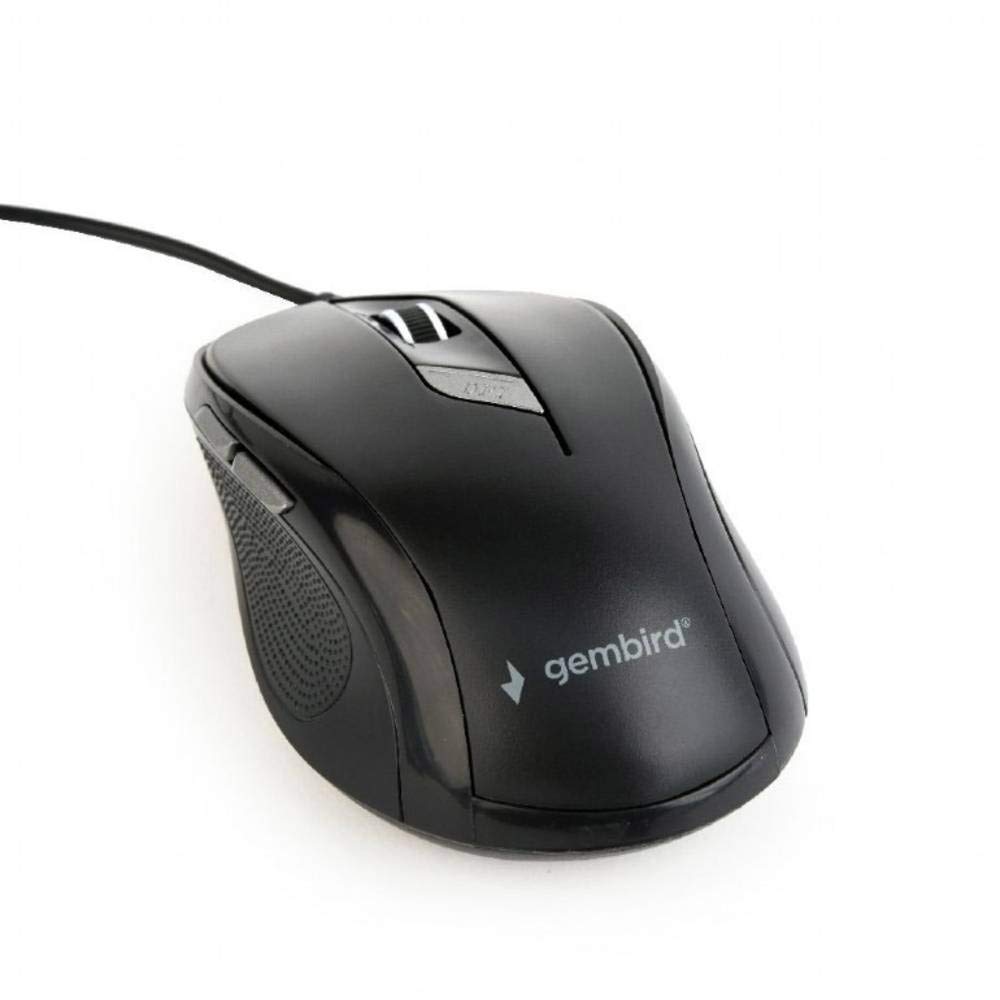
Зображення: Зверху вниз view of the Gembird MUS-6B-01 optical USB mouse. The mouse is black with a matte finish, featuring a scroll wheel, left and right click buttons, a DPI button, and two side buttons. A black USB cable extends from the front of the mouse.
3. Налаштування
Setting up your Gembird MUS-6B-01 mouse is a simple plug-and-play process.
Кроки встановлення:
- Знайдіть вільний порт USB на комп’ютері.
- Plug the USB connector of the Gembird MUS-6B-01 mouse firmly into the USB port.
- Your operating system (Windows, Linux) will automatically detect and install the necessary drivers. This process may take a few moments.
- Після встановлення драйверів миша готова до використання.
No additional software installation is typically required for basic functionality.
4. Інструкція з експлуатації
Familiarize yourself with the functions of each button on your Gembird MUS-6B-01 mouse.
Основні функції:
- Клацніть лівою кнопкою миші: Primary action, selecting items, opening files.
- Клацніть правою кнопкою миші: Opens context menus, provides additional options.
- Колесо прокрутки: Прокручуйте документи вгору або вниз і web сторінки.
- Клік середнім клацанням (натискання колеса прокручування): Often used to open links in new tabs or for specific application functions.
Розширені функції:
- Кнопка регулювання DPI: Located behind the scroll wheel, this button allows you to cycle through different sensitivity (DPI) settings. Press it to change the cursor speed to suit your preference.
- Кнопка «Вперед» (збоку): Typically navigates forward in web браузери або file дослідники.
- Кнопка «Назад» (збоку): Typically navigates backward in web браузери або file дослідники.
The functionality of the side buttons may vary depending on the application or operating system settings. Some operating systems allow customization of these buttons.
5. Технічне обслуговування
Proper care will help extend the life of your Gembird MUS-6B-01 mouse.
Прибирання:
- Від’єднайте мишу від комп’ютера перед чищенням.
- Використовуйте м’який, злегка damp, lint-free cloth to wipe the surface of the mouse.
- For stubborn dirt, a small amount of mild soap solution can be applied to the cloth (not directly to the mouse).
- Use a cotton swab or compressed air to clean around the scroll wheel and between buttons.
- Ensure the optical sensor on the underside is clean and free of dust or debris.
- Не використовуйте агресивні хімікати, абразивні засоби для чищення та не занурюйте мишу у воду.
Зберігання:
Якщо миша не використовується протягом тривалого часу, зберігайте її в чистому, сухому місці, подалі від екстремальних температур та прямих сонячних променів.
6. Вирішення проблем
If you encounter issues with your Gembird MUS-6B-01 mouse, try the following troubleshooting steps:
| проблема | Можливе рішення |
|---|---|
| Миша не відповідає |
|
| Erratic or jumpy cursor movement |
|
| Кнопки не працюють |
|
7. Технічні характеристики
Detailed technical specifications for the Gembird MUS-6B-01 Optical USB Mouse:
| Особливість | Специфікація |
|---|---|
| Бренд | Gembird |
| Назва моделі | МУС-6Б-01 |
| Технологія підключення | Дротова (USB) |
| Технологія виявлення руху | Оптичний |
| Кількість кнопок | 6 |
| Орієнтація руки | Амбідекстр |
| Сумісні операційні системи | Linux, Windows 7, Windows XP (і новіші версії) |
| Апаратна платформа | Персональний комп'ютер |
| Довжина кабелю | 5.0 метрів |
| Вага товару | 74 грамів |
| матеріал | пластик |
| Колір | чорний |
| Потрібні батареї | немає |
8. Інформація про безпеку
Будь ласка, дотримуйтесь наступних правил безпеки:
- Не піддавайте мишу впливу води або надмірної вологи.
- Уникайте падіння миші та не піддавайте її сильним ударам.
- Не намагайтеся розбирати або ремонтувати мишу самостійно. Зверніться до кваліфікованого сервісного персоналу.
- Тримайте пристрій подалі від екстремальних температур і прямих сонячних променів.
- Утилізуйте електронні відходи відповідально згідно з місцевими правилами.
9. Гарантія та підтримка
Gembird products are designed for reliability and performance. For specific warranty terms and conditions, please refer to the warranty card included with your product or visit the official Gembird website. For technical support or further assistance, please contact your retailer or the Gembird customer service department.