
PIX-LINK LV-WR07
Посібник користувача бездротового маршрутизатора PIX-LINK LV-WR07
Модель: LV-WR07
1. Вступ
Thank you for choosing the PIX-LINK LV-WR07 Wireless Router. This device is designed to provide a high-speed wireless network connection for your home or small office. With 300Mbps wireless speed and two external antennas, it ensures stable and wide-ranging Wi-Fi coverage. This manual will guide you through the setup, operation, and maintenance of your new router.

Image 1.1: The PIX-LINK LV-WR07 Wireless Router, showcasinзавдяки компактному дизайну та двом зовнішнім антенам.
2. Особливості продукту
- High-Speed Wireless: Up to 300Mbps data transmission rate, ideal for smooth HD streaming, online gaming, and fast web перегляд.
- Розширене покриття: Equipped with two external antennas to ensure a strong and stable Wi-Fi signal across your space.
- Кілька портів: Features 5 LAN ports for reliable wired connections to devices like desktop computers, smart TVs, and gaming consoles.
- Функціональність WPS: Supports Wi-Fi Protected Setup (WPS) for easy and secure wireless connection setup.
- Широка сумісність: Connects seamlessly with various devices including gaming consoles, tablets, and smart televisions.

Image 2.1: Illustration of the router's network coverage and compatibility with various devices, including laptops, smartphones, and PCs.
3. Вміст упаковки
Будь ласка, перевірте наявність усіх предметів у вашій упаковці:
- PIX-LINK LV-WR07 Wireless Router
- Адаптер живлення
- Кабель Ethernet
- Короткий посібник зі встановлення (цей посібник)
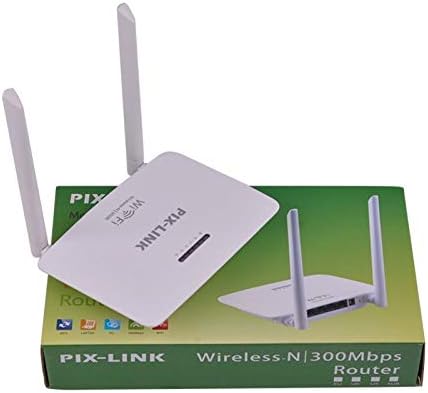
Image 3.1: The PIX-LINK LV-WR07 Wireless Router shown with its retail packaging, indicating the product as it appears in the box.

Image 3.2: The essential accessories included with the router: the power adapter for electrical connection and an Ethernet cable for wired network setup.
4. Посібник із налаштування
4.1 Підключення обладнання
- Увімкнення: Connect the power adapter to the router's power port and then plug the adapter into a standard electrical outlet. The power indicator light on the router should illuminate.
- Підключення до Інтернет-джерела: Connect one end of the provided Ethernet cable to your modem's LAN port or your internet service provider's (ISP) Ethernet wall jack. Connect the other end of the Ethernet cable to the WAN port (usually labeled differently or colored) on your PIX-LINK LV-WR07 router.
- Підключіть свій пристрій:
- Дротове підключення: For initial setup or stable connection, connect your computer to one of the router's LAN ports (usually yellow) using another Ethernet cable.
- Бездротове підключення: Locate the default Wi-Fi network name (SSID) and password printed on a label on the bottom or back of your router. Connect your wireless device (laptop, smartphone, tablet) to this network.
4.2 Початкова конфігурація (Web Інтерфейс)
After connecting the hardware, you can configure your router via a web браузер.
- Доступ до налаштувань маршрутизатора: Відкрийте a web browser (e.g., Chrome, Firefox, Edge) on a device connected to the router. In the address bar, type the default IP address (e.g.,
192.168.1.1or192.168.0.1) and press Enter. This IP address is usually found on the router's label. - Логін: A login window will appear. Enter the default username and password (commonly
adminдля обох або як зазначено на етикетці маршрутизатора). - Запустіть майстер налаштування: Most routers have a Quick Setup Wizard. Follow the on-screen instructions to configure your internet connection type (e.g., DHCP, Static IP, PPPoE) and set up your new Wi-Fi network name (SSID) and a strong password.
- Зберегти налаштування: After configuring, save your settings and restart the router if prompted.
5. Експлуатація маршрутизатора
5.1 Підключення пристроїв до Wi-Fi
To connect a device to your Wi-Fi network:
- На своєму пристрої перейдіть до налаштувань Wi-Fi.
- Select your Wi-Fi network name (SSID) from the list.
- Enter the Wi-Fi password you set during configuration.
- Тепер ваш пристрій має бути підключений до Інтернету.
5.2 Використання WPS (захищене налаштування Wi-Fi)
WPS allows you to connect devices to your Wi-Fi network without entering the password manually.
- Press the WPS button on your router (usually located on the back or side, labeled 'WPS'). The WPS LED indicator will start blinking.
- Within two minutes, activate WPS on your client device (e.g., a wireless adapter, smartphone, or printer). Refer to your device's manual for specific instructions on activating WPS.
- The device will automatically connect to your Wi-Fi network.
5.3 Wired Connections (LAN Ports)
The router provides multiple LAN ports for wired connections, offering stable and fast connectivity for devices like desktop computers, gaming consoles, and smart TVs.
- Simply connect an Ethernet cable from the device's Ethernet port to any available LAN port on the router.
- The corresponding LAN indicator light on the router should illuminate, indicating a successful connection.
6. Технічне обслуговування
- Оптимальне розміщення: Розмістіть роутер у центрі, подалі від перешкод (товстих стін, металевих предметів) та джерел перешкод (мікрохвильових печей, бездротових телефонів), щоб максимізувати покриття Wi-Fi.
- Тримати в чистоті: Regularly clean the router's exterior with a soft, dry cloth. Ensure ventilation holes are not blocked to prevent overheating.
- Оновлення прошивки: Періодично перевіряйте офіційну сторінку PIX-LINK website for firmware updates. Updating firmware can improve performance, add new features, and fix bugs. Follow the instructions provided on the webсайт ретельно.
- Періодично перезапускати: Перезавантаження маршрутизатора кожні кілька тижнів може допомогти очистити його пам'ять і вирішити незначні проблеми з мережею, покращуючи загальну продуктивність.
7. Вирішення проблем
7.1 Відсутнє підключення до Інтернету
- Check if the power adapter is securely connected and the router is powered on.
- Ensure the Ethernet cable from your modem/ISP is securely connected to the router's WAN port.
- Restart your modem and then your router. Wait a few minutes for them to fully boot up.
- Перевірте налаштування типу підключення до Інтернету в налаштуваннях маршрутизатора web interface (e.g., DHCP, Static IP, PPPoE).
- Зверніться до свого інтернет-провайдера (ISP), щоб підтвердити відсутність доступу до послуг.tagу вашому регіоні.
7.2 Slow Wi-Fi Speed or Intermittent Connection
- Relocate the router to a more central position, away from obstacles and interference.
- Переконайтеся, що прошивка вашого маршрутизатора оновлена.
- Reduce the number of devices connected to the network, especially those performing high-bandwidth activities.
- Спробуйте змінити канал Wi-Fi в налаштуваннях роутера, щоб уникнути перешкод від сусідніх мереж.
7.3 Не вдається отримати доступ до маршрутизаторів Web Інтерфейс
- Ensure your device is connected to the router (either via Ethernet cable or Wi-Fi).
- Перевірте, чи ви вводите правильну IP-адресу (наприклад,
192.168.1.1) in the browser's address bar. - Очистіть кеш і файли cookie браузера або спробуйте інший web браузер.
- If you forgot the login credentials, you may need to perform a factory reset (see section 7.4).
7.4 How to Perform a Factory Reset
A factory reset will restore the router to its default settings, including the default Wi-Fi name and password, and login credentials.
- With the router powered on, locate the Reset button (often a small pinhole) on the back or bottom of the router.
- Use a paperclip or a thin object to press and hold the Reset button for about 5-10 seconds until the router's lights flash or change behavior.
- Release the button and wait for the router to restart. You will then need to reconfigure it using the initial setup steps.
8. Технічні характеристики
| Особливість | опис |
|---|---|
| Бренд | PIX-LINK |
| Модель | LV-WR07 |
| Бездротова швидкість | 300 мегабіт за секунду (Мбіт/с) |
| антени | 2 зовнішні антени |
| Кількість портів | 5 (1 WAN, 4 LAN) |
| Технологія підключення | Wi-Fi, LAN |
| Особливості | WPS (захищена настройка Wi-Fi) |
| Сумісні пристрої | Gaming Consoles, Tablets, Smart Televisions |
9. Інформація про гарантію
PIX-LINK products are designed for reliability and performance. For specific warranty terms and conditions, please refer to the warranty card included with your product or visit the official PIX-LINK webсайт. Зберігайте чек про покупку як підтвердження покупки для гарантійних претензій.
10. Підтримка клієнтів
If you encounter any issues that are not covered in this manual or require further assistance, please contact PIX-LINK customer support. You can usually find contact information (phone number, email, or support portal) on the official PIX-LINK webсайті або на упаковці продукту.
Перш ніж звертатися до служби підтримки, будь ласка, підготуйте наступну інформацію:
- Product Model: LV-WR07
- Serial Number (found on the product label)
- Детальний опис проблеми, з якою ви зіткнулися
- Steps you have already taken to troubleshoot
Ask a question about this manual
Ask about setup, troubleshooting, compatibility, parts, safety, or missing instructions. Manuals+ will review the question and use this page’s manual context to help answer it.