
1. Вступ
Thank you for choosing the Viotek NB27CB 27-Inch LED Curved Monitor. This monitor is designed to provide a vibrant and immersive visual experience for both work and entertainment. Featuring a bezel-less Samsung VA panel, 75Hz refresh rate, 1080P Full-HD resolution, and FreeSync technology, it offers exceptional clarity and smooth performance. This manual provides detailed instructions for setting up, operating, maintaining, and troubleshooting your new monitor.

2. Налаштування
2.1. Розпакування монітора
Carefully remove all components from the packaging. Ensure all items listed in the 'What's in the Box' section are present. Retain the original packaging for future transport or storage.
2.2. Збірка підставки
- Attach the stand neck to the monitor panel by aligning the grooves and gently pushing until it clicks into place.
- Закріпіть основу до шиї підставки за допомогою наданого гвинта.
- Помістіть зібраний монітор на стійку, рівну поверхню.
2.3. Підключення до пристрою
The NB27CB monitor supports both VGA and HDMI 1.4 connections. Choose the appropriate cable for your device and connect it to the corresponding port on the monitor. An HDMI cable is included with your purchase.
- Підключення HDMI: Connect one end of the HDMI cable to the HDMI port on your computer or gaming console, and the other end to the HDMI port on the monitor.
- Підключення VGA: Connect one end of the VGA cable to the VGA port on your computer, and the other end to the VGA port on the monitor.
- Підключення живлення: Підключіть адаптер живлення до входу живлення монітора, а потім увімкніть його в розетку.

2.4. Кріплення VESA (додатково)
The NB27CB is VESA compatible (75x75mm), allowing you to mount it to a wall or a compatible monitor arm. Ensure you use appropriate VESA screws and mounting hardware (not included) that can support the monitor's weight.
3. Експлуатація монітора
3.1. Увімкнення/вимкнення живлення
Натисніть кнопку живлення, розташовану на моніторі, щоб увімкнути або вимкнути його. Індикатор живлення світитиметься, коли монітор активний.
3.2. Екранне меню (OSD).
Use the buttons on the monitor's bezel to navigate the OSD menu. This menu allows you to adjust various display settings such as brightness, contrast, color temperature, input source, and more.
3.3. Ключові характеристики
- Частота оновлення 75 Гц та час відгуку 5 мс: Experience smoother visuals with a 75Hz refresh rate and a rapid 5ms response time, ideal for gaming and fast-paced content.
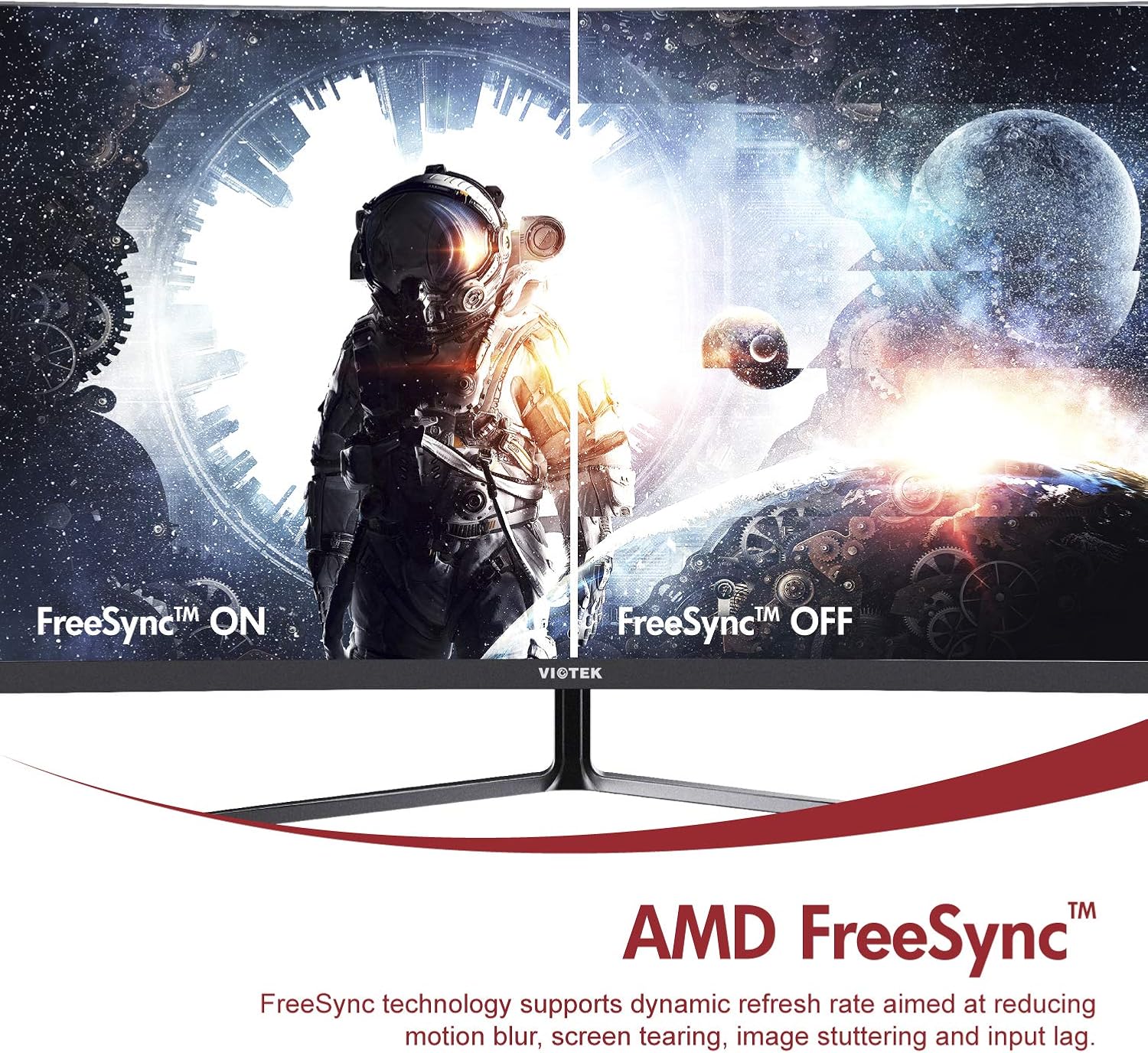
- AMD FreeSync™: Activate FreeSync to synchronize the monitor's refresh rate with your graphics card's frame rate, reducing screen tearing and stuttering for a seamless gaming experience.
- Низьке синє світло: Reduce eye strain during prolonged use by enabling the Low Blue Light setting in the OSD menu. This filters out harmful blue light emissions.
- GamePlus Crosshair Functionality: For competitive gaming, activate the GamePlus crosshair overlay to improve aiming accuracy in FPS/RTS games.
- Вбудовані динаміки: The monitor includes integrated speakers for audio output.



4. Технічне обслуговування
Правильне обслуговування забезпечує довговічність та оптимальну роботу вашого монітора.
- Очищення екрану: Обережно протріть екран м’якою тканиною без ворсу. Для стійких плям використовуйте спеціальний розчин для чищення моніторів, нанесений на тканину, а не безпосередньо на екран.
- Очищення Casing: Використовуйте м’яку суху тканину для очищення монітораasing. Уникайте використання абразивних засобів для чищення або розчинників.
- Вентиляція: Переконайтеся, що вентиляційні отвори монітора не заблоковані, щоб запобігти перегріву.
- Зберігання: If storing the monitor for an extended period, use the original packaging to protect it from dust and damage.
5. Вирішення проблем
Якщо у вас виникли проблеми з монітором, зверніться до наступних поширених проблем та способів їх вирішення:
| проблема | Можлива причина | Рішення |
|---|---|---|
| На екрані немає зображення | Відключено кабель живлення; відключено відеокабель; неправильне джерело вхідного сигналу. | Переконайтеся, що кабелі живлення та відеокабелі надійно підключені. Виберіть правильне джерело вхідного сигналу в екранному меню. |
| Зображення розмите або спотворене | Неправильна роздільна здатність; нещільно прикріплений відеокабель. | Set the display resolution to 1920x1080. Check video cable connection. |
| Немає звуку з динаміків | Volume too low; Audio output not set to monitor; Faulty cable. | Increase monitor volume. Ensure your computer's audio output is set to the monitor. Check HDMI cable. |
| Мерехтіння екрана | FreeSync not enabled (if applicable); Graphics driver issues; Faulty cable. | Enable FreeSync in OSD and graphics card settings. Update graphics drivers. Try a different video cable. |
6. Технічні характеристики
Detailed technical specifications for the Viotek NB27CB monitor:
| Особливість | Специфікація |
|---|---|
| Розмір екрана | 27 дюймів |
| Роздільна здатність екрана | 1920x1080 (повний HD) |
| Максимальна роздільна здатність екрана | 1920 х 1080 |
| Частота оновлення | 75Hz Max. |
| Час відгуку | 5 мс |
| Тип панелі | Панель VA |
| Кривизна | 1800R |
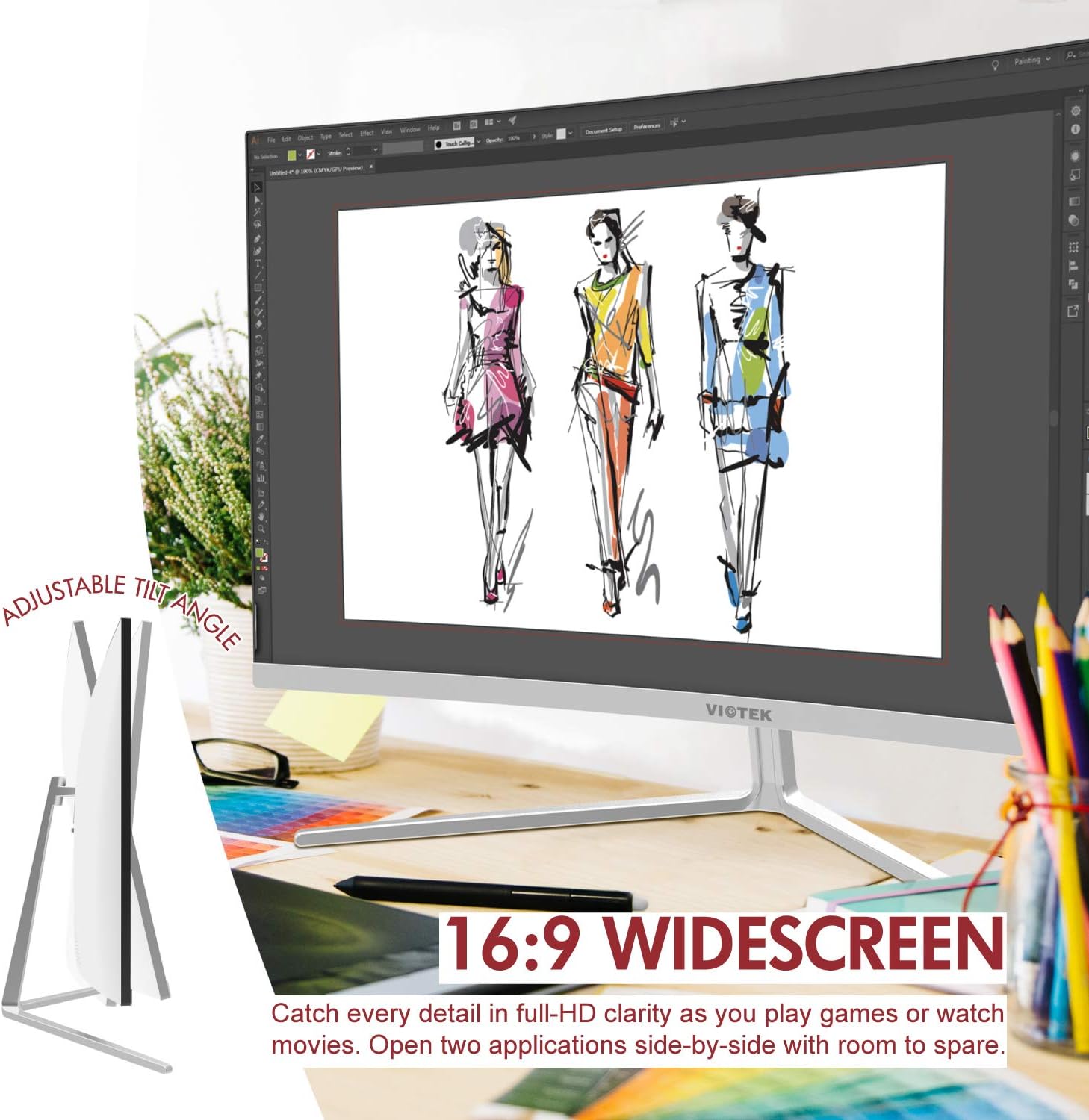
| Співвідношення сторін | 16:9 |
| Кольори дисплея | 16.7 млн кольорів |
| Динамічний коефіцієнт контрастності | 1000000:1 |
| Сумісність VESA | 75х75 мм |
| Порти | 1x VGA / 1x HDMI 1.4 |
| Доповідачі | Так, 2x 4Ω/3 Вт |
| Регульований нахил | Yes, -5° ~ 15° |
| Вага товару | 10.36 фунта |
| Розміри продукту | 24.13 x 8.38 x 17.67 дюймів |
7. Гарантія та підтримка
7.1. Гарантія на продукт
The Viotek NB27CB monitor comes with a Гарантія 3 рік covering parts and labor. This includes Viotek's industry-leading Zero-Tolerance Dead Pixel Policy, ensuring a high-quality display experience.

7.2. Підтримка клієнтів
Viotek provides 100% U.S.-based customer support, available 7 days a week via live-chat, email, and social media. For assistance, please visit the official Viotek webсайт або зверніться до контактної інформації, наданої в документації до вашого продукту.