
WISE TIGER WT-RT8501
WISE TIGER AC1200 Wireless Router User Manual
Model: WT-RT8501
1. Продукт закінчивсяview
The WISE TIGER AC1200 Wireless Router is a high-speed dual-band router designed for robust wireless internet connectivity in homes, offices, and restaurants. It features 802.11AC/N/G/B/A Wi-Fi technology, beamforming for enhanced signal reliability, and four external 5dBi antennas to ensure long-range coverage, even in basements or attics.
This router supports up to 300Mbps at 2.4GHz and 866Mbps at 5GHz, providing smooth online gaming and video streaming experiences. It also includes a WAN port and four LAN Fast ports (10/100Mbps) for wired connections. Security features include WPA/WPA2-PSK encryption, firewall, parental controls, and guest network capabilities.

Малюнок 1: Спереду view of the WISE TIGER AC1200 Wireless Router.
2. Вміст упаковки
Будь ласка, перевірте наявність усіх предметів у вашій упаковці:
- AC1200 Бездротовий двосмуговий маршрутизатор
- Блок живлення
- Посібник із швидкого встановлення
- Мережевий кабель
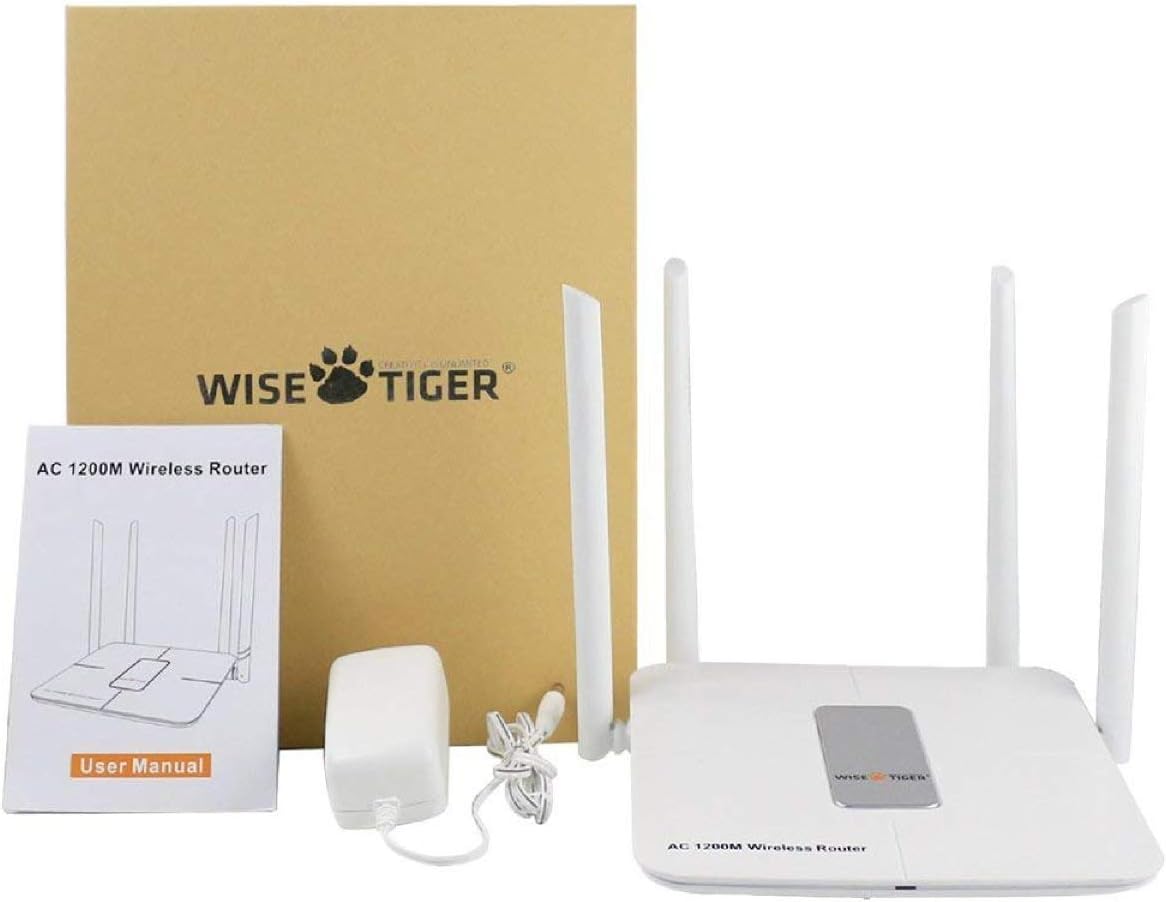
Figure 2: All components included in the WISE TIGER AC1200 Wireless Router package.
3. Схема виробу та порти
Familiarize yourself with the router's physical layout and ports:

Малюнок 3: Задня частина view of the router with labeled ports.
- Порти локальної мережі (x4): Connect your wired devices such as computers, gaming consoles, or smart TVs.
- Інтернет-порт (WAN): Connect your modem's Ethernet cable to this port to receive internet access.
- Споживана потужність: Підключіть сюди наданий адаптер живлення.
- Кнопка скидання: Used to restore the router to factory default settings. Press and hold for several seconds while the router is powered on.
- Кнопка WPS: Для швидкого та безпечного налаштування бездротового з'єднання з пристроями, сумісними з WPS.
4. Технічні характеристики
| Особливість | Специфікація |
|---|---|
| Бренд | МУДРИЙ ТИГР |
| Назва моделі | WT-RT8501 |
| Бездротовий тип | 802.11a/b/g/n/ac |
| Клас діапазону частот | Дводіапазонний (2.4 ГГц та 5 ГГц) |
| Швидкість передачі даних | Up to 300Mbps (2.4GHz), 866Mbps (5GHz) |
| антена | 4 x 5dBi External Antennas |
| Порти Ethernet | 1 x WAN, 4 x LAN (10/100Mbps) |
| кнопки | WPS, скидання |
| Безпека | WPA/WPA2-PSK, Firewall, Parental Controls, Guest Network |
| Сумісність операційної системи | Windows XP/7/8/10/Vista, Mac, Android |
| Вага товару | 2.75 унції |
| Розміри продукту | 1.48 x 6.6 x 5.58 дюймів |

Figure 4: Router dimensions for placement planning.
5. Посібник із налаштування
Follow these steps to set up your WISE TIGER AC1200 Wireless Router:
5.1 Початкове підключення обладнання
- Підключіть кабель WAN: Plug the broadband wire from your modem into the blue WAN port on the router.
- Підключення кабелю локальної мережі (додатково): For wired devices, connect one end of the network patch cable to a yellow LAN port on the router and the other end to your PC's LAN network port.
- Увімкнення: Підключіть адаптер живлення до входу живлення маршрутизатора та увімкніть його в електричну розетку.
5.2 Доступ до Web Інтерфейс
- Join Wi-Fi: On your computer or mobile device, connect to the router's default Wi-Fi network. The default Wi-Fi name (SSID) and password can usually be found on a sticker on the bottom of the router.
- Відкрити браузер: Відкрийте a web браузер (наприклад, Chrome, Firefox, Edge).
- Введіть IP-адресу: В адресному рядку введіть
192.168.0.1і натисніть Enter. - Логін: Enter the default username and password. Typically, both are
admin.
5.3 WAN Setup (Internet Connection Type)
Select the connection type provided by your Internet Service Provider (ISP):
- PPPoE: If your ISP provides a username and password for internet access, select PPPoE and enter the credentials.
- Статичний IP: If your ISP provided a fixed IP address, subnet mask, default gateway, and DNS settings, select Static IP and input these details.
- Динамічний IP: If your ISP uses a DHCP server, select Dynamic IP. The router will automatically obtain network settings. No account or static IP info is needed.
- PPTP/L2TP: If your ISP provided PPTP/L2TP connection details including a server IP or domain, select this option and enter the required information.
- WISP (Wireless ISP): This mode allows the router to connect to another Wi-Fi network as its internet source, acting as a Wi-Fi repeater. Select a Wi-Fi network from the list and log in with its password.
5.4 Налаштування бездротового зв’язку
Configure your Wi-Fi networks for both 2.4GHz and 5GHz bands:
- Назва Wi-Fi (SSID): Change the default Wi-Fi name to a custom one for easy identification.
- Шифрування: Select a strong encryption type, such as WPA2-PSK, for network security.
- Пароль Wi-Fi: Встановіть надійний, унікальний пароль для вашої мережі Wi-Fi.
- Ширина стрічки: Adjust the channel width for optimal performance (e.g., 20/40MHz for 2.4GHz, 40/80MHz for 5GHz).
Video 1: Official product video demonstrating the unboxing, features, and installation process of the WISE TIGER AC1200 Wireless Router.
6. Експлуатація маршрутизатора
6.1 Оптимальне розміщення
For the best wireless performance, place your router in a central location, away from obstructions like thick walls, metal objects, and other electronic devices that may cause interference. The four high-gain external antennas are designed to provide extensive coverage.

Figure 5: Illustration of the router's high-power signal penetration.

Figure 6: Visual representation of 2.4GHz (longer distance) and 5GHz (faster transmission) band characteristics.
6.2 Додаткові функції
- Батьківський контроль: Керуйте та обмежуйте доступ до Інтернету для певних пристроїв або користувачів.
- Гостьова мережа: Create separate Wi-Fi networks for guests, providing internet access without sharing your main network password or resources. The router supports up to 3 guest access points.
- Брандмауер: The built-in firewall helps protect your network from unauthorized access and malicious attacks.
- MAC Filtering (Restricted List): You can block or allow specific devices on your network based on their MAC addresses. This feature is found under the 'Restricted list' in the web інтерфейс.
- Контроль пропускної здатності: Allocate specific download and upload limits to connected devices to manage network traffic effectively. This can be configured in the 'Bandwidth Control' section of the web інтерфейс.
7. Технічне обслуговування
Регулярне технічне обслуговування забезпечує оптимальну продуктивність та довговічність вашого маршрутизатора:
- Оновлення прошивки: Periodically check the WISE TIGER official webсайт для оновлень прошивки. Оновлення прошивки може покращити продуктивність, додати нові функції та виправити помилки.
- Звичайне перезавантаження: Rebooting your router every few weeks can help clear its memory and resolve minor connectivity issues. Simply unplug the power adapter, wait 10 seconds, and plug it back in.
- Прибирання: Тримайте маршрутизатор чистим і без пилу. Використовуйте м’яку суху тканину для протирання зовнішньої поверхні. Переконайтеся, що вентиляційні отвори не заблоковані.
8. Вирішення проблем
Якщо у вас виникли проблеми з маршрутизатором, спробуйте такі рішення:
- Без доступу до Інтернету:
- Check all cable connections (WAN, LAN, Power) to ensure they are secure.
- Verify your modem is working correctly. Try rebooting both the modem and the router.
- Підтвердьте налаштування WAN у роутері web interface match your ISP's requirements.
- Слабкий сигнал Wi-Fi або мертві зони:
- Relocate the router to a more central position in your home/office.
- Adjust the router's antennas for better signal direction.
- Мінімізуйте перешкоди від інших електронних пристроїв (бездротових телефонів, мікрохвильових печей).
- Consider using the WISP mode to extend coverage if you have another Wi-Fi network.
- Немає доступу до маршрутизатора Web Інтерфейс:
- Переконайтеся, що ваш пристрій підключено до Wi-Fi маршрутизатора або до порту LAN через кабель Ethernet.
- Перевірте, чи ви вводите правильну IP-адресу (
192.168.0.1). - Очистіть кеш і файли cookie браузера або спробуйте інший браузер.
- If you forgot your login credentials, you may need to perform a factory reset.
- Заводські налаштування: If all else fails, use a paperclip or pin to press and hold the Reset button on the back of the router for about 10 seconds while it is powered on. This will restore all settings to their factory defaults, including Wi-Fi name and password. You will then need to reconfigure the router.
9. Гарантія та підтримка
WISE TIGER provides a Гарантія 1 рік for this product. In case the product does not meet your satisfaction or experiences issues within this period, a new replacement will be provided.
For technical support or warranty claims, please refer to the contact information provided in your product packaging or visit the official WISE TIGER webсайт для отримання найактуальніших ресурсів підтримки.
Будь ласка, збережіть підтвердження покупки для гарантійних цілей.
Ask a question about this manual
Ask about setup, troubleshooting, compatibility, parts, safety, or missing instructions. Manuals+ will review the question and use this page’s manual context to help answer it.