
1. Вступ
This manual provides essential information for the safe and efficient use of your Alienware AW3418DW 34.1-inch Curved Gaming Monitor. This monitor features a WQHD (3440x1440) resolution, a 120Hz refresh rate (overclocked), and NVIDIA G-SYNC technology for an immersive gaming experience. Please read this manual thoroughly before operating the device.
2. Інформація про безпеку
- Always disconnect the power cable from the wall outlet before cleaning the monitor.
- Не піддавайте монітор впливу дощу або вологи, щоб уникнути небезпеки пожежі чи ураження електричним струмом.
- Не відкривайте монітор casing. Усередині немає деталей, які може обслуговувати користувач. Звертайтеся до кваліфікованого сервісного персоналу з усіх питань щодо обслуговування.
- Розмістіть монітор на стійкій, рівній поверхні, щоб запобігти його падінню.
- Забезпечте належну вентиляцію навколо монітора. Не блокуйте вентиляційні отвори.
- Використовуйте лише адаптер живлення та кабелі, що постачаються з монітором.
3. Вміст упаковки
Перевірте наявність усіх компонентів в упаковці:
- Alienware AW3418DW Monitor
- Підставка для монітора (основа та підйомник)
- Кабель живлення
- Кабель DisplayPort
- Кабель HDMI
- Вихідний кабель USB 3.0
- Documentation (Quick Setup Guide, Safety Information)
4. Налаштування
4.1 Фізичне налаштування
Carefully remove the monitor and its components from the packaging. Place the monitor face down on a soft cloth or cushion to prevent scratches.
Кріплення підставки
- Прикріпіть підставку до панелі монітора до клацання.
- Attach the stand base to the stand riser and tighten the captive screw.

Малюнок 4.1: Спереду view of the Alienware AW3418DW monitor with its stand attached.

Малюнок 4.2: Сторона view of the Alienware AW3418DW monitor with its stand.
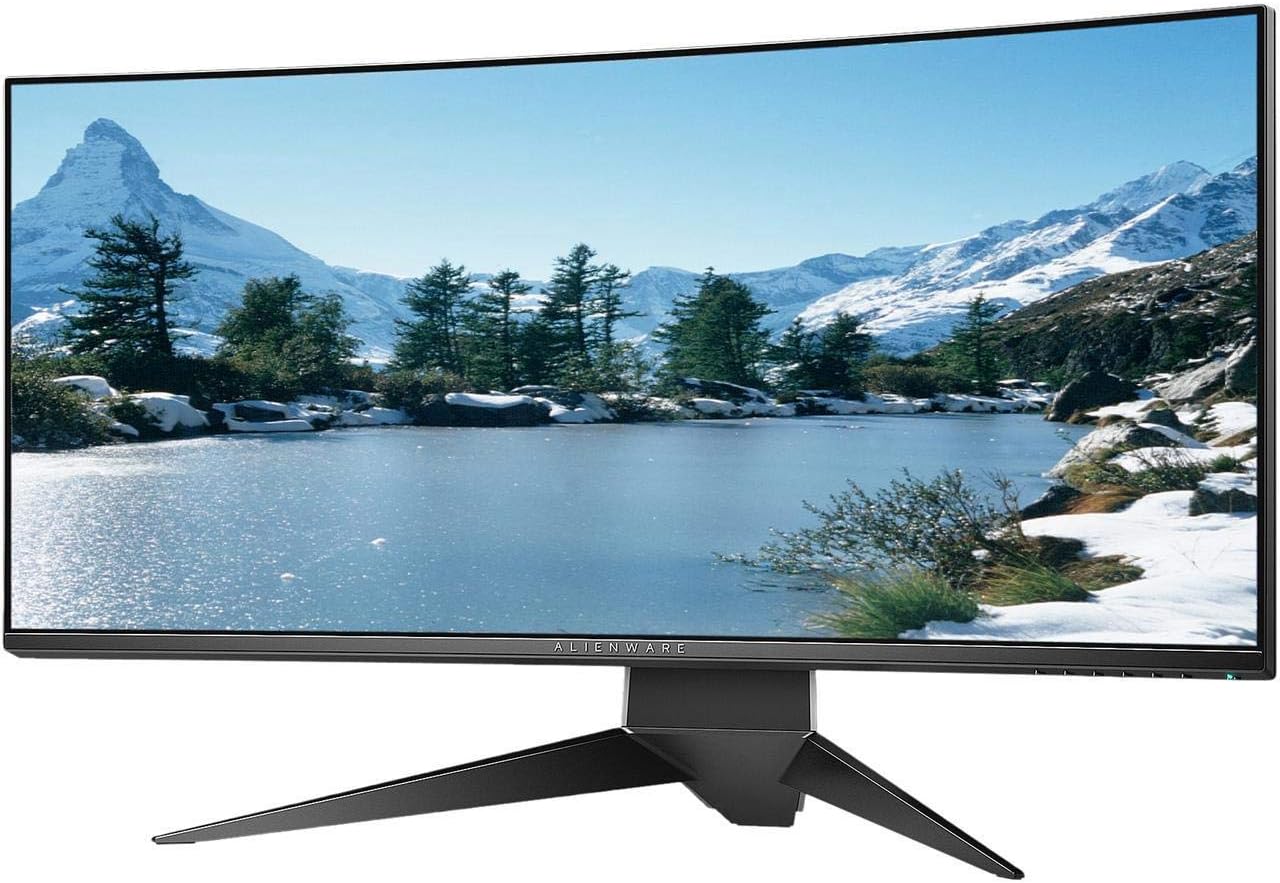
Малюнок 4.3: Задня частина view of the Alienware AW3418DW monitor showing the stand and AlienFX lighting.
Кріплення VESA
The monitor supports VESA mounting (100 x 100 mm). Remove the stand riser by pressing the release button and then attach the VESA-compatible mount to the monitor using appropriate screws. Ensure the mount can support the monitor's weight of 26.1 pounds (without stand).

Figure 4.4: Monitor dimensions for VESA mount compatibility.
4.2 З'єднувальні кабелі
Connect the necessary cables to your monitor and computer.
- Кабель живлення: Підключіть кабель живлення до порту живлення монітора, а потім до розетки.
- Відеокабель: Connect either the DisplayPort cable or the HDMI cable from your computer's graphics card to the corresponding port on the monitor. For optimal performance, especially for 120Hz refresh rate and G-SYNC, use the DisplayPort connection.
- Вихідний USB-кабель: Connect the USB 3.0 upstream cable from your computer to the monitor's upstream USB port to enable the monitor's USB hub functionality.
- Вхідні порти USB: Connect your USB devices (e.g., keyboard, mouse, webcam) to the four USB 3.0 downstream ports on the monitor.
5. Інструкція з експлуатації
5.1 Увімкнення/вимкнення живлення
Натисніть кнопку живлення, розташовану на моніторі, щоб увімкнути або вимкнути його. Світлодіодний індикатор живлення показуватиме стан монітора.
5.2 Навігація по екранному меню (OSD)
The On-Screen Display (OSD) menu allows you to adjust various monitor settings. Use the control buttons, typically located on the bottom right or rear of the monitor, to navigate the OSD.
- Press a control button to activate the OSD menu.
- Use the navigation buttons (up/down/left/right) to move through menu options.
- Натисніть кнопку вибору, щоб підтвердити вибір або ввійти до підменю.
- Use the back/exit button to return to the previous menu or exit the OSD.
5.3 Налаштування дисплея
Налаштуйте параметри дисплея для оптимального viewing and gaming performance.
- роздільна здатність: Set your computer's display resolution to 3440x1440 for the native WQHD experience.
- Частота оновлення: The monitor supports up to 120Hz refresh rate (overclocked). Ensure your graphics card drivers are updated and the refresh rate is set in your operating system's display settings or graphics control panel.
- NVIDIA G-SYNC: For tear-free and smooth gameplay, enable G-SYNC in your NVIDIA Control Panel. This feature synchronizes the monitor's refresh rate with your GPU's frame rate.
- Яскравість/Контрастність: Adjust these settings in the OSD menu to suit your environment and preference.
5.4 AlienFX Lighting
Customize the AlienFX lighting zones on your monitor through the OSD menu or Alienware Command Center software (if installed on your PC). You can select colors, effects, and synchronize lighting with other Alienware devices.
5.5 Використання USB-концентратора
The monitor acts as a USB 3.0 hub, providing convenient access to four downstream USB ports for connecting peripherals. Ensure the USB upstream cable is connected to your computer for this feature to function.
6. Технічне обслуговування
6.1 Очищення монітора
- Always unplug the monitor from the electrical outlet before cleaning.
- Злегка протріть м’якою тканиною без ворсу dampводою або неабразивним засобом для чищення екранів.
- Не розпилюйте засіб для чищення безпосередньо на екран.
- Обережно протріть екран, щоб видалити пил і плями.
- Очистіть зовнішню частину casing м’якою сухою тканиною.
6.2 Зберігання
If storing the monitor for an extended period, disconnect all cables, carefully disassemble the stand (if applicable), and store it in its original packaging in a cool, dry place.
7. Вирішення проблем
Якщо у вас виникли проблеми з монітором, зверніться до наступних поширених кроків усунення несправностей:
- Немає дисплея: Ensure all power and video cables are securely connected. Check if the monitor is powered on and the correct input source is selected in the OSD.
- Flickering/Stuttering: Verify that your graphics drivers are up to date. Ensure G-SYNC is properly configured in the NVIDIA Control Panel. Check for interference from other electronic devices.
- Неправильна роздільна здатність/частота оновлення: Adjust the display settings in your operating system or graphics control panel to the native resolution (3440x1440) and desired refresh rate (up to 120Hz).
- Мертві пікселі: The Alienware AW3418DW comes with a Premium Panel Guarantee. Refer to the warranty information for details on pixel policy.
- Порти USB не працюють: Переконайтеся, що висхідний кабель USB 3.0 підключено від монітора до комп’ютера.
8. Технічні характеристики
| Особливість | Специфікація |
|---|---|
| Бренд | Alienware |
| Номер моделі | AW3418DW |
| Розмір екрана | 34.1 дюймів |
| роздільна здатність | WQHD (3440 x 1440 пікселів) |
| Співвідношення сторін | 21:9 |
| Частота оновлення | 120 Hz (Overclocked) |
| Час відгуку | 4 мілісекунд |
| Технологія адаптивної синхронізації | NVIDIA G-SYNC |
| Тип дисплея | Світлодіодний IPS-дисплей |
| Кривизна | 1900R |
| Яскравість | 300 кд/м² |
| Коефіцієнт контрастності | 1000:1 |
| Viewкут нахилу | 178 градусів |
| Підключення | 1x DisplayPort (1.2), 1x HDMI (1.4), 4x USB 3.0 Downstream, 1x USB 3.0 Upstream |
| Вага товару | 26.1 Pounds (without stand) |
| Тип монтажу | VESA Compatible (100 x 100 mm) |
9. Гарантія та підтримка
Your Alienware AW3418DW monitor is covered by a 3 Years Limited Hardware Warranty і 3 Years Advance Exchange Service, включаючи a Premium Panel Guarantee. The Premium Panel Guarantee ensures a free panel replacement during the limited hardware warranty period even if only one bright pixel is found.
For technical support, warranty claims, or additional information, please visit the official Alienware or Dell support website. You may also find updated drivers and firmware there.
Інтернет-підтримка: www.dell.com/support