
1. Вступ
This manual provides instructions for the ROCCAT KONE Aimo Gaming Mouse. The KONE Aimo features an Owl-Eye Optical Sensor, customizable RGB AIMO LED illumination, and 23 programmable keys. It is designed for precision and ergonomic comfort during extended use.
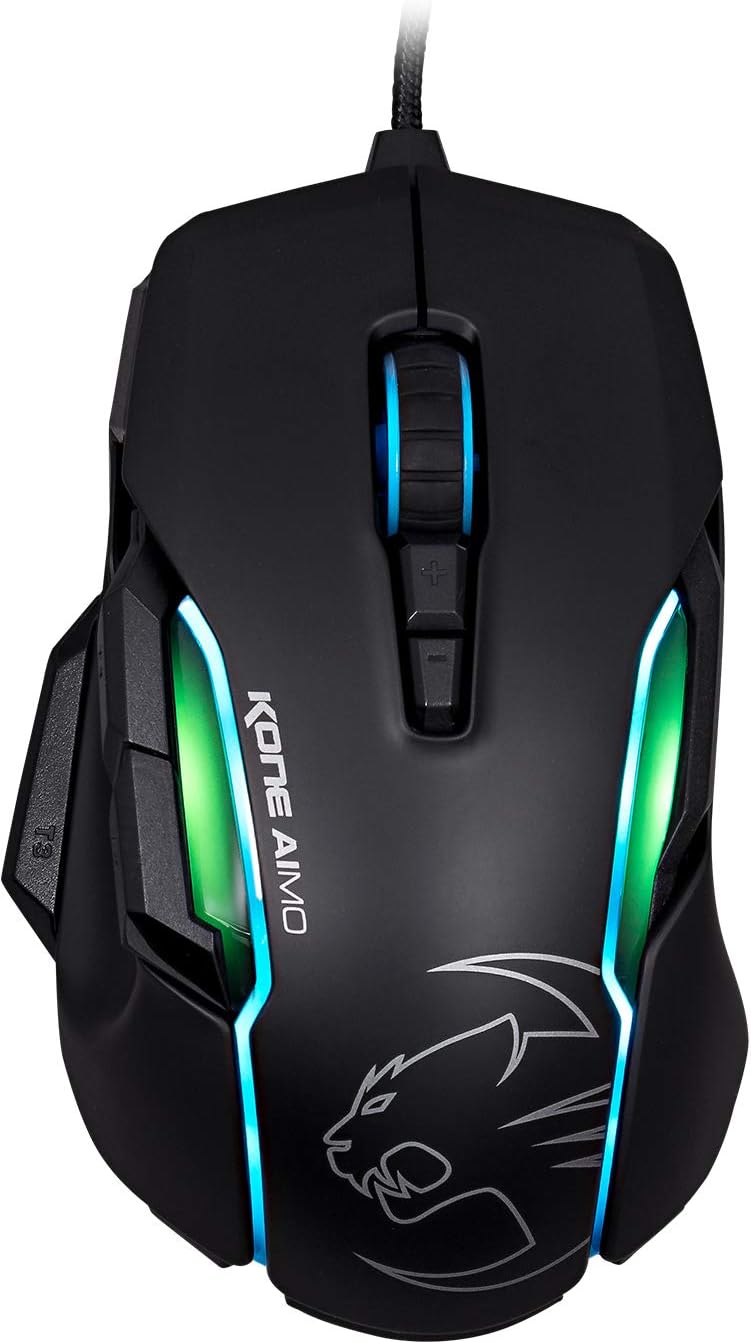
Малюнок 1: Верх view of the ROCCAT KONE Aimo Gaming Mouse, showcasing its ergonomic shape and RGB lighting zones.
2. Вміст упаковки
Перевірте наявність усіх елементів в упаковці:
- KONE AIMO Mouse with Attached Braided USB Cable
- Короткий посібник
- ROCCAT Stickers

Figure 2: Retail packaging of the ROCCAT KONE Aimo Gaming Mouse.
3. Налаштування
- Підключіть мишку: Plug the USB cable of the ROCCAT KONE Aimo mouse into an available USB port on your computer.
- Встановлення драйвера: Your operating system (Windows 7, 8, 8.1, 10) should automatically detect and install the necessary drivers.
- Install ROCCAT Swarm Software: For full customization of DPI settings, button assignments, and AIMO lighting, download and install the ROCCAT Swarm software from the official ROCCAT webсайт. Це програмне забезпечення дозволяє створювати та керувати проfiles.

Figure 3: The ROCCAT KONE Aimo mouse in use on a mouse pad, connected to a computer.
4. Інструкція з експлуатації
4.1. Функції кнопок
The KONE Aimo features 23 programmable keys, including a tri-button thumb zone and a 4D tilting Titan wheel. These can be customized via the ROCCAT Swarm software.
- Клік лівою/правою кнопкою миші: Стандартні функції миші.
- Scroll Wheel (4D Titan Wheel): Scrolls vertically and can tilt horizontally for additional functions. Also acts as a clickable button.
- Кнопки налаштування DPI: Located above and below the scroll wheel, these buttons allow for on-the-fly DPI sensitivity changes. Settings are configured in the Swarm software.
- Thumb Buttons (T1, T2, T3): Three buttons located on the left side, easily accessible by the thumb. The bottom-most button (T3) is often defaulted to the Easy-Shift[+] function.
- Easy-Shift[+] Button: This exclusive ROCCAT feature doubles the number of programmable functions for other buttons when held down, effectively expanding the total programmable keys.

Малюнок 4: Детально view of the programmable thumb buttons (T1, T2, T3) on the left side of the mouse.
4.2. AIMO Lighting System
The AIMO lighting system provides intelligent, reactive RGB illumination across four independently configurable LED light zones and the glowing mouse wheel. It can synchronize with other compatible ROCCAT devices and is programmable through the ROCCAT Swarm software.

Figure 5: The KONE Aimo mouse displaying its multi-zone RGB AIMO illumination.
4.3. Owl-Eye Optical Sensor
The mouse is equipped with the ROCCAT Owl-Eye Optical Sensor, a modified PixArt 3361 sensor, offering adjustable DPI from 100 to 12,000. This sensor provides precise tracking and responsiveness. A built-in tracking distance control unit monitors the lift-off distance for enhanced accuracy.

Figure 6: The bottom of the mouse, highlighting the Owl-Eye Optical Sensor.
4.4. Ергономіка
The KONE Aimo features refined ergonomics designed for comfort during extended use. Its shape provides a natural fit for the hand, with a dedicated thumb rest area.

Figure 7: A hand gripping the KONE Aimo mouse, illustrating its ergonomic design.
5. Технічне обслуговування
- Прибирання: Використовуйте м’яку суху тканину для очищення поверхні миші. Для стійкого бруду злегкаamp можна використовувати тканину, щоб уникнути потрапляння вологи до внутрішніх компонентів.
- Догляд за датчиком: Тримайте оптичний датчик на нижній стороні миші чистим та без пилу чи сміття, щоб забезпечити оптимальну продуктивність відстеження.
- Управління кабелем: Avoid sharp bends or excessive pulling on the braided USB cable to prevent damage.
6. Вирішення проблем
- Миша не реагує:
- Переконайтеся, що USB-кабель надійно підключено до робочого USB-порту.
- Try a different USB port or another computer to rule out port or system issues.
- Перезавантажте комп'ютер.
- Tracking Issues / Inaccurate Movement:
- Очистіть оптичний датчик на нижній частині миші.
- Ensure you are using the mouse on a clean, suitable mouse pad or surface.
- Check DPI settings in the ROCCAT Swarm software.
- RGB-підсвічування не працює / неправильно:
- Перевірте, чи програмне забезпечення ROCCAT Swarm працює та оновлено.
- Перевірте налаштування освітлення в програмному забезпеченні Swarm.
- Переконайтеся, що жодне конфліктуюче програмне забезпечення не керує RGB-підсвічуванням.
- Кнопки не працюють:
- Check button assignments in the ROCCAT Swarm software.
- Ensure the software is not experiencing issues (try restarting it).
7. Технічні характеристики
| Особливість | Деталь |
|---|---|
| Бренд | ROCCAT |
| Номер моделі | ROC-11-815-BK |
| датчик | Owl-Eye Optical Sensor (modified PixArt 3361) |
| Діапазон DPI | від 100 до 12,000 точок на дюйм |
| Програмовані кнопки | 23 (with Easy-Shift[+]) |
| освітлення | RGBA AIMO LED Illumination (4 independent zones + scroll wheel) |
| Підключення | USB (дротовий) |
| Сумісність операційної системи | Windows 7, Windows 8, Windows 8.1, Windows 10 (32-bit and 64-bit versions) |
| Вага товару | 11.2 унції (приблизно 317.5 грамів) |
| Розміри продукту (ДxШxВ) | 5.12 x 2.95 x 1.57 дюйма (приблизно 13 x 7.5 x 4 см) |
8. Гарантія та підтримка
For warranty information, technical support, and additional resources, please visit the official ROCCAT website or contact ROCCAT customer service. Keep your proof of purchase for warranty claims.
Ви також можете відвідати Магазин ROCCAT на Amazon для отримання додаткової інформації про продукт.