
вступ
This manual provides comprehensive instructions for the setup, operation, and maintenance of your NETUM NT-R3 Mini 1D CCD Bluetooth Barcode Scanner. Please read this guide thoroughly to ensure proper use and to maximize the performance of your device.
Вміст упаковки
Після розпакування, будь ласка, перевірте наявність та стан усіх перелічених нижче предметів:
- 1 x NETUM Mini Bluetooth Barcode Scanner (NT-R3)
- 1 x USB-кабель для зарядки
- 1 x Короткий посібник
- 1 x 2.4 GHz Adapter
Продукт закінченийview
The NETUM NT-R3 is a compact and versatile 1D CCD barcode scanner designed for portability and ease of use. Its ring-style design allows for comfortable wear, enhancing productivity in various environments.

Image: The NETUM NT-R3 Mini Barcode Scanner, a small black electronic device with a screen and button, designed to be worn on a finger with an adjustable ring structure.
Ключові характеристики:
- Ring Design: Магнієвий сплав casing and trigger for durability and ease of use.
- Обертання на 180°: Unique rotatable design for scanning from various angles.
- CCD Scanning: Reads 1D barcodes directly from LCD screens of computers or mobile devices, including poorly printed or damaged barcodes.
- Бездротове підключення: Supports Bluetooth (SPP, HID) and 2.4 GHz wireless connections.
- Широка сумісність: Compatible with Windows XP/7/8/8.1/10, Google Android, iOS, and Mac OS X.
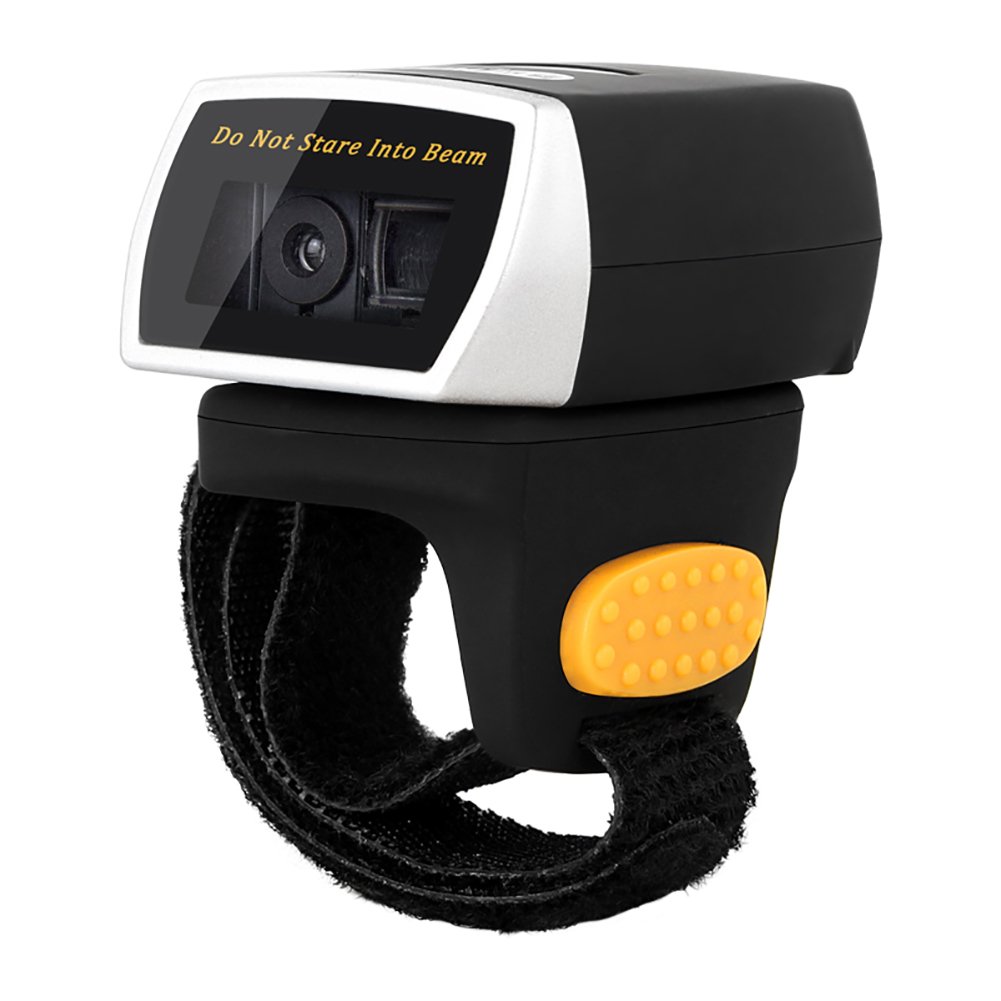
Image: The NETUM NT-R3 Mini Barcode Scanner demonstrating its 180-degree rotation design, allowing for flexible scanning angles.

Image: The NETUM NT-R3 Mini Barcode Scanner held in a hand, illustrating its compact dimensions (50mm x 44mm x 38mm) and light weight (50g), emphasizing its strong compatibility with various devices.
Налаштування та підключення
1. Заряджання сканера
Before initial use, fully charge the scanner using the provided USB charging cable. Connect the small end of the USB cable to the scanner's charging port and the other end to a USB power source (e.g., computer, USB wall adapter). The charging indicator light will show the charging status.
2. Увімкнення/вимкнення живлення
To power on the scanner, press and hold the trigger button for a few seconds until you hear a beep and see the indicator light. To power off, press and hold the trigger button again until the indicator light turns off.
3. Параметри підключення
The NT-R3 scanner offers two primary connectivity methods:
Bluetooth Connection (HID Mode - Keyboard Emulation)
- Переконайтеся, що сканер увімкнено.
- Scan the "Bluetooth HID Mode" barcode (refer to the Quick Start Guide for specific barcodes).
- На вашому пристрої (смартфоні, планшеті, комп’ютері) увімкніть Bluetooth та знайдіть доступні пристрої.
- Select "NETUM Barcode Scanner" or a similar name from the list of devices.
- The scanner will beep to confirm successful pairing.
In HID mode, scanned barcodes are input directly as keyboard entries into any active text field.
Bluetooth Connection (SPP Mode - Serial Port Profile)
SPP mode is typically used for applications that require direct data communication with the scanner. This mode requires specific software on the host device to interpret the data. Refer to your application's documentation for SPP setup.
- Переконайтеся, що сканер увімкнено.
- Scan the "Bluetooth SPP Mode" barcode (refer to the Quick Start Guide).
- Follow the instructions provided by your specific application for connecting to an SPP device.
Бездротове підключення 2.4 ГГц
- Plug the provided 2.4 GHz adapter into a USB port on your computer.
- Переконайтеся, що сканер увімкнено.
- Scan the "2.4G Wireless Mode" barcode (refer to the Quick Start Guide).
- The scanner will automatically connect to the adapter. A successful connection is indicated by a specific beep or light pattern (refer to the Quick Start Guide for details).
The 2.4 GHz connection offers a wireless range of up to 10 meters (30 feet).
Режими роботи
The NETUM NT-R3 scanner supports two data upload modes:
1. Режим миттєвого завантаження
In this mode, scanned barcodes are immediately transmitted to your connected device. This is suitable for real-time data entry.
2. Режим зберігання
The scanner can store up to 2000 barcodes in its built-in flash memory. This mode is useful when working out of range of your host device. Barcodes can be uploaded later when a connection is established.
Image: A visual representation of the two upload modes. Instant Upload Mode shows barcodes being sent directly to a device. Storage Mode shows barcodes being stored internally and then uploaded later.
To switch between modes, scan the corresponding configuration barcodes found in the Quick Start Guide.
Сканування штрих-кодів
Щоб сканувати штрих-код:
- Тримайте сканер вікном сканування, спрямованим до штрих-коду.
- Press the trigger button. A red scanning line will appear.
- Align the red scanning line across the entire barcode.
- Once successfully scanned, the scanner will emit a beep, and the indicator light will flash.
The NT-R3 is capable of reading 1D barcodes from various surfaces, including:
- Друковані етикетки
- LCD screens (computers, smartphones, tablets)
- Poorly printed or damaged barcodes
Технічне обслуговування
Догляд за акумулятором
- Щоб продовжити термін служби акумулятора, уникайте частого повного розряджання акумулятора.
- Регулярно заряджайте сканер, навіть якщо він не використовується постійно.
- Зберігайте сканер у прохолодному, сухому місці, якщо він не використовується протягом тривалого часу.
прибирання
- Use a soft, dry, lint-free cloth to clean the scanner's exterior.
- For the scanning window, use a lens cleaning cloth or a soft cloth lightly dampводою або м’яким, неабразивним засобом для чищення.
- Do not use harsh chemicals, solvents, or abrasive materials, as these can damage the device.
Усунення несправностей
| проблема | Можлива причина | Рішення |
|---|---|---|
| Сканер не вмикається. | Низький заряд батареї. | Заряджайте сканер щонайменше 2 години. |
| Сканер не підключається через Bluetooth. | Incorrect mode selected; device not discoverable; out of range. | Ensure "Bluetooth HID Mode" or "SPP Mode" is scanned. Make sure Bluetooth is enabled on the host device and the scanner is within 10 meters. Try re-pairing. |
| Scanner does not connect via 2.4 GHz adapter. | Adapter not properly inserted; incorrect mode selected. | Ensure the 2.4 GHz adapter is securely plugged in. Scan the "2.4G Wireless Mode" barcode. |
| Сканер не зчитує штрих-коди. | Barcode is unreadable; scanner not aligned; scanner in storage mode. | Ensure the barcode is clear and well-lit. Align the red line across the entire barcode. If in storage mode, switch to instant upload mode or upload stored data. |
| Відскановані дані відображаються неправильно. | Keyboard layout mismatch (for HID mode). | Scan the appropriate keyboard layout barcode (e.g., US, UK, French) from the Quick Start Guide. |
Технічні характеристики
| Особливість | Деталь |
|---|---|
| Номер моделі | NT-R3 |
| Технологія сканування | 1D CCD |
| Підключення | Bluetooth (SPP, HID), 2.4 GHz Wireless, USB |
| Сумісні операційні системи | Windows XP/7/8/8.1/10, Google Android, iOS, Mac OS X |
| Швидкість сканування | 260 сampменше за секунду |
| Ємність зберігання | Up to 2000 barcodes (in Storage Mode) |
| Тип батареї | 1 літій-металева батарея (в комплекті) |
| Джерело живлення | Працює від акумулятора |
| Робочий випtage | 5 вольт |
| Максимальна температура зберігання | 45 градусів Цельсія |
| Сертифікати | CE, ISO, RoHS |
| Виробник | Guangzhou Netum Electronic Technology Co.,Ltd. |
| Країна походження | Китай |
Гарантія та підтримка
Політика повернення
Цей товар має право на повернення коштів або заміну протягом 30 днів з моменту покупки, відповідно до політики повернення продавця.
Інформація про виробника
Manufacturer: Guangzhou Netum Electronic Technology Co.,Ltd.
For further assistance or technical support, please refer to the contact information provided in your Quick Start Guide or visit the official NETUM webсайт.
Примітка: Інформація щодо наявності запасних частин та гарантованих оновлень програмного забезпечення наразі недоступна.