
1. Вступ
This user manual provides comprehensive instructions for the setup, operation, maintenance, and troubleshooting of your CipherLab 1500P HP 1D Corded Barcode Scanner. Please read this manual thoroughly before using the device to ensure proper functionality and to maximize its lifespan. Keep this manual for future reference.
2. Продукт закінчивсяview
The CipherLab 1500P HP is a high-performance 1D corded barcode scanner designed for efficient data capture. It comes with a USB cable for connectivity and an autosense stand for hands-free operation.
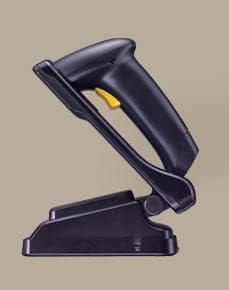
малюнок 2.1: CipherLab 1500P HP barcode scanner placed in its autosense stand. The scanner is black with a yellow trigger button, and the stand is also black, providing a stable base for the scanner.
Вміст упаковки:
- CipherLab 1500P HP Barcode Scanner
- USB-з'єднувальний кабель
- Autosense Stand
- This User Manual (or link to digital version)
3. Налаштування
- Розпакуйте пристрій: Carefully remove the barcode scanner, USB cable, and autosense stand from their packaging.
- Підключіть кабель USB:
- Locate the USB port on the base of the barcode scanner.
- Insert the smaller end of the USB cable into the scanner's port.
- Insert the larger USB-A end of the cable into an available USB port on your host computer or point-of-sale (POS) system.
- Встановлення драйвера (Plug & Play): The CipherLab 1500P HP is typically a plug-and-play device. Your operating system should automatically detect and install the necessary drivers. Wait for the installation to complete (usually indicated by a notification).
- Position the Autosense Stand: Place the autosense stand on a stable, flat surface. The stand is designed to hold the scanner in an optimal position for hands-free scanning.
- Place Scanner in Stand: Gently place the barcode scanner into the autosense stand. Ensure it is securely seated. The scanner will automatically switch to presentation mode when placed in the stand, allowing it to detect and scan barcodes without pressing the trigger.
- Перевірка підключення: Open a text editor (e.g., Notepad, WordPad) or a compatible application on your computer. Scan a known barcode. The scanned data should appear in the text editor, confirming successful setup.
4. Інструкція з експлуатації
Ручний режим:
- Remove the scanner from the autosense stand.
- Направте вікно сканування на штрих-код, який потрібно відсканувати.
- Press and hold the yellow trigger button. A red scanning line will emit from the scanner.
- Position the scanner so the red line crosses the entire barcode.
- Once the barcode is successfully read, the scanner will emit an audible beep and/or a visual indicator (e.g., LED flash). The data will be transmitted to your connected device.
- Відпустіть кнопку курка.
Autosense (Presentation) Mode:
- Ensure the scanner is securely placed in the autosense stand.
- Hold the barcode in front of the scanner's window.
- The scanner will automatically detect the barcode and activate its scanning engine.
- Once the barcode is successfully read, the scanner will emit an audible beep and/or a visual indicator. The data will be transmitted to your connected device.
Scanning Tips:
- Переконайтеся, що штрих-код чистий і не пошкоджений.
- Adjust the distance between the scanner and the barcode for optimal reading.
- Avoid scanning at extreme angles; try to keep the scanner perpendicular to the barcode.
- For reflective surfaces, try tilting the scanner slightly to avoid glare.
5. Технічне обслуговування
- Прибирання:
- Регулярно протирайте вікно сканування м’якою тканиною без ворсу.
- Для стійкого бруду злегкаampПротріть тканину водою або м’яким неабразивним засобом для чищення. Не розпилюйте засіб для чищення безпосередньо на сканер.
- Avoid using harsh chemicals, solvents, or abrasive materials, as these can damage the scanner's surface or internal components.
- Зберігання: Зберігайте сканер у прохолодному, сухому місці, подалі від прямих сонячних променів та екстремальних температур.
- Догляд за кабелем: Уникайте надмірного згинання або скручування USB-кабелю, оскільки це може пошкодити внутрішні дроти.
- Догляд за підставкою: Keep the autosense stand clean and free of obstructions to ensure the scanner can be placed and removed smoothly.
6. Вирішення проблем
| проблема | Можлива причина | Рішення |
|---|---|---|
| Сканер не зчитує штрих-коди. |
|
|
| Дані не передаються на комп'ютер. |
|
|
| Сканер пищить, але даних немає. |
|
|
7. Технічні характеристики
| Особливість | Деталь |
|---|---|
| Модель | 1500P HP (33-A1500PCBKU001) |
| Тип | 1D Corded Barcode Scanner |
| Підключення | USB |
| Аксесуари в комплекті | USB Cable, Autosense Stand |
| Виробник | CipherLab |
| ASIN | B01MDRIJRS |
| Перша доступна дата | 24 січня 2024 р |
8. Гарантія та підтримка
For specific warranty information regarding your CipherLab 1500P HP barcode scanner, please refer to the warranty card included with your product or contact your point of purchase. Warranty terms may vary by region and reseller.
For technical support, driver downloads, or additional product documentation, please visit the official CipherLab website or contact their customer support directly. You may need your product model number (33-A1500PCBKU001) and serial number for support inquiries.
CipherLab Official Webсайт: www.cipherlab.com