
1. Вступ
This manual provides detailed instructions for the setup, operation, maintenance, and troubleshooting of your EXCELVAN E300 Portable Thermal Printer. Please read this manual carefully before using the printer to ensure proper function and longevity of the device.
The EXCELVAN E300 is a compact and efficient thermal printer designed for printing receipts and tickets. It features high-speed printing, a durable print head, and versatile connectivity options including Bluetooth and USB, making it suitable for various point-of-sale (POS) environments.
2. Продукт закінчивсяview
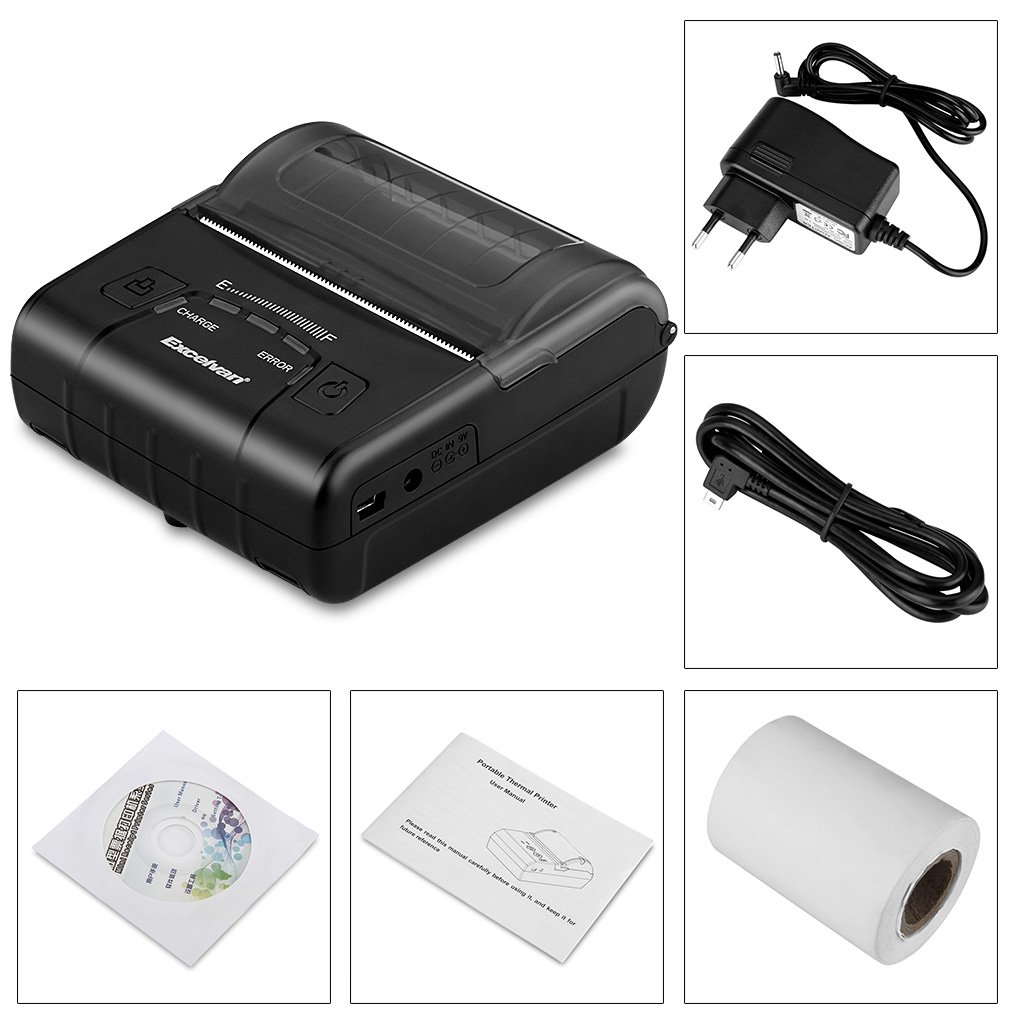
2.1 Вміст упаковки
Після розпакування, будь ласка, перевірте наявність усіх перелічених нижче предметів:
- 1 x 80mm Thermal Printer
- 1 x адаптер живлення
- 1 х літієва батарея
- 1 x USB-кабель (110 см)
- 1 х рулон термопаперу
- 1 x Посібник користувача (цей документ)
- 1 x CD (containing drivers and software)
2.2 Компоненти принтера
Familiarize yourself with the main components of your EXCELVAN E300 printer:

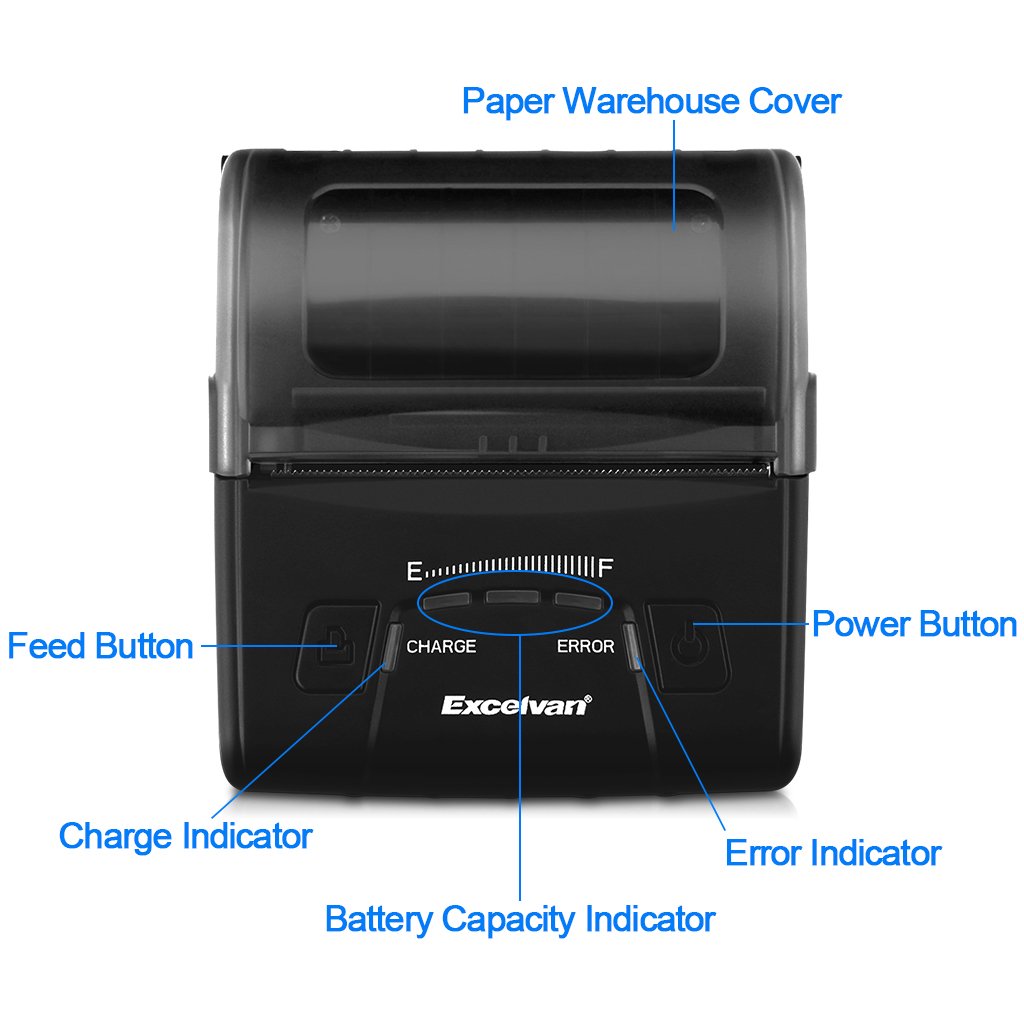
малюнок 1: Фронт view of the EXCELVAN E300 printer with key components labeled.
- Paper Warehouse Cover: Protects the paper roll compartment.
- Кнопка подачі: Advances the paper.
- Індикатор заряду: Lights up when the battery is charging.
- Індикатор ємності акумулятора: Показує поточний рівень заряду батареї.
- Індикатор помилки: Lights up to indicate an error (e.g., paper out, cover open).
- Кнопка живлення: Вмикає/вимикає принтер.
3. Налаштування
3.1 Встановлення батареї
- Open the battery compartment cover located on the bottom of the printer.
- Вставте надану літієву батарею, переконавшись, що контакти правильно вирівняні.
- Важливо: Remove any insulating tape from the battery contacts before installation or charging.
малюнок 2: Battery installation and warning to remove insulating tape.
- Надійно закрийте кришку батарейного відсіку.
3.2 Заряджання батареї
Before first use, fully charge the printer battery.
- Connect the power adapter to the printer's DC IN 9V port.
- Підключіть адаптер живлення до настінної розетки.
- The Charge Indicator light will illuminate during charging. It will turn off or change color (depending on model) when fully charged.
- Примітка: The USB cable is for data connection to a computer only and does not charge the device.
малюнок 3: Charging port and USB port. Use the power adapter for charging.
3.3 Завантаження термопаперу
The printer uses 80mm wide thermal paper rolls.
- Open the Paper Warehouse Cover by gently lifting it.
- Insert the thermal paper roll into the compartment, ensuring the paper feeds from the bottom and the leading edge comes out towards the front of the printer.
- Pull a small amount of paper out past the cutting edge.
- Close the Paper Warehouse Cover firmly until it clicks into place.
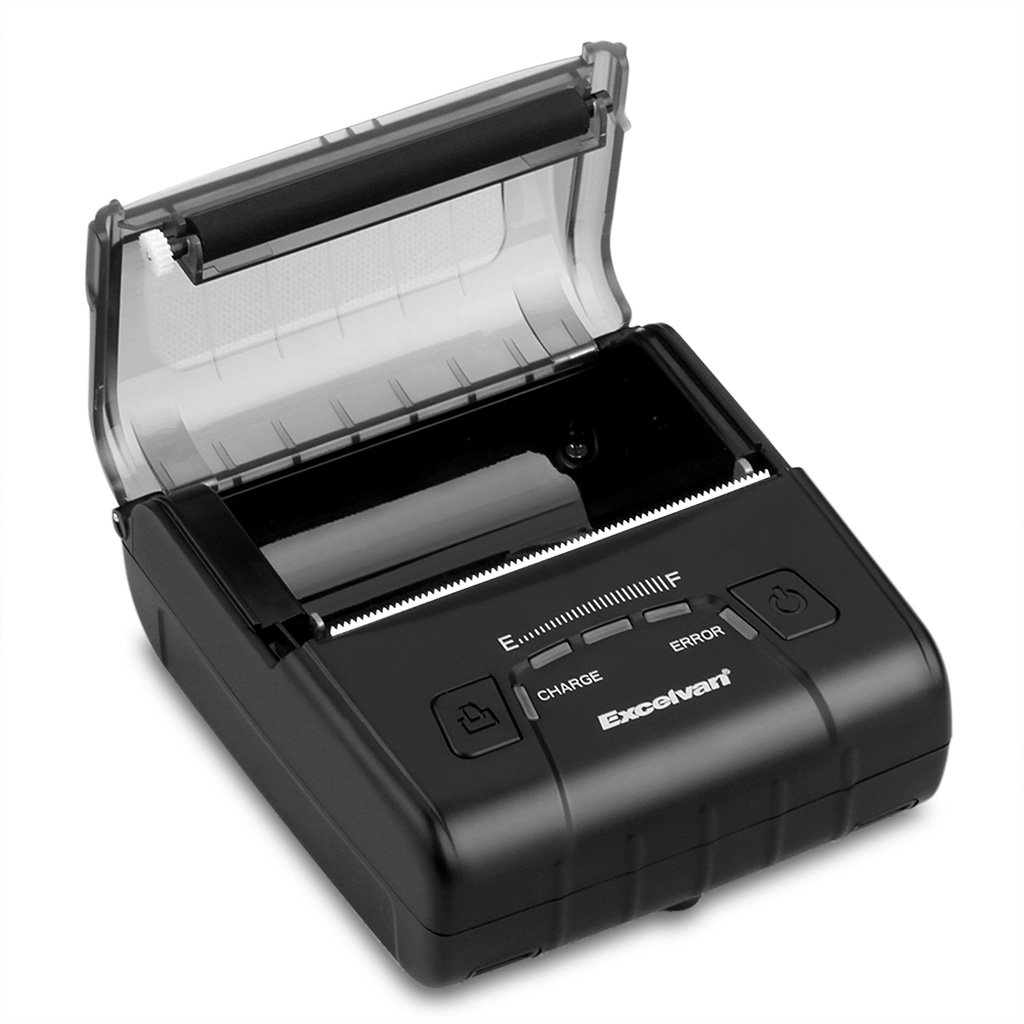
малюнок 4: Loading thermal paper into the printer.
4. Інструкція з експлуатації
4.1 Увімкнення/вимкнення живлення
- Щоб увімкнути: Press and hold the Power Button until the indicator lights illuminate.
- Щоб вимкнути: Press and hold the Power Button until the indicator lights turn off.
4.2 Встановлення драйвера
Install the appropriate drivers for your operating system from the provided CD or download them from the official EXCELVAN webсайту (за наявності).
- Supported Operating Systems: Android, iOS, Linux, Windows (2000, 2003, XP, 7, 8, 8.1, 10).
4.3 Підключення принтера
The EXCELVAN E300 supports both Bluetooth and USB connectivity.
4.3.1 Підключення Bluetooth
- Переконайтеся, що принтер увімкнено.
- На вашому пристрої (смартфоні, планшеті, комп’ютері) увімкніть Bluetooth та знайдіть доступні пристрої.
- Select "EXCELVAN E300" or a similar name from the list.
- Enter the pairing PIN (usually "0000" or "1234") if prompted.
- Once paired, you can select the printer from your application's print settings.
4.3.2 Підключення USB
- Підключіть один кінець USB-кабелю до USB-порту принтера.
- Підключіть інший кінець до вільного порту USB на комп’ютері.
- Ensure the necessary drivers are installed. The printer should appear as an available printing device in your system settings.
4.4 Друк
Once connected and drivers are installed, you can initiate printing from your application.

малюнок 5: The printer in operation, producing a receipt.
- Use the Feed Button to advance paper manually if needed.
- The printer supports ESC/POS commands for advanced control.
- Graphic printing, including bitmaps and QR codes, is supported.
5. Технічне обслуговування
5.1 Очищення друкуючої головки
Regular cleaning of the print head ensures optimal print quality and extends the printer's lifespan.
- Turn off the printer and disconnect the power adapter.
- Open the Paper Warehouse Cover.
- Використовуйте ватний тампон, злегка промокнітьampened with isopropyl alcohol to gently wipe the thermal print head (the dark strip inside the cover).
- Дайте друкуючій голівці повністю висохнути, перш ніж закривати кришку та вмикати принтер.
5.2 Догляд за акумулятором
- Уникайте частого повного розряджання акумулятора.
- Charge the battery regularly, even if the printer is not in use for extended periods.
- Зберігайте принтер у прохолодному сухому місці, коли він не використовується.
6. Вирішення проблем
This section addresses common issues you might encounter with your EXCELVAN E300 printer.
| проблема | Можлива причина | Рішення |
|---|---|---|
| Принтер не вмикається. | Низький заряд батареї або відсутність живлення. | Charge the battery using the power adapter. Ensure the power adapter is correctly connected. |
| No paper output. | Paper out, paper jam, or cover not closed. | Check if the paper roll is empty and replace if necessary. Clear any paper jams. Ensure the Paper Warehouse Cover is securely closed. |
| Error Indicator is lit. | Немає паперу, кришка відкрита або друкуюча головка перегрівається. | Check paper status and cover. If the printer has been printing continuously, allow it to cool down. |
| Погана якість друку. | Dirty print head, low battery, or incorrect paper. | Clean the print head (see Section 5.1). Ensure the battery is sufficiently charged. Use high-quality thermal paper. |
| Не вдається підключитися через Bluetooth. | Bluetooth not enabled, incorrect pairing, or interference. | Ensure Bluetooth is enabled on both devices. Re-attempt pairing. Move closer to the printer and away from other wireless devices. |
7. Технічні характеристики
Detailed technical specifications for the EXCELVAN E300 Thermal Printer:
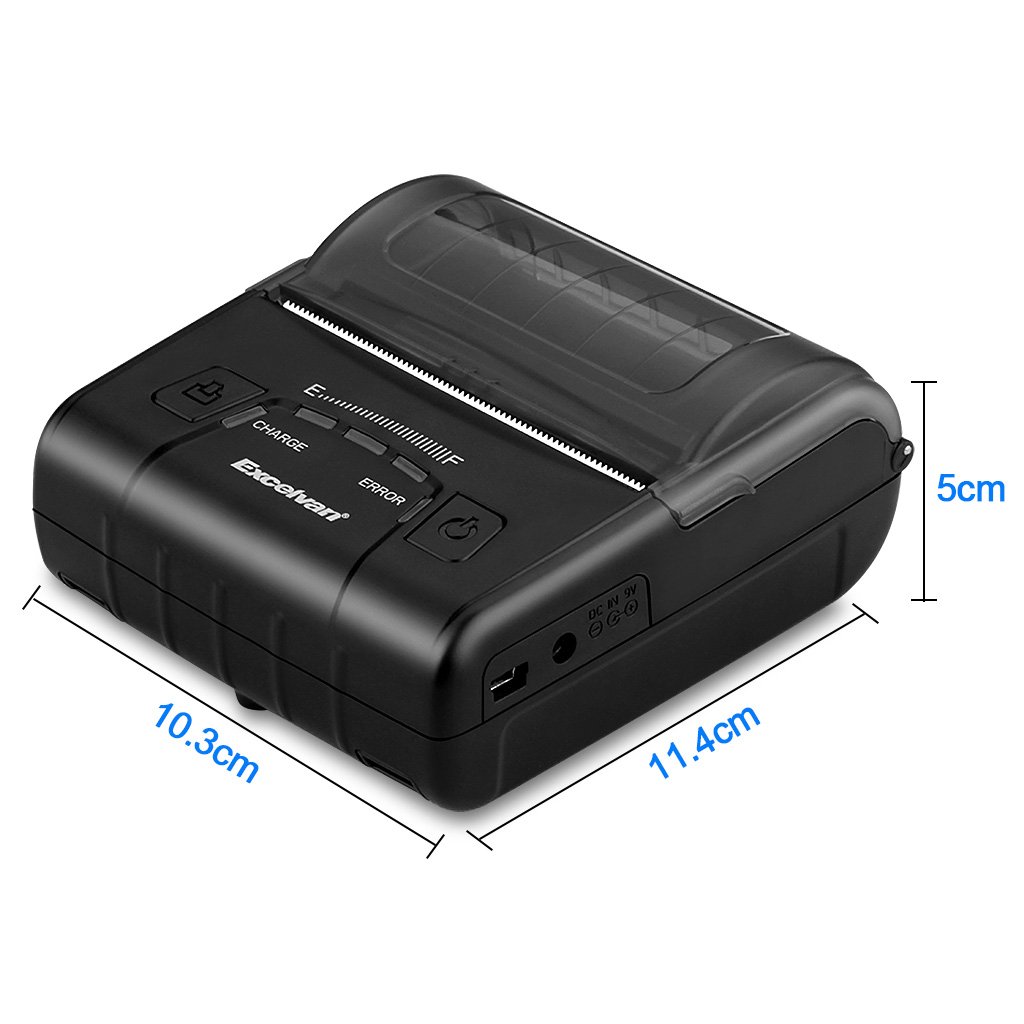
малюнок 6: EXCELVAN E300 Printer Dimensions.
| Особливість | Специфікація |
|---|---|
| Метод друку | Термоштриховий друк |
| Ефективна ширина друку | 72 мм |
| роздільна здатність | 384 точок / лінія |
| Швидкість друку | 90 мм/с |
| Інтерфейс | USB, Bluetooth |
| Тип паперу | Термопапір |
| Ширина паперу | 79.5 ± 0.5 мм |
| Діаметр паперу | ≤ 43 mm (40 mm recommended) |
| Команди | Сумісний з ESC/POS |
| Джерело живлення | Перезаряджуваний полімерний літієвий акумулятор |
| Ємність акумулятора | 2500 mAh / 7.4 V |
| Вихід адаптера живлення | 9.0 В / 2 А |
| Програмне забезпечення драйвера | Android, iOS, Linux, Win2000/2003/XP/7/8/8.1/10 |
| Термін служби друкуючої головки | 50 km (Print Density ≤ 12.5) |
| Робоча температура | 5 °C ~ 45 °C |
| Робоча вологість | 10% ~ 80% |
| Розміри (Д x Ш x В) | 11 x 5 x 10 см (приблизно) |
| вага | 285 грамів |
8. Гарантія та підтримка
8.1 Інформація про гарантію
The EXCELVAN E300 printer comes with a standard manufacturer's warranty. Please refer to the warranty card included in your package or contact your retailer for specific terms and conditions regarding warranty coverage and duration.
8.2 Підтримка клієнтів
For technical assistance, troubleshooting not covered in this manual, or inquiries about your product, please contact EXCELVAN customer support or your authorized dealer. Contact information can typically be found on the product packaging or the official EXCELVAN webсайт.