
1. Вступ
This manual provides comprehensive instructions for the installation, operation, and maintenance of your ASUS H170 PRO GAMING Motherboard. Designed to support 6th Generation Intel Core Desktop Processors, this motherboard integrates advanced features such as DDR4 memory support, USB 3.1 Type-A/C, and M.2 connectivity, making it suitable for high-performance computing and gaming. It also features Intel Gigabit Ethernet with LANGuard for robust networking and SupremeFX Audio for superior sound.
Please read this manual thoroughly before beginning installation to ensure proper setup and to maximize the performance and longevity of your system.
2. Налаштування
2.1 Контрольний список перед встановленням
Before you begin, ensure all necessary components are available and compatible. The retail package of your ASUS H170 PRO GAMING Motherboard should include the following items:
- ASUS H170 PRO GAMING Motherboard (ATX form factor)
- 4 x Serial ATA (SATA) cables
- I/O back plate
- Маркування кабелю
- Пакет гвинтів M.2
- Support DVD with drivers and utilities
- Посібник користувача (цей документ)
Additionally, ensure you have the following compatible components:
- 6th Generation Intel Core Desktop Processor (LGA1151 socket)
- DDR4 RAM modules (2133 MHz recommended)
- Compatible power supply unit (PSU)
- Storage devices (HDD/SSD)
- Graphics card (if not using integrated graphics)
- Computer case
- Monitor, keyboard, and mouse
2.2 Фізичне встановлення
Follow these steps carefully to install your motherboard and essential components into your computer case.
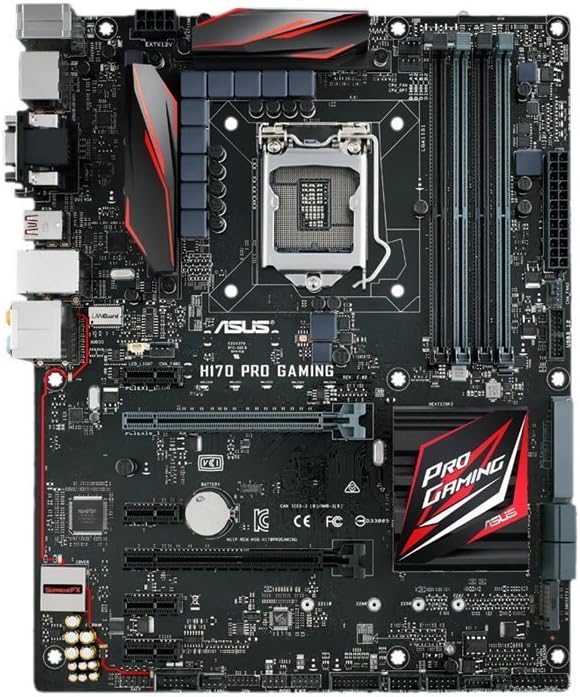
Рисунок 2.2.1: Зверху вниз view of the ASUS H170 PRO GAMING Motherboard, showcasing the LGA1151 CPU socket, DDR4 DIMM slots, PCIe slots, and various connectors.
- Підготуйте справу: Install the I/O shield into the rear opening of your computer case. Ensure the standoffs inside the case align with the screw holes on the motherboard.
- Встановіть материнську плату: Обережно помістіть материнську плату в корпус, вирівнявши її з виступами та екраном вводу/виводу. Закріпіть її гвинтами.
- Встановіть процесор:
- Open the CPU socket lever and remove the protective cap.
- Вирівняйте процесор із сокетом, переконавшись, що золотий трикутник на процесорі збігається з трикутником на сокеті.
- Обережно вставте процесор у роз'єм. Не докладайте зусиль.
- Закрийте важіль, щоб закріпити процесор.
- Нанесіть термопасту та встановіть кулер процесора відповідно до інструкцій виробника.
- Встановлення модулів оперативної пам'яті:
- Open the clips on the DDR4 DIMM slots.
- Зіставте виїмку на модулі оперативної пам’яті з ключем у гнізді DIMM.
- Press down firmly on both ends of the module until the clips snap into place. For dual-channel operation, refer to the motherboard's silkscreen for recommended slot pairing (e.g., A2/B2).
- Встановлення пристроїв зберігання даних:
- For SATA drives, connect one end of the SATA cable to a SATA 6Gb/s port on the motherboard and the other end to your HDD/SSD. Connect the SATA power cable from your PSU to the drive.
- For M.2 SSDs, insert the M.2 module into the M.2 slot at an angle, then gently push it down and secure it with the provided M.2 screw.
- Install Expansion Cards (e.g., Graphics Card):
- Align the expansion card with the appropriate PCIe slot (e.g., PCIe x16 for graphics cards).
- Міцно натискайте, доки картка не встане правильно, а фіксатор не зафіксується.
- Закріпіть карту до корпусу гвинтом.
- Підключення кабелів живлення:
- Підключіть 24-контактний роз'єм живлення ATX від блоку живлення до материнської плати.
- Підключіть 8-контактний (або 4-контактний) роз'єм живлення процесора до материнської плати.
- Connect any additional power cables required for your graphics card or other components.
- Підключення кабелів передньої панелі: Connect the power button, reset button, HDD LED, power LED, and USB/audio headers from your case to the corresponding pins on the motherboard. Refer to the motherboard manual for exact pin layouts.
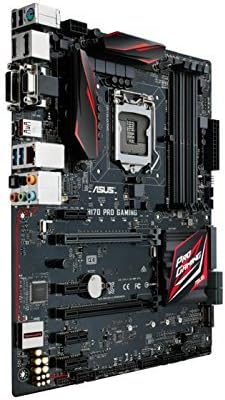
Рисунок 2.2.2: Кутовий view of the ASUS H170 PRO GAMING Motherboard, highlighting the I/O ports and the overall layout within a system.
2.3 Початкове ввімкнення
After completing all physical connections, double-check all cables and component seating. Connect your monitor, keyboard, and mouse. Power on your system. The system should boot to the BIOS/UEFI interface or attempt to boot from a connected storage device.
3. Експлуатація материнської плати
3.1 Налаштування BIOS/UEFI
The BIOS (Basic Input/Output System) or UEFI (Unified Extensible Firmware Interface) is the first software that runs when you power on your computer. It initializes hardware components and loads the operating system. To enter the BIOS/UEFI setup utility, press the DEL ключ або F2 клавішу під час процесу самотестування ввімкнення (POST).
- Порядок завантаження: Configure the boot order to prioritize your operating system installation media (e.g., USB drive, DVD drive) or your primary storage drive.
- Інформація про систему: Verify that your CPU, RAM, and storage devices are correctly detected.
- Розширені налаштування: Adjust settings related to CPU, memory, storage controllers (SATA mode), and integrated peripherals.
3.2 Встановлення драйвера
After installing your operating system, it is crucial to install the necessary drivers for your motherboard's components. These drivers enable proper communication between the hardware and the operating system, ensuring optimal performance and stability.
- Драйвери чіпсету: Install Intel H170 chipset drivers first.
- Драйвери локальної мережі: Install Intel Gigabit Ethernet drivers for network connectivity.
- Аудіо драйвери: Install SupremeFX Audio drivers for sound functionality.
- Драйвери USB: Install USB 3.1 drivers for enhanced USB performance.
- Драйвери графіки: Install drivers for your dedicated graphics card or Intel integrated graphics.
Drivers can typically be found on the included support DVD or downloaded from the official ASUS support webсайт.
3.3 Підключення
The H170 PRO GAMING motherboard offers a variety of connectivity options:
- Порти USB: Multiple USB 3.1 Type-A and Type-C ports, along with USB 3.0 and USB 2.0 ports, for connecting peripherals.
- Відеовиходи: DisplayPort and HDMI for connecting displays (requires compatible Intel CPU with integrated graphics).
- Мережа: Intel Gigabit Ethernet port for wired network connection.
- Аудіо: SupremeFX Audio ports for high-quality sound output and input.
- Зберігання: SATA 6Gb/s ports and M.2 slot for high-speed storage devices.
4. Технічне обслуговування
Regular maintenance helps ensure the longevity and optimal performance of your motherboard and overall system.
4.1 Очищення
Dust accumulation can lead to overheating and component failure. Periodically clean your computer's interior:
- Power off and unplug your computer before cleaning.
- Використовуйте стиснене повітря для видалення пилу з вентиляторів, радіаторів та компонентів материнської плати.
- Забезпечте належну вентиляцію в корпусі комп'ютера.
4.2 Оновлення BIOS/UEFI та драйверів
Keeping your BIOS/UEFI firmware and drivers updated can improve system stability, performance, and compatibility with new hardware or software.
- Відвідайте офіційну службу підтримки ASUS website for the latest BIOS/UEFI versions and drivers for your H170 PRO GAMING motherboard.
- Follow the instructions provided by ASUS for updating BIOS/UEFI firmware carefully, as improper updates can damage the motherboard.
- Regularly check for updated drivers for your chipset, audio, LAN, and other peripherals.
5. Вирішення проблем
У цьому розділі наведено рішення поширених проблем, з якими ви можете зіткнутися.
5.1 Поширені проблеми та рішення
- Немає живлення/Немає POST-тесту:
- Переконайтеся, що всі кабелі живлення (24-контактний ATX, 8-контактний процесор) надійно підключені.
- Verify that the power supply unit (PSU) is functioning correctly.
- Перевстановіть модулі оперативної пам'яті та плати розширення.
- Clear CMOS (Complementary Metal-Oxide-Semiconductor) by removing the CMOS battery for a few minutes or using the clear CMOS jumper (refer to motherboard manual for location).
- Нестабільність/збої системи:
- Check for overheating. Ensure CPU cooler is properly installed and case fans are working.
- Запустіть інструменти діагностики пам'яті, щоб перевірити наявність несправної оперативної пам'яті.
- Update drivers and BIOS/UEFI to the latest versions.
- Ensure all components are compatible and properly seated.
- Немає дисплея:
- Ensure monitor is connected to the correct video output (motherboard or graphics card).
- Перевстановіть відеокарту.
- Якщо можливо, протестуйте з іншим монітором або кабелем.
- Проблеми з підключенням до мережі:
- Verify LAN cable connection.
- Ensure Intel Gigabit Ethernet drivers are installed and up to date.
- Перевірте стан маршрутизатора/модему.
- Проблеми зі звуком:
- Ensure speakers/headphones are correctly plugged into the audio jacks.
- Install or update SupremeFX Audio drivers.
- Перевірте налаштування звуку у вашій операційній системі.
5.2 Звернення за додатковою допомогою
If you encounter issues not covered in this section, or if the suggested solutions do not resolve your problem, please refer to the official ASUS support resources.
6. Технічні характеристики
Key technical specifications for the ASUS H170 PRO GAMING Motherboard:
| Особливість | Специфікація |
|---|---|
| Гніздо ЦП | LGA 1151 |
| Сумісні процесори | 6th Generation Intel Core Desktop Processors |
| Чіпсет | Intel H170 |
| Технологія оперативної пам'яті | DDR4 |
| Швидкість пам'яті | 2133 МГц |
| USB порти | USB 3.1 Type-A/C, USB 3.0, USB 2.0 |
| Інтерфейси зберігання даних | SATA 6Gb/s, M.2 |
| Мережа | Intel Gigabit Ethernet with LANGuard |
| Аудіо | SupremeFX Audio |
| Форм-фактор | ATX |
| Розміри продукту (ДxШxВ) | 10.4 x 2.7 x 12.9 дюймів |
| Вага товару | 3 фунта |
7. Гарантія та підтримка
7.1 Інформація про гарантію
ASUS products typically come with a limited manufacturer's warranty. The specific terms and duration of the warranty may vary by region and product. Please refer to the warranty card included with your product or visit the official ASUS webсайт для отримання детальної інформації про гарантію та процедури реєстрації. Зберігайте підтвердження покупки для гарантійних претензій.
7.2 Підтримка клієнтів
For technical assistance, driver downloads, BIOS updates, or further inquiries, please contact ASUS customer support or visit their official support webсайт:
- Офіційний ASUS Webсайт: www.asus.com
- ASUS Support Page: шукати "ASUS Support" online and navigate to the support section for motherboards.
- ASUS Store on Amazon: Visit the ASUS Store для отримання інформації про продукт та ресурсів.
When contacting support, have your motherboard's model number (H170 PRO GAMING) and serial number ready.
8. Офіційні відео про продукт
No official product videos from the seller were found for this model at this time. For visual guides or demonstrations, please refer to the ASUS official webсайт або авторизовані канали.