
1. Вступ
This manual provides instructions for setting up, operating, and maintaining your D-Link Wi-Fi AC750 Dual Band Router (DIR-813). The DIR-813 is designed to deliver high-speed wireless connectivity for your home network, supporting both 2.4 GHz and 5 GHz bands for optimal performance.
Ключові особливості:
- Wireless AC750 Technology: Optimized performance for HD video streaming, fast file transfers, and lag-free video chatting.
- Дводіапазонна продуктивність: До 300 Мбіт/с (2.4 ГГц) + 433 Мбіт/с (5 ГГц) для високої швидкості бездротового зв'язку та зменшення перешкод.
- Зворотна сумісність: Works with older 802.11a/b/g/n devices.
- Дротове підключення: Four Fast Ethernet ports for connecting wired devices.
- High-Performance Antennas: Three external antennas for maximum range.
2. Вміст упаковки
Переконайтеся, що ваш пакет містить такі елементи:
- D-Link Wi-Fi AC750 Dual Band Router (DIR-813)
- Адаптер живлення
- Кабель Ethernet
- Quick Installation Guide (not included in this digital manual)
If any of the above items are missing or damaged, please contact your local D-Link reseller.
3. Закінчилося обладнанняview
3.1 Передня панель
The front panel of the DIR-813 router features LED indicators that provide status information.
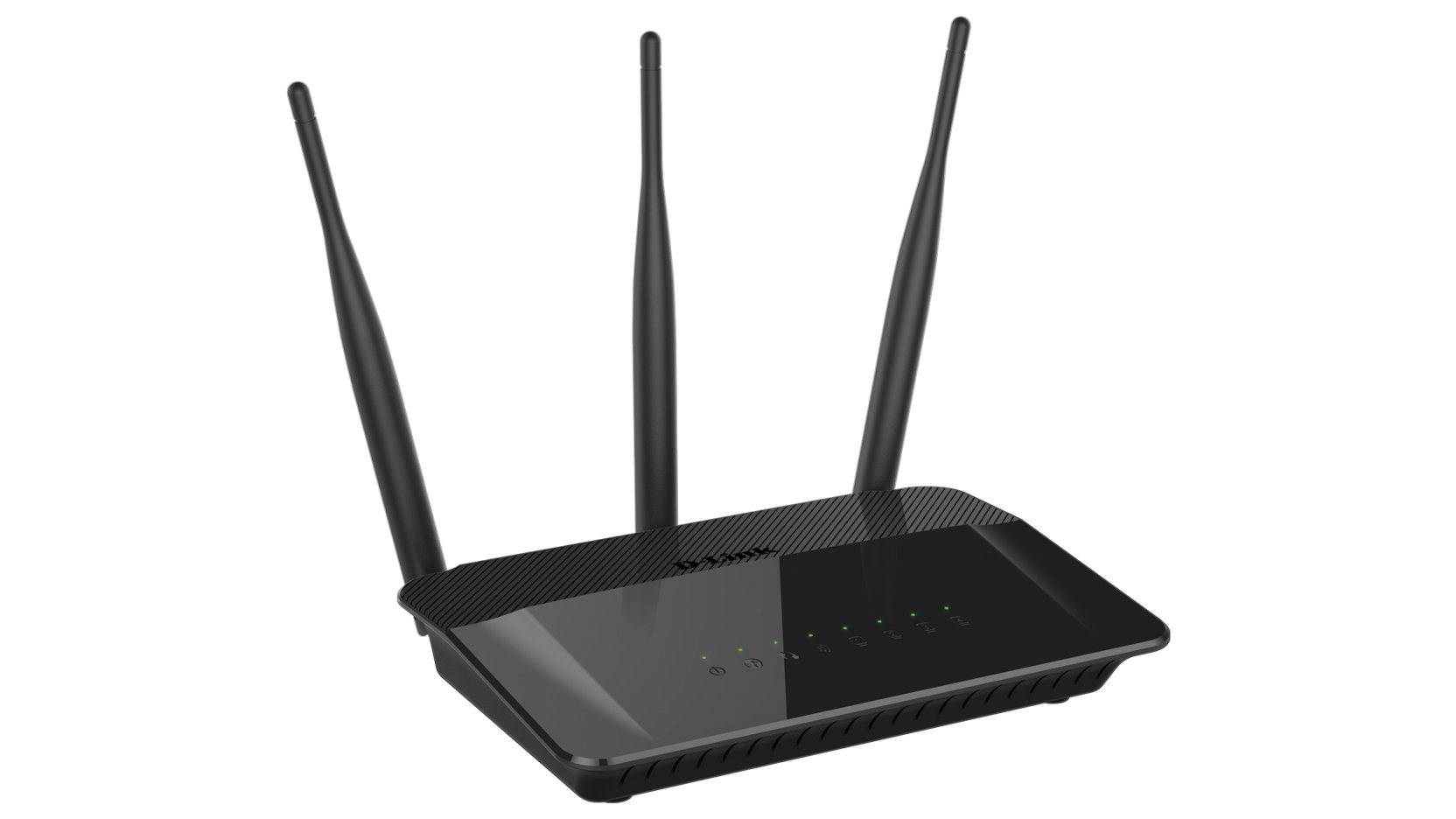
малюнок 1: Фронт view of the D-Link DIR-813 router. This image shows the router's top surface with three external antennas and a row of LED indicators for power, internet, and wireless status.
- Світлодіод живлення: Вказує на стан живлення.
- Індикатор Інтернету: Показує стан інтернет-з’єднання.
- WLAN LEDs (2.4GHz/5GHz): Indicate wireless activity for each band.
- Світлодіоди локальної мережі: Вказує на активність на дротових портах Ethernet.
3.2 Задня панель
The rear panel contains all the physical connection ports and buttons.
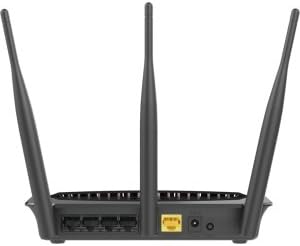
малюнок 2: Задня view of the D-Link DIR-813 router. This image displays the back of the router, showing the power input, WAN port (yellow), four LAN ports, and a WPS/Reset button.
- Роз'єм живлення: Підключіть адаптер живлення, що входить до комплекту, тут.
- WAN-порт (жовтий): Підключіть модем до цього порту за допомогою кабелю Ethernet.
- Порти LAN (1-4): Connect your wired devices (computers, gaming consoles, etc.) to these ports.
- Кнопка WPS/скидання:
- Press and hold for 2 seconds to activate WPS (Wi-Fi Protected Setup).
- Натисніть і утримуйте протягом 10 секунд, щоб скинути заводські налаштування.
4. Налаштування
4.1 Перш ніж почати
Ensure you have an active internet connection from your Internet Service Provider (ISP) and a modem (if required by your ISP).
4.2 Встановлення обладнання
- Вимкнення живлення: Disconnect the power from your modem and router (if replacing an old router).
- Підключення модему: Connect an Ethernet cable from your modem's Ethernet port to the yellow WAN port on the back of your DIR-813 router.
- Підключіть живлення: Connect the included power adapter to the power connector on the router and then plug it into a power outlet.
- Увімкнення: Power on your modem first, wait for it to fully boot up (usually indicated by stable internet lights). Then, power on your DIR-813 router.
- Перевірте світлодіоди: Wait for the Power LED and Internet LED on the router's front panel to turn solid.
4.3 Початкова конфігурація (Web-based Setup)
Ви можете налаштувати свій маршрутизатор за допомогою web браузер.
- Підключення до роутера:
- Провідний: Підключіть кабель Ethernet від одного з портів LAN маршрутизатора до порту Ethernet вашого комп'ютера.
- Бездротовий: Connect to the default Wi-Fi network name (SSID) printed on the label at the bottom of your router. The default Wi-Fi password (WPA Key) is also on this label.
- ВІДЧИНЕНО Web Браузер: Відкрийте a web браузер (наприклад, Chrome, Firefox, Edge) та введіть
http://dlinkrouter.localor192.168.0.1в адресний рядок. - Логін: Ім'я користувача за замовчуванням
admin. Leave the password field blank. Click Логін. - Запустіть майстер налаштування: Follow the on-screen instructions of the D-Link Setup Wizard to configure your internet connection and wireless settings. It is recommended to change the default Wi-Fi name (SSID) and password for security.
- Зберегти налаштування: After completing the wizard, save your settings.
4.4 Підключення пристроїв
Once the router is configured, you can connect your devices.
- Дротові пристрої: Connect computers, gaming consoles, or other network devices to the available LAN ports using Ethernet cables.
- Бездротові пристрої: Connect smartphones, tablets, laptops, and other Wi-Fi enabled devices to your new Wi-Fi network using the SSID and password you configured.
5. Експлуатація маршрутизатора
Доступ до маршрутизатора web-based interface (http://dlinkrouter.local or 192.168.0.1) to manage its settings.
5.1 Налаштування бездротового зв’язку
You can modify the Wi-Fi network name (SSID), password, and security type for both 2.4 GHz and 5 GHz bands.
- Перейдіть до Налаштування > Бездротовий зв’язок в web інтерфейс.
- Select the 2.4 GHz or 5 GHz band to modify its settings.
- Змінити Назва Wi-Fi (SSID) і Пароль Wi-Fi за бажанням.
- Забезпечити WPA2-PSK or WPA2/WPA3 Mixed Mode is selected for optimal security.
- Натисніть зберегти щоб застосувати зміни.
5.2 Гостьовий Wi-Fi
Create a separate Wi-Fi network for guests to provide internet access without giving them access to your main network.
- Перейти до Settings > Guest Wi-Fi.
- Enable the Guest Wi-Fi network.
- Set a unique SSID and password for the guest network.
- Configure access restrictions if needed (e.g., internet only).
- Натисніть зберегти.
5.3 Параметри безпеки
Manage firewall rules, VPN passthrough, and other security features.
- Доступ Features > Firewall to configure firewall rules.
- Review Advanced > Port Forwarding if you need to open specific ports for applications or gaming.
5.4 Батьківський контроль
Control internet access for specific devices or users on your network.
- Перейдіть до Features > Parental Control.
- Set up schedules for internet access or block specific websites for selected devices.
- Натисніть зберегти after making changes.
6. Технічне обслуговування
6.1 Оновлення мікропрограми
Keeping your router's firmware up to date ensures optimal performance and security.
- Download the latest firmware for your DIR-813 model from the official D-Link support webсайт.
- Увійдіть до системи маршрутизатора web інтерфейс.
- Перейти до Management > Firmware Update.
- Перейдіть до завантаженої мікропрограми file and follow the on-screen instructions to upload and update.
- Do not power off the router during the firmware update process.
6.2 Конфігурація резервного копіювання та відновлення
Save your router's configuration settings to a file, which can be restored later if needed.
- Увійдіть до системи маршрутизатора web інтерфейс.
- Перейдіть до Management > System > Configuration Backup and Restore.
- Натисніть Резервне копіювання щоб зберегти поточну конфігурацію на вашому комп’ютері.
- Щоб відновити, натисніть переглядати, select your saved configuration fileі натисніть Відновити.
6.3 Скидання до заводських налаштувань
A factory reset restores the router to its original default settings. This will erase all custom configurations.
- Скидання програмного забезпечення: Увійдіть до системи маршрутизатора web інтерфейс, перейдіть до Management > System > Restore to Factory Defaultsі підтвердьте.
- Апаратне скидання: Коли маршрутизатор увімкнено, натисніть і утримуйте кнопку за допомогою скріпки WPS/Скидання button on the rear panel for 10 seconds. Release the button when the Power LED starts blinking. The router will restart with factory defaults.
7. Вирішення проблем
7.1 Відсутнє підключення до Інтернету
- Перевірте, чи Інтернет-світлодіод on the router is solid green. If not, ensure the Ethernet cable from your modem is securely connected to the router's yellow WAN порт.
- Перезавантажте модем, а потім маршрутизатор.
- Перевірте, чи активне з’єднання з вашим інтернет-провайдером.
- Увійдіть до системи маршрутизатора web interface and check the internet connection status. Run the setup wizard again if necessary.
7.2 Не вдається підключитися до Wi-Fi
- Ensure the router's WLAN LEDs включені.
- Verify you are using the correct Wi-Fi network name (SSID) and password. These are case-sensitive.
- Try restarting your wireless device and the router.
- If you recently changed Wi-Fi settings, ensure your device has forgotten the old network and is trying to connect to the new one.
7.3 Низька швидкість бездротового з'єднання
- Переконайтеся, що ваші пристрої підключені до відповідного діапазону (5 ГГц для вищої швидкості, 2.4 ГГц для кращого радіусу дії).
- Reduce interference by moving the router away from other electronic devices (cordless phones, microwaves).
- Consider changing the wireless channel in the router's settings to a less congested one.
- Ensure your device's wireless adapter supports 802.11ac for optimal performance.
7.4 Forgot Router Login Password
If you forgot the password for the router's web interface, you will need to perform a factory reset. Refer to section 6.3 for instructions. After a factory reset, the username will be admin and the password field will be blank.
8. Технічні характеристики
| Особливість | опис |
|---|---|
| Бренд | D-Link |
| Назва моделі | DIR-813 |
| Бездротовий стандарт | 802.11ac (зворотно сумісний з a/b/g/n) |
| Клас діапазону частот | Дводіапазонний (2.4 ГГц і 5 ГГц) |
| Бездротова швидкість | Up to 300Mbps (2.4GHz) + 433Mbps (5GHz) = AC750 |
| Порти Ethernet | 4 порти Fast Ethernet LAN, 1 порт Fast Ethernet WAN |
| антени | 3 зовнішні високопродуктивні антени |
| Особливість | WPS (захищена настройка Wi-Fi) |
| Технологія підключення | Wi-Fi, Дротовий |
| Колір | чорний |
| Вага товару | 0.5 фунта |
| Рекомендоване використання | додому |
9. Гарантія та підтримка
Для отримання детальної інформації про гарантію, будь ласка, зверніться до гарантійного талона, що додається до вашого продукту, або відвідайте офіційний веб-сайт D-Link. webсайт.
For technical support, product registration, or to download the latest firmware and documentation, please visit the D-Link support portal:
When contacting support, please have your router's model number (DIR-813) and serial number ready.