
1. Продукт закінчивсяview
The HP ProDisplay P17A is a 17-inch LED-backlit LCD monitor designed for general computing tasks. It features a 5:4 aspect ratio with a maximum resolution of 1280 x 1024 pixels, providing clear and consistent visuals. This monitor is equipped with both VGA and HDMI connectivity options, offering versatility for various system configurations. Its compact design and energy-efficient LED backlighting make it suitable for a range of environments.

Малюнок 1: Спереду view of the HP ProDisplay P17A monitor, showcasinйого дисплей та підставку.
2. Інструкції з налаштування
2.1 Розпакування монітора
Обережно вийміть усі компоненти з упаковки. Переконайтеся, що є такі предмети:
- HP ProDisplay P17A Monitor
- Monitor Stand (base and neck)
- Кабель живлення
- VGA Cable (may vary by region/package)
- Кабель HDMI (може відрізнятися залежно від регіону/пакету)
2.2 Збірка підставки
- Покладіть монітор екраном вниз на м’яку, чисту поверхню, щоб запобігти подряпинам.
- Attach the stand neck to the back of the monitor, aligning the tabs and pushing until it clicks into place.
- Attach the stand base to the bottom of the stand neck, securing it with the captive screw if present.
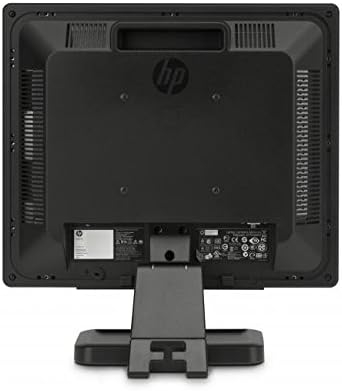
Малюнок 2: Задня частина view of the monitor, illustrating the stand attachment point and various connectivity ports.
2.3 З'єднувальні кабелі
- Підключення живлення: Підключіть кабель живлення до входу живлення монітора, а потім до заземленої електричної розетки.
- Підключення відео:
- For VGA: Connect one end of the VGA cable to the VGA port on the monitor and the other end to the VGA port on your computer. Tighten the screws on the VGA connector.
- Для HDMI: підключіть один кінець кабелю HDMI до порту HDMI на моніторі, а інший кінець – до порту HDMI на комп’ютері.
- Переконайтеся, що всі з’єднання надійні.
3. Інструкція з експлуатації
3.1 Увімкнення/вимкнення
Press the power button located on the front bezel of the monitor to turn it on or off. The power indicator light will illuminate when the monitor is on.
3.2 Налаштування параметрів дисплея (екранне меню)
The On-Screen Display (OSD) menu allows you to adjust various monitor settings. Use the buttons on the front bezel to navigate and select options.
- Кнопка меню: Відкриває екранне меню.
- Кнопки навігації (+ / - or Up/Down): Move through menu options and adjust values.
- Кнопка вибору/ОК: Підтверджує вибір або входить до підменю.
- Кнопка виходу: Вихід з поточного меню або екранного меню.
Звичайні регульовані налаштування включають:
- Яскравість/Контрастність: Регулює загальну яскравість та різницю між світлими та темними ділянками.
- Контроль кольору: Allows adjustment of color temperature, RGB levels, or preset color modes.
- Вибір входу: Manually switches between VGA and HDMI input sources.
- Контроль зображення: Adjusts sharpness, aspect ratio, and auto-adjustment for analog signals.
- Управління: Опції енергозбереження, час очікування екранного меню, вибір мови.
4. Технічне обслуговування
4.1 Очищення монітора
- Завжди вимикайте монітор та від’єднуйте шнур живлення від мережі перед чищенням.
- Злегка протріть м’якою тканиною без ворсу dampводою або неабразивним засобом для чищення екранів.
- Do not spray cleaner directly onto the screen or monitor casing.
- Уникайте використання бензолу, розчинника, засобів для чищення на основі аміаку або абразивних матеріалів, оскільки вони можуть пошкодити поверхню.
4.2 Загальний догляд
- Уникайте розміщення монітора під прямими сонячними променями або поблизу джерел тепла.
- Забезпечте належну вентиляцію навколо монітора.
- Не перекривайте вентиляційні отвори.
- Protect the screen from sharp objects or excessive pressure.
5. Вирішення проблем
Before contacting support, try the following basic troubleshooting steps:
5.1 Немає зображення на екрані
- Ensure the monitor's power cable is securely connected to both the monitor and a working electrical outlet.
- Переконайтеся, що індикатор живлення на моніторі світиться. Якщо ні, натисніть кнопку живлення.
- Check that the video cable (VGA or HDMI) is securely connected to both the monitor and the computer.
- Ensure the correct input source is selected on the monitor (use the OSD menu to switch inputs).
- Перезавантажте комп'ютер.
5.2 Погана якість зображення
- Fuzzy or Blurry Image: Ensure the display resolution on your computer is set to the monitor's native resolution (1280 x 1024).
- Неправильні кольори: Adjust color settings through the OSD menu or your computer's display settings.
- Image Off-Center/Incorrect Size (VGA only): Use the "Auto Adjust" function in the OSD menu.
- Мерехтіння: Check the refresh rate setting on your computer; ensure it is set to 60 Hz.
5.3 Monitor Not Responding to Buttons
- Unplug the monitor's power cable, wait 10 seconds, then plug it back in and try again.
- Ensure no buttons are stuck.
6. Технічні характеристики
| Особливість | Специфікація |
|---|---|
| Бренд | HEWLETT PACKARD |
| Назва моделі | HP P17A |
| Номер моделі | F4M97AAABA |
| Розмір екрана | 17 дюймів |
| Тип дисплея | РК-дисплей зі світлодіодним підсвічуванням |
| Рідна роздільна здатність | 1280 x 1024 (SXGA) |
| Співвідношення сторін | 5:4 |
| Коефіцієнт контрастності | 1000:1 |
| Частота оновлення | 60 Гц |
| Час відгуку | 5 мілісекунд |
| Viewкут нахилу | 170 градусів |
| Підключення | 1x VGA, 1x HDMI |
| Споживана потужність | 25 Вт (максимум) |
| Розміри предмета (Д x Ш x В) | 8.12" Г x 14.85" Ш x 15.24" В |
| Вага товару | 8.2 фунта |
| Тип монтажу | Настінне кріплення (сумісне з VESA) |
| Додаткові функції | Anti Glare Screen |

Figure 3: Dimensions of the HP ProDisplay P17A monitor.
7. Гарантія та підтримка
7.1 Інформація про гарантію
This product is often sold as a refurbished item. Refurbished products typically come with a limited warranty provided by the refurbisher or seller. Please refer to your purchase documentation for specific warranty terms and conditions, including duration and coverage details.
7.2 Технічна підтримка
For technical assistance, troubleshooting beyond this manual, or warranty claims, please contact the vendor or HP customer support. Have your monitor's model number (F4M97AAABA) and serial number ready when contacting support.
You can find additional support resources, drivers, and documentation on the official HP support webсайт.