
вступ
The ADATA S102PRO is a high-performance USB 3.0 flash drive designed for fast and reliable data storage and transfer. Its durable design and high-speed interface make it ideal for everyday use, allowing you to carry important files, documents, photos, and videos with ease.
Налаштування
Follow these steps to begin using your ADATA S102PRO USB Flash Drive:
- Визначте порт USB: Locate an available USB port on your computer. For optimal performance, use a USB 3.0 port (often colored blue internally). The ADATA S102PRO is backward compatible with USB 2.0 ports, but data transfer speeds will be limited to USB 2.0 rates.
- Зніміть кришку: Carefully remove the protective cap from the USB flash drive to expose the USB connector.
- Вставте накопичувач: Insert the USB connector firmly into the USB port on your computer. Ensure it is inserted correctly; do not force it.
- Розпізнавання системи: Your operating system (Windows, macOS, Linux) should automatically detect and install the necessary drivers. A notification may appear indicating that the device is ready for use. The drive will typically appear as a removable disk or volume in your file провідник.
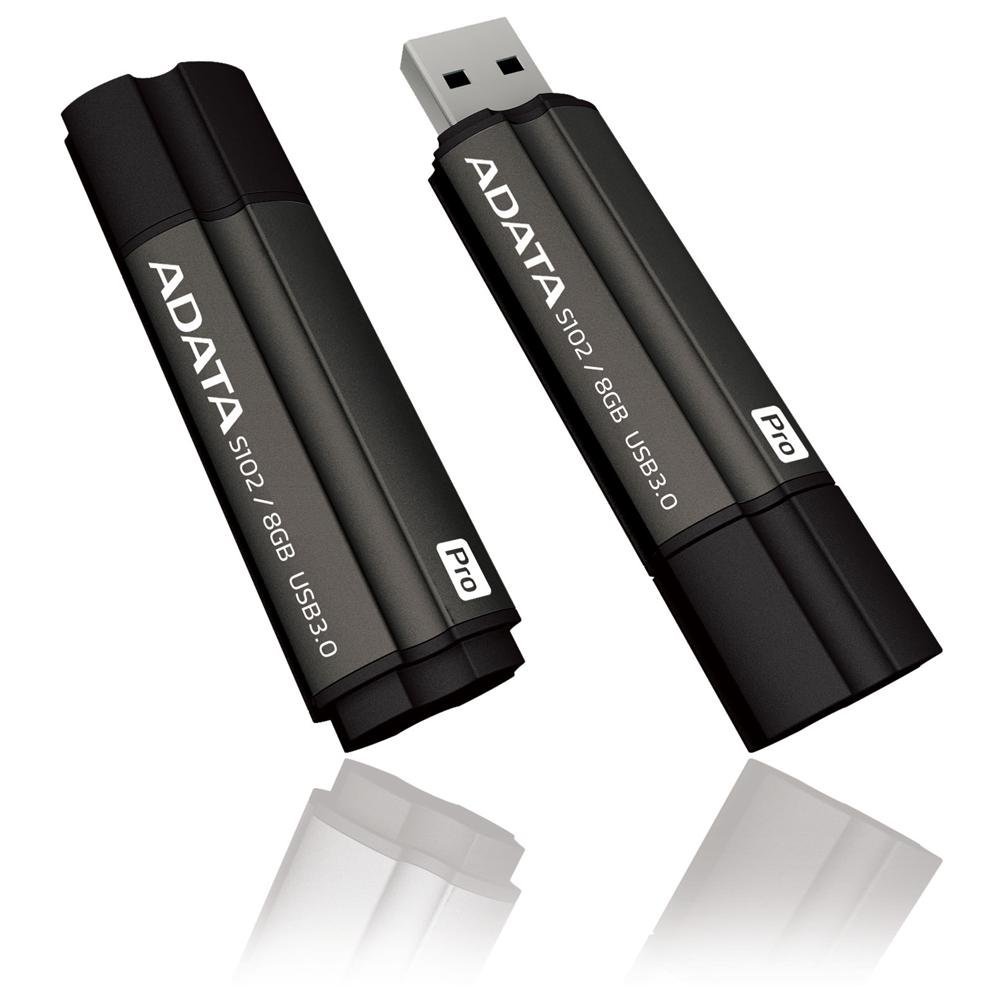
Image: The ADATA S102PRO USB Flash Drive shown with its protective cap on and with the cap removed, revealing the USB 3.0 connector. This illustrates the physical appearance and how to prepare the drive for insertion.
Операційна
Once the ADATA S102PRO is recognized by your computer, you can begin transferring files:
- Доступ до диска:
- Windows: Open "This PC" or "My Computer" and locate the drive listed under "Devices and drives" (e.g., "Removable Disk" or a drive letter like E:).
- macOS: Значок диска з’явиться на робочому столі або на бічній панелі Finder у розділі «Місцезнаходження».
- Перенесення Files:
- Копіювати files до the flash drive, drag and drop them from your computer's folders into the flash drive's window.
- Копіювати files від the flash drive, drag and drop them from the flash drive's window to a folder on your computer.
- You can also use the standard copy (Ctrl+C / Command+C) and paste (Ctrl+V / Command+V) functions.
- Безпечне видалення накопичувача: Вкрай важливо безпечно витягнути флеш-накопичувач перед фізичним видаленням, щоб запобігти пошкодженню даних.
- Windows: Click the "Safely Remove Hardware and Eject Media" icon in the system tray (bottom-right corner), then select your flash drive and click "Eject." Wait for the "Safe to Remove Hardware" message.
- macOS: Drag the drive icon from the desktop to the Trash, or click the Eject button next to the drive name in the Finder sidebar. Wait for the icon to disappear before removing the drive.
Технічне обслуговування
Proper care will help ensure the longevity and reliability of your ADATA S102PRO USB Flash Drive:
- Захистіть роз'єм: Always keep the protective cap on the USB connector when the drive is not in use to prevent dust, dirt, and physical damage.
- Уникайте екстремальних умов: Do not expose the drive to extreme temperatures, direct sunlight, high humidity, or strong magnetic fields.
- Обережно поводьтеся: Уникайте падіння диска та сильних ударів.
- Do Not Remove During Transfer: Never unplug the drive while data is being read from or written to it. Always follow the safe removal procedure.
- Регулярне резервне копіювання: While flash drives are reliable, it is always recommended to back up critical data to another storage device or cloud service.
Усунення несправностей
If you encounter issues with your ADATA S102PRO, try the following solutions:
- Диск не розпізнано:
- Переконайтеся, що накопичувач повністю вставлено в USB-порт.
- Спробуйте інший порт USB на комп’ютері.
- Перевірте диск на іншому комп’ютері, щоб виключити проблему, пов’язану з певним комп’ютером.
- Check your computer's Device Manager (Windows) or System Information (macOS) to see if the drive is listed, even if it doesn't appear in File Дослідник/Пошукач.
- Низька швидкість передачі даних:
- Ensure you are connected to a USB 3.0 port for optimal performance. USB 2.0 ports will limit speeds.
- Перенесення багатьох дрібних fileможе бути повільнішим, ніж передача кількох великих files.
- Закрийте інші програми, які можуть використовувати системні ресурси або виконувати операції з диском.
- Не можу писати Files для керування:
- Перевірте, чи не заповнений диск. Видаліть непотрібне. fileабо перенести їх в інше місце.
- Забезпечити file system (e.g., FAT32, NTFS, exFAT) is compatible with your operating system and allows writing. If formatted as NTFS on macOS, you may only have read access without third-party software.
- Check for any software-based write protection or permissions issues on your computer.
Технічні характеристики
| Бренд | ADATA |
| Назва моделі | S102PRO |
| Номер моделі | AT806-4G-CPK |
| Ємність пам'яті | 4 ГБ |
| Апаратний інтерфейс | USB 3.0 (зворотно сумісний з USB 2.0) |
| Виробник | A-DATA TECHNOLOGY (USA) CO. L |
| UPC | 842243005080 |
| ASIN | B004AVOGW8 |
Гарантія та підтримка
For detailed warranty information, product registration, and technical support, please visit the official ADATA webсайт. Зазвичай там можна знайти ресурси підтримки, відповіді на поширені запитання та контактну інформацію служби підтримки клієнтів.
Офіційний представник ADATA Webсайт: www.adata.com