
1. Налаштування
1.1 Розпакування та початковий огляд
Carefully remove your ASUS K52F-A2B laptop from its packaging. Inspect the laptop and all accessories for any signs of damage. The package should contain the laptop, AC adapter, power cord, and documentation.
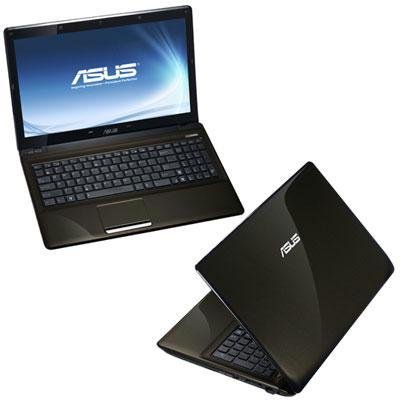
Image 1.1: The ASUS K52F-A2B laptop. This image shows the closed laptop from an angle, highlighting its dark brown finish and sleek design.
1.2 Підключення адаптера змінного струму
Before initial use, connect the AC adapter to the laptop and a power outlet. This ensures the battery is charged and provides stable power for setup.
- Підключіть адаптер змінного струму до роз'єму живлення на бічній панелі ноутбука.
- Підключіть шнур живлення до адаптера змінного струму.
- Підключіть інший кінець шнура живлення до заземленої електричної розетки.
1.3 Початкове ввімкнення
Once the AC adapter is connected, open the laptop lid and press the power button. The laptop will begin its initial boot sequence. Follow the on-screen instructions to complete the operating system setup (Windows 7 Professional 64-bit).
2. Operating Your ASUS K52F-A2B Laptop
2.1 Увімкнення/вимкнення живлення та режим сну
- Увімкнення: Натисніть кнопку живлення, розташовану над клавіатурою.
- Вимкнення живлення: Click the Start button, then select 'Shut down'.
- Режим сну: Close the laptop lid or select 'Sleep' from the Start menu. Press the power button or any key to wake the laptop.
2.2 Використання клавіатури та сенсорної панелі
The ASUS K52F-A2B features a full-sized keyboard and a multi-touch touchpad.
- Клавіатура: Standard QWERTY layout with function keys (Fn) for brightness, volume, and other system controls.
- Сенсорна панель: Supports multi-touch gestures for scrolling, zooming, and navigation. Refer to the operating system's help for detailed gesture information.
2.3 Підключення зовнішніх пристроїв
Your laptop provides various ports for connecting external devices:
- Порти USB: For connecting USB devices such as mice, keyboards, and external storage.
- Порт HDMI: Connects to external displays or TVs for high-definition video and audio output.
- Порт VGA: Connects to older external monitors or projectors.
- Аудіороз'єми: Для навушників та мікрофонів.
- Порт Ethernet: Для підключення до дротової мережі.
2.4 Using the Optical Disk Drive
The laptop includes a Super Multi Optical Disk Drive for reading and writing CDs and DVDs.
- Натисніть кнопку вилучення на дисководі, щоб відкрити лоток.
- Помістіть компакт-диск або DVD-диск у лоток етикеткою догори.
- Обережно засуньте лоток назад у ноутбук, доки він не заклацне.
3. Технічне обслуговування
3.1 Очищення ноутбука
Регулярне чищення допомагає підтримувати зовнішній вигляд та функціональність ноутбука.
- екран: Злегка протріть м’якою тканиною без ворсу dampводою або засобом для чищення екранів. Не розпилюйте рідину безпосередньо на екран.
- Клавіатура та Casing: Use a soft, dry cloth. For stubborn dirt, a cloth lightly dampened with mild soap and water can be used. Ensure the laptop is powered off and unplugged before cleaning.
- Віддушини: Use compressed air to clear dust from the cooling vents to prevent overheating.
3.2 Догляд за акумулятором
Щоб максимально збільшити термін служби та продуктивність акумулятора:
- Уникайте частого повного розряджання акумулятора.
- Зберігайте ноутбук у прохолодному, сухому місці, якщо він не використовується протягом тривалого часу.
- Якщо ви зберігатимете пристрій протягом тривалого часу, зарядіть акумулятор приблизно до 50% перед зберіганням.
3.3 Оновлення програмного забезпечення
Regularly update your operating system and drivers to ensure optimal performance and security. Check the ASUS support website for the latest drivers for your K52F-A2B model.
4. Вирішення проблем
This section addresses common issues you might encounter with your ASUS K52F-A2B laptop.
4.1 Проблеми з живленням
- Ноутбук не вмикається: Ensure the AC adapter is securely connected to both the laptop and a working power outlet. Check if the power outlet is functional. If the battery is completely drained, allow it to charge for a few minutes before attempting to power on.
- Laptop shuts down unexpectedly: This could indicate overheating. Ensure cooling vents are clear and the laptop is on a hard, flat surface.
4.2 Проблеми з дисплеєм
- Немає відображення на екрані: Connect an external monitor to the VGA or HDMI port to check if the issue is with the laptop's internal display. Press Fn+F8 to toggle display output modes.
- Тьмяний дисплей: Adjust screen brightness using the Fn+F5 (dim) and Fn+F6 (bright) function keys.
4.3 Проблеми з підключенням
- Wi-Fi не підключається: Ensure Wi-Fi is enabled (often via a function key, e.g., Fn+F2). Check network settings in Windows.
- USB-пристрій не розпізнано: Спробуйте підключити пристрій до іншого USB-порту. Переконайтеся, що драйвери пристрою встановлено.
4.4 Operating System Recovery
The ASUS K52F-A2B comes with Windows 7 Professional. For system recovery or reinstallation, it is recommended to use the recovery partition or create recovery media as instructed by ASUS. Note that official support for downgrading to Windows XP Pro may be limited, and recovery media for Windows 7 Pro might need to be created by the user.
5. Технічні характеристики
| Особливість | Специфікація |
|---|---|
| Номер моделі | K52F-A2B |
| Процесор | Intel Core i3-350M (2.26 GHz) |
| Операційна система | 7-розрядна Windows 64 Professional |
| Дисплей | 15.6-inch HD (1366x768) LED |
| Графіка | Intel GMA HD (інтегрований) |
| Пам'ять RAM | 3 GB DDR3 1066MHz (Max 8GB) |
| Зберігання | 320 GB Hard Drive (5400 RPM) |
| Оптичний привід | DVD SuperMulti |
| Бездротове підключення | 802.11bgn |
| Порти | HDMI, VGA, USB, Audio Jacks |
| Webкулачок | 0.3 Мп |
| вага | 5.8 фунта |
6. Гарантія та підтримка
6.1 Інформація про гарантію
Your ASUS K52F-A2B laptop comes with the following warranty coverage:
- 2-річна глобальна гарантія
- 1-Year Accidental Damage Warranty
- 30-Day Zero Bright Dot Guarantee
- 2-way FREE shipping for repairs
6.2 Технічна підтримка
For technical assistance, driver downloads, or further information, please visit the official ASUS support website. 24/7 technical support is available as part of your warranty.
For the most up-to-date support contact information, please refer to the documentation included with your product or visit www.asus.com/support.